3
Release
the
button
at
the
point
you
want
to
watch.
The scene at which you released the
button is displayed
in
pause mode.
To
search for a scene again, move the
scene indicator using
+/+
or
....
/~.
4
Press
SCENE
SEARCH,
0,
~
PLAY,
or
II
PAUSE.
Playback starts.
2
Select
a
search
method
using
+/+,
and
press
0.
"Title Search" (for BD-ROMsIDVD
VIDEOs)
"Chapter Search"
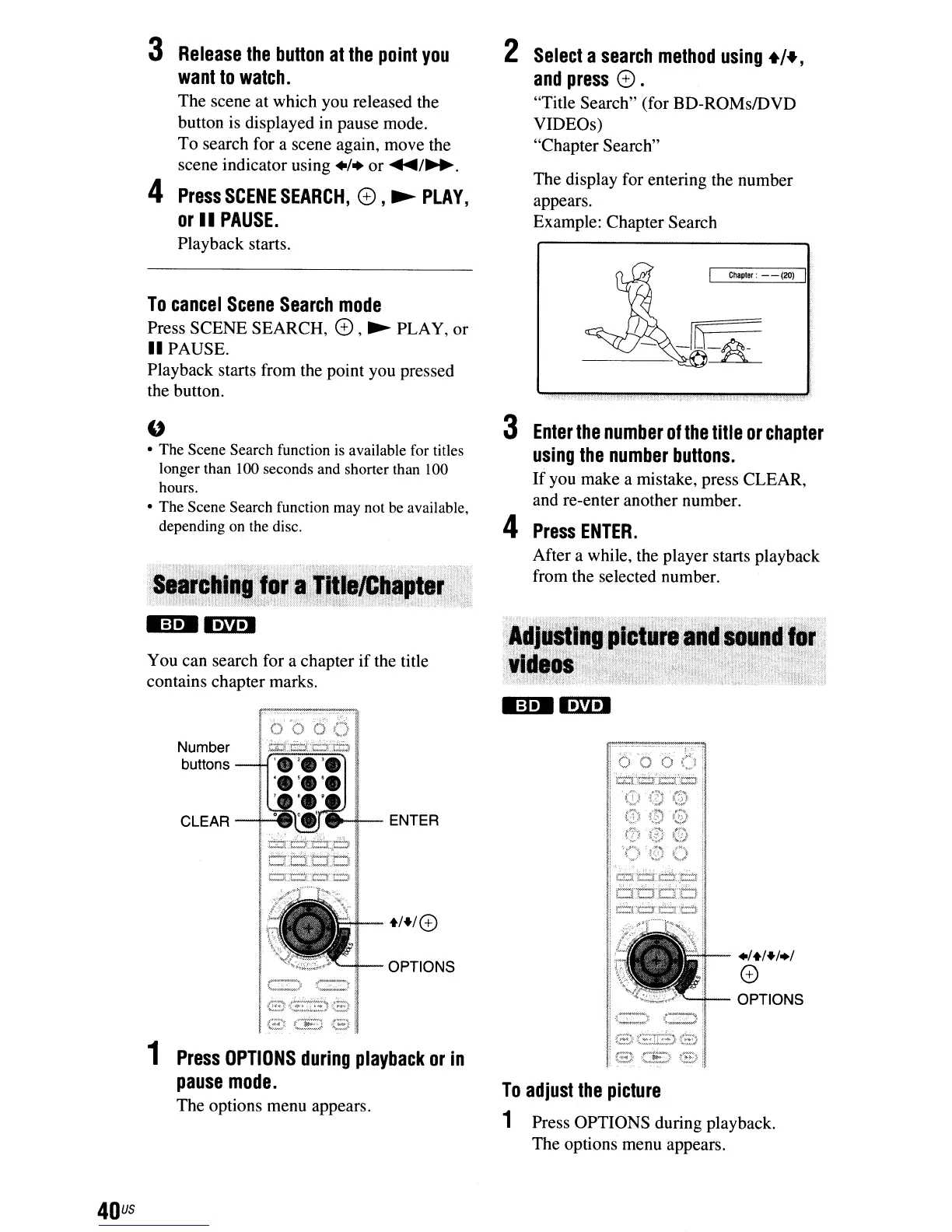
The display for entering the number
appears.
Example: Chapter Search
To
cancel
Scene
Search
mode
Press SCENE SEARCH,
0,
~
PLAY, or
II
PAUSE.
Playback starts from the point you pressed
the button.
Chapter:
- -
(20)
.1+1+1.1
e
'--l--
OPTIONS
'8t~G,(2)
G)
-~~G~
i""
.•
,:
••.
;,
•.
,....)
. :
~
,,-'
..
r'::~:Lc:x:i.~
....
:CO
~_
:;;"
'-~~f~~,M
G·
..
W.\~-·.'h
To
adjust
the
picture
1 Press OPTIONS during playback.
The options menu appears.
3
Enter
the
number
of
the
title
or
chapter
using
the
number
buttons.
If
you make a mistake, press CLEAR,
and re-enter another number.
4
Press
ENTER.
After a while, the player starts playback
from the selected number.
+1+/0
I
C_"7':J
(_,,'-;4:- OPTIONS
1
81';':38
(3
~~;
e
You can search for a chapter
if
the title
contains chapter marks.
1
Press
OPTIONS
during
playback
or
in
pause
mode.
The options menu appears.
"
• The Scene Search function
is
available for titles
longer than 100 seconds and shorter than 100
hours.
• The Scene Search function may not be available,
depending
on
the disc.
40
us


 To Next Page