28
Instellen van het LCD scherm
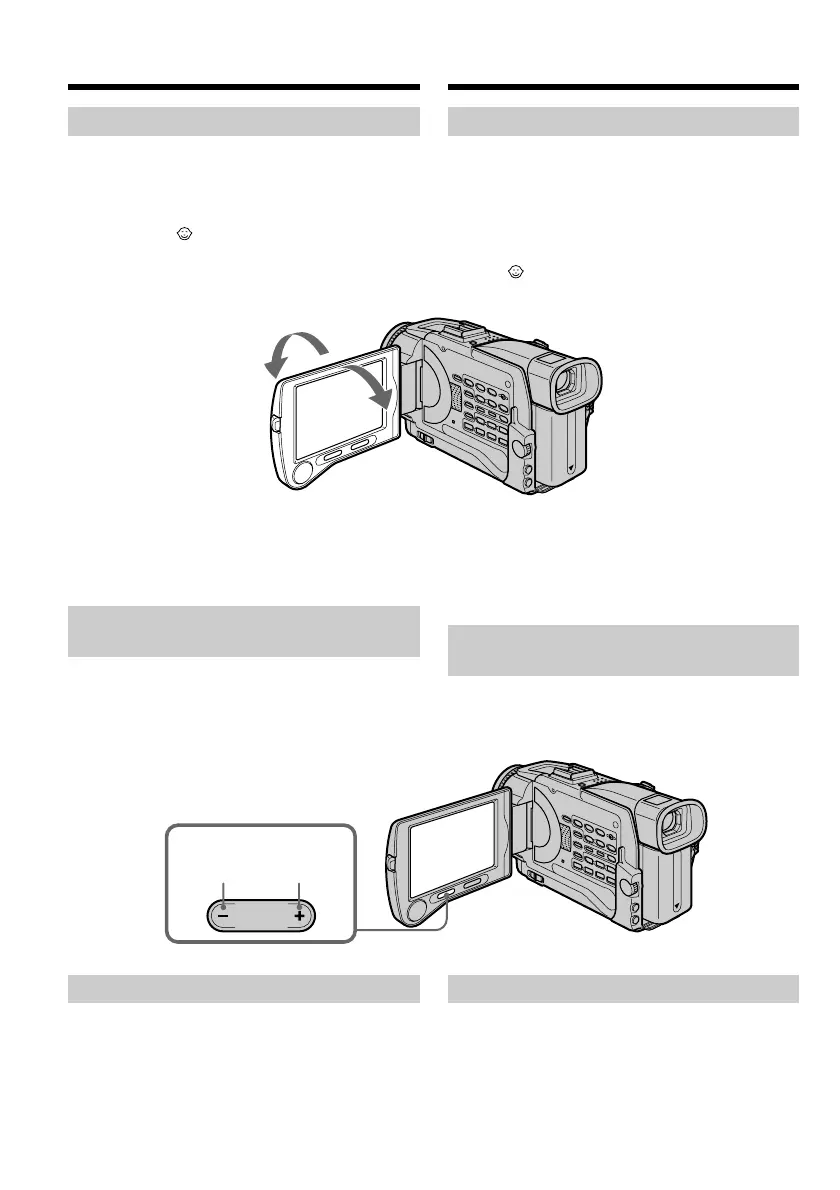
Het LCD scherm is horizontaal tot ongeveer 90°
uit te klappen en verticaal ongeveer 180°
draaibaar naar de lens toe.
Wanneer u het LCD scherm zo omklapt dat het
naar de voorkant van de camcorder wijst,
verschijnt er een indicator in de vorm van een
hoofdje op het LCD scherm en in de zoeker
(d.i. de spiegelstand).
Om het LCD scherm te sluiten, kantelt u het eerst
terug in de verticale stand tot het klikt en dan
klapt u het dicht, tegen de camcorder aan.
Instellen van de helderheid van
het LCD scherm
Om de lichtsterkte van het LCD scherm aan te
passen, drukt u op een van de LCD BRIGHT
toetsen.
Recording a picture
Adjusting the LCD screen
The LCD panel moves about 90 degrees to the
viewfinder side and about 180 degrees to the lens
side.
If you turn the LCD panel over so that it faces the
other way, the indicator appears on the LCD
screen and in the viewfinder (Mirror mode).
When closing the LCD panel, set it vertically, and
swing it into the camcorder body.
Adjusting the brightness of the
LCD screen
To adjust the brightness of the LCD screen, press
either of the two buttons on LCD BRIGHT.
180°
90°
LCD
BRIGHT
to dim/
donkerder
to brighten/
lichter
After recording
(1)Set the POWER switch to OFF (CHG).
(2)Close the LCD panel.
(3)Eject the cassette.
Video-opnamen maken
Na afloop van het opnemen
(1)Zet de POWER schakelaar terug op “OFF
(CHG)”.
(2)Sluit het LCD scherm.
(3)Neem de videocassette uit de camcorder.




 To Next Page