7
HCD-EC55/EC77/GX99
Using optional audio components
To connect an optional headphones
Connect headphones to the PHONES jack
ȴ
on the
unit.
To connect an optional component
Connect additional audio source components to the
AUDIO IN jack
ȵ
on the unit using an analog audio
cord (not supplied). Turn down the volume on the
system, and then select the AUDIO IN function.
Creating your own CD program
(Program Play)
Use buttons on the remote to create your own program.
1 Press CD
Ȭ
to select the CD function.
2
Press PLAY MODE
Ȯ
repeatedly until “PGM” appears
while the player is stopped.
3
Press DISC SKIP
ȳ
to select a disc.
4
Press Ã/Ñ (or
ø
/
Þ
on the unit)
ȭ
repeatedly until the desired track number appears.
When programing MP3 les, press
+/–
ȯ
repeatedly to select the desired folder, and then select
the desired le.
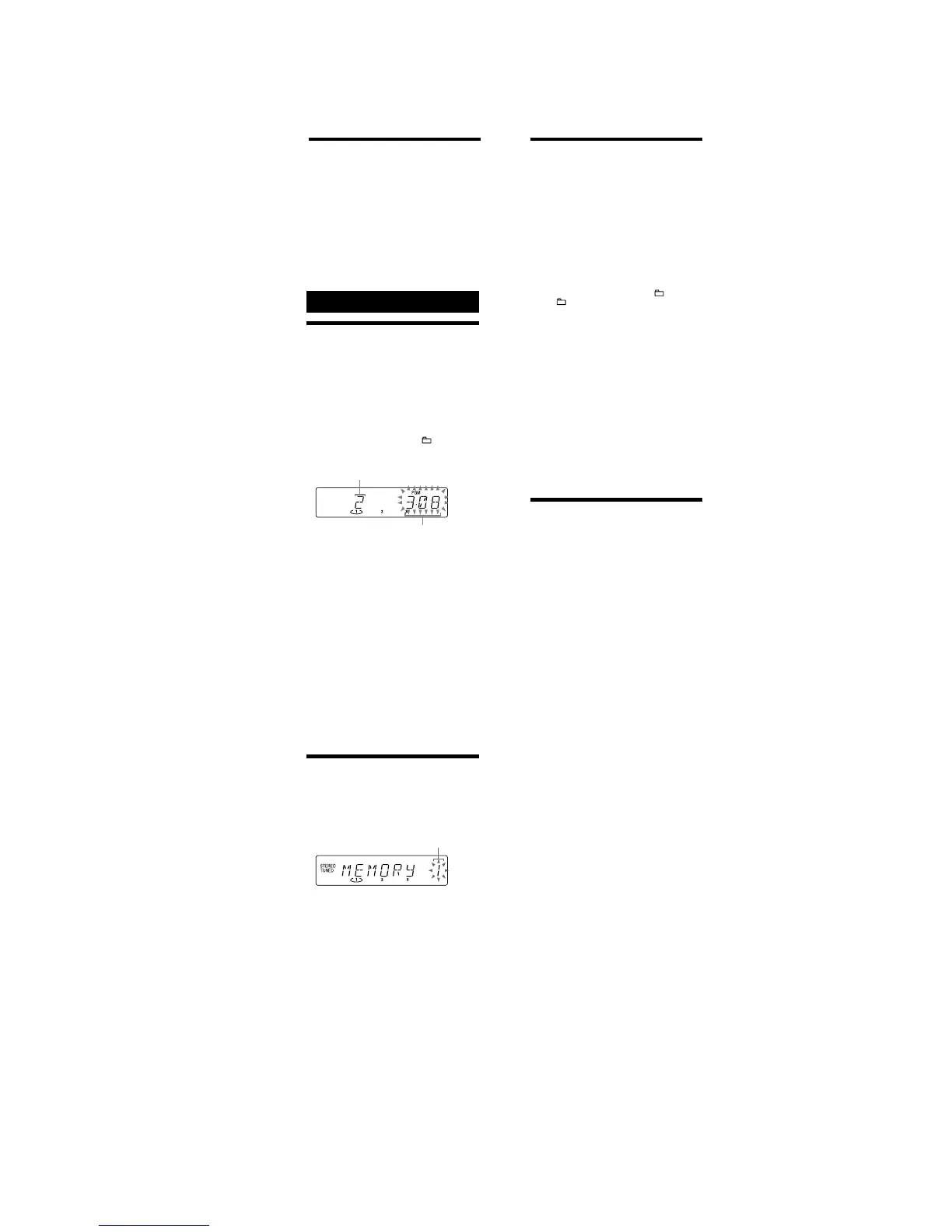
Selected track or le number
To ta l playing time of the
selected track
5
Press ENTER
Ⱥ
to add the track or le to the
program.
6
Repeat steps 3 through 5 to program additional
tracks or les, up to a total of 25 tracks or les.
7
To play your program of tracks or les, press à (or
CD ā on the unit)
Ȭ
.
e program remains available until you open the disc
tray. To play the same program again, select the CD
function, and press à (or CD ā on the unit)
Ȭ
.
To cancel Program Play
Press PLAY MODE
Ȯ
repeatedly until “PGM”
disappears while the player is stopped.
To delete the last track or le of the program
Press CLEAR
ȼ
on the remote while the player is
stopped.
To vi ew program information, such as total
track number of the program
Press DISPLAY
ȷ
repeatedly.
Presetting radio stations
Yo u can preset your favorite radio stations and tune
them in instantly by selecting the corresponding preset
number.
1
Tune in the desired station (See “Listening to the
radio”
)
.
2
Press TUNER MEMORY
Ȯ
on the remote.
Preset number
3
Press +/– (or TUNING + or – on the unit)
ȭ
repeatedly to select your desired preset number.
If another station is already assigned to the selected
preset number, the station is replaced by the new
stations.
4
Press ENTER
Ⱥ
on the remote.
5
Repeat steps 1 through 4 to store other stations.
You c an preset up to 20 FM and 10 AM stations. e
preset stations are retained for about half a day even
if you disconnect the power cord or if a power failure
occurs.
6
To call up a preset radio station, press TUNING
MODE
Ȯ
repeatedly until “PRESET” appears, and
then press +/– (or TUNING + or – on the unit)
ȭ
repeatedly to select the desired preset number.
Other Operations
Recording onto a tape (Except for
North American model)
Use a TYPE I (normal) tape only.
You c an record just the portions you like from a sound
source, including connected audio components.
Use buttons on the unit to control tape recording.
1
Insert a recordable tape into the cassette holder
with the side you want to record facing up.
2
Prepare the recording source.
Select the desired source to record.
Place the disc you want to record and press DISC
SKIP/EX-CHANGE
ȳ
to select a disc.
When recording a folder from an MP3 disc, press
PLAY MODE
Ȯ
repeatedly to select “ ,” a nd then
press
+/–
ȯ
repeatedly to select the desired
folder.
To record only your favorite CD tracks or MP3 les in
your desired order, perform steps 2 to 5 of “Creating
your own CD program.”
3
Start recording.
Press Ć (record)
ȫ
, and then start playing the
desired recording source.
e CD starts playing automatically aer 10 seconds
have passed.
If there is noise while recording from the tuner,
reposition the appropriate antenna to reduce the
noise.
While recording, you cannot listen to other sources.
To stop recording
Press Ąì
ȫ
.
Tip
We recommend that you press ê
ȫ
rst, and then press Ąì
ȫ
to
avoid noise being recorded when you stop recording.
Using the timers
e system oers two timer functions. If you use both
timers, the Sleep Timer has priority.
Sleep Timer:
You c an fall asleep to music. is function works even if
the clock is not set.
Press SLEEP
Ƚ
on the remote repeatedly. If you select
“A U T O ,” the system automatically turns o aer the
current disc or tape stops or in 100 minutes.
If the tape deck is still playing or recording at the set
time, the system turns o aer the tape deck stops.
Play Timer:
You c an wake up to CD or tuner at a preset time.
Use buttons on the remote to control the Play Timer.
Make sure you have set the clock.
1
Prepare the sound source.
Prepare the sound source, and then press VOLUME
+/–
ȶ
to adjust the volume.
To start from a specic CD track or MP3 le, create
your own CD program.
2
Press CLOCK/TIMER SET
ȹ
.
3
Press Ã/Ñ
ȭ
repeatedly to select “PLAY,” and
then press ENTER
Ⱥ
.
“ON TIME” appears, and the hour indication ashes.
4
Set the time to start playing.
Press Ã/Ñ
ȭ
repeatedly to set the hour, and
then press ENTER
Ⱥ
.
e minute indication ashes. Use the procedure
above to set the minutes.
5
Use the same procedure as in step 4 to set the time
to stop playing.
6
Select the sound source.
Press Ã/Ñ
ȭ
repeatedly until the desired
sound source appears, and then press ENTER
Ⱥ
. e
display shows the timer settings.
7
Press ÒÄÆ
ȩ
to turn o the system.
If the system is on at the preset time, the Play Timer
will not play.
To activate or check the timer again
Press CLOCK/TIMER SELECT
ȹ
, press Ã/Ñ
ȭ
repeatedly until “PLAY SEL” appears, and then press
ENTER
Ⱥ
.
To cancel the timer
Repeat the same procedure as above until “OFF” appears,
and then press ENTER
Ⱥ
.
To change the setting
Start over from step 1.
Tip
e Play Timer setting remains as long as the setting is not canceled
manually.





 To Next Page