1-8
34
Playing discs
Tip
•To make a video timer reservation during DVD playback, we recommend performing the
operations under “Quick Timer Recording” (page 101).
Notes
•You can change the screen type using the “SCREEN SETUP” menu (see “Screen Setup” on
page 68).
•Stop VIDEO playback while playing back a disc.
• If you play a DVD or VIDEO CD that has scratches, the player may stop playback at the
point of the scratch.
•Playback of play lists longer than 10 hours recorded in VR mode is not guaranteed.
Additional tasks
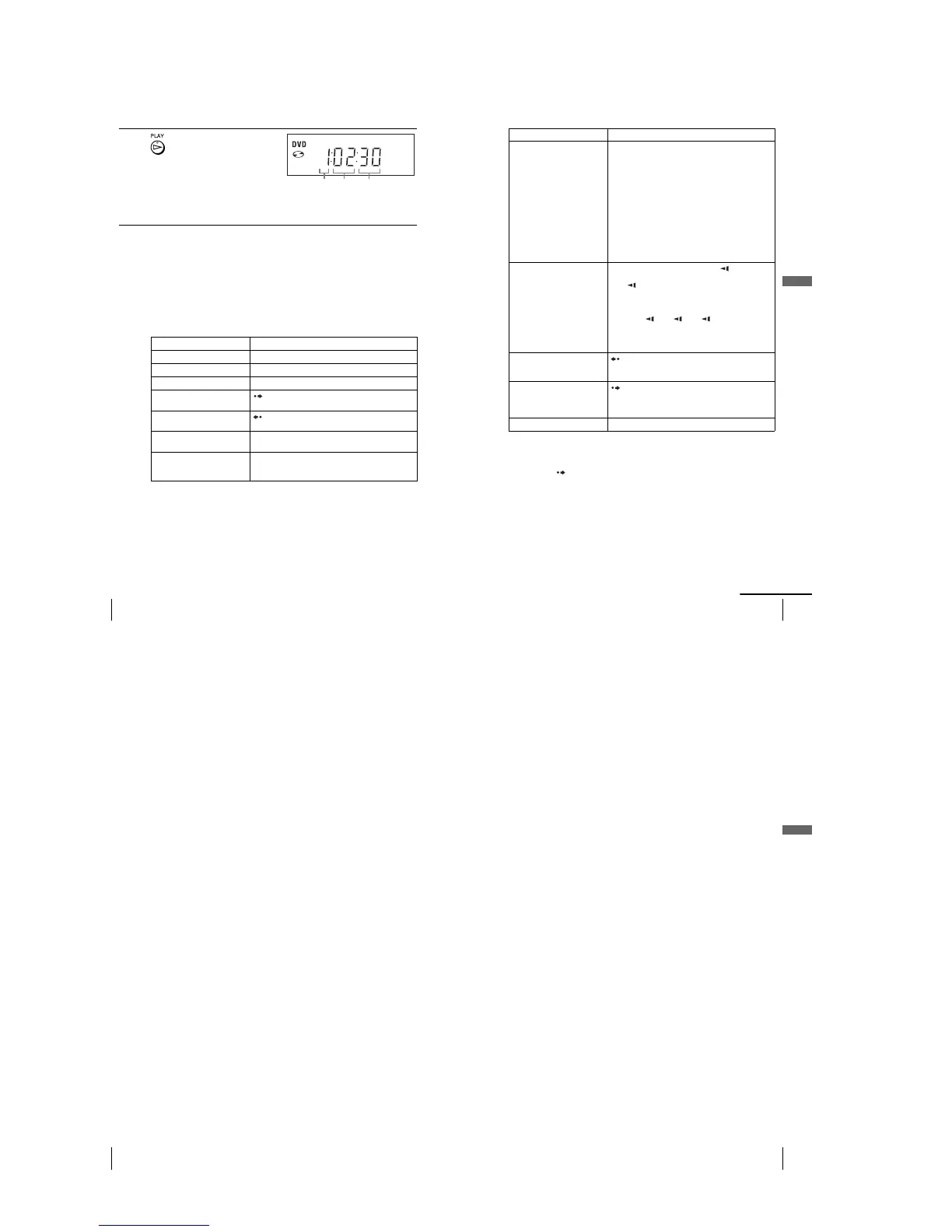
2
Press H PLAY.
The disc tray closes and the
DVD player starts playback.
The display window shows the
playback time
*
.
Depending on the disc, a menu
may appear on the TV screen.
For DVDs, see page 77. For VIDEO CDs, see page 99.
*“– – – – –” appears when no disc is loaded.
To Press
Stop play x STOP
Pause play*
1
X PAUS E
Resume play after pause H PLAY
Go to the next frame in pause
mode
SKIP
Go to the previous frame in
pause mode
REPLAY
Go to the next chapter, track, or
scene in continuous play mode
> NEXT on the remote or M on the unit
Go back to the previous chapter,
track, or scene in continuous
play mode
. PREV on the remote or m on the unit
Hour SecondMinute
35
Playing discs
Basic Operations
*
1
If you pause the DVD player for more than 5 minutes, the DVD player will automatically stop.
*
2
Playback quickly or slowly with sound (See “To playback quickly or slowly with sound (DVD
only)” on page 36.)
*
3
For DVD VIDEOs and DVD-RWs/DVD-Rs or DVD+RWs/DVD+Rs only
*
4
Yo u can press SKIP up to 4 times. This allows you to fast foward up to 2 minutes in total.
Tips
•The Instant Replay function is useful when you want to review a scene or dialog that you
missed.
•The Instant Advance function is useful when you want to pass over a scene that you do not
want to watch.
Locate a point quickly
m
or
M
on the remote (or hold down
m
or
M
on the unit)
The playback speed changes as follows each time you
press the button on the remote (or depending on how long
you press the button on the unit):
•DVD
fast forward: PLAY t ×1.4 ••N•*
2
t 1M t
2M t 3M t 4M t 5M t 6M
fast reverse: PLAY t 1m t 2m t 3m t
4m t 5m t 6m
•CD, MP3 and VIDEO CD
fast forward: PLAY t 1M t 2M t 3M
fast reverse: PLAY t 1m t 2m t 3m
When you find the point you want, press H PLAY.
Watc h slow motion in
continuous play mode
(DVD and VIDEO CD only)
X PAUSE during playback, then press or y
The playback speed changes as follows each time you
press or y:
•DVD
forward slow motion: ×0.6
••N•*
2
t 2 y t 3 y
reverse slow motion (except for DVD-RW in VR
mode): 1 t 2 t 3
•VIDEO CD
forward slow motion only: 1 y t 2 y t 3 y
To resume normal playback, press H PLAY.
Replay the previous scene for 10
seconds in continuous play
mode*
3
(Instant Replay)
REPLAY
Briefly fast forward the current
scene for 30 seconds in
continuous play mode*
3
*
4
(Instant Advance)
SKIP
Stop play and remove the disc Z
To Press
continued
36
Playing discs
Notes
•No sound is output except for:
–during normal play
–during playback quickly or slowly with sound
•You cannot perform playback quickly or slowly with sound when a virtual surround effect is
set.
•The fast reverse operation may not be possible for CD, MP3 and VIDEO CD depending on
the recording method.
•You may not be able to use the Instant Replay or Instant Advance function with some scenes.
•Switching between original (ORG) and play list (PL) within a disc recorded in VR mode is
possible only while the disc is stopped. Press TOP MENU to switch between ORG and PL.
To playback quickly or slowly with sound (DVD only)
Yo u can listen to dialog or sound while playing the current scene quickly or slowly.
To playback quickly, press M during playback.
To playback slowly, press X PAU SE , then press
y
during playback.
Press
H
PLAY
t
o return to normal playback.
Notes
•You cannot set virtual surround effects while performing playback quickly or slowly with
sound. In addition, you cannot perform playback quickly or slowly with sound when a
virtual surround effect is set.
•You cannot perform DTS audio output during playback quickly or slowly with sound.
To Resume playback for the current disc (Resume Play)
The DVD player remembers the point where you stopped the disc even if the DVD
player enters standby mode by pressing ?/1.
Tip
To begin playback from the top of the disc, press x
STOP
twice then press H
PLAY
.
1
While playing a disc, press x STOP to stop playback.
2
Press H PLAY.
The DVD player starts playback from the point where you stopped the disc in
Step 1.
37
Playing discs
Basic Operations
Notes on playing DTS* sound tracks on a CD
•When playing DTS-encoded CDs, excessive noise will be heard from the analog stereo jacks.
To avoid possible damage to the audio system, the consumer should take proper precautions
when the analog stereo jacks of the DVD player are connected to an amplification system. To
enjoy DTS Digital Surround™ playback, an external 5.1-channel decoder system must be
connected to the digital jack of the DVD player.
•Set the sound to “Stereo” using the AUDIO button when you play DTS sound tracks on a CD
(page 87).
•Do not play DTS sound tracks without first connecting the DVD player to an audio
component having a built-in DTS decoder. The DVD player outputs the DTS signal via the
DIGITAL AUDIO OUT (COAXIAL or OPTICAL) jack even if “DTS” is set to “Off” in
“AUDIO SETUP” menu (page 66), and may affect your ears or cause your speakers to be
damaged.
Notes on playing DVDs with a DTS sound track
• DTS audio signals are output only through the DIGITAL AUDIO OUT (COAXIAL or
OPTICAL) jack.
•When you play a DVD with DTS sound tracks, set “DTS” to “On” in “AUDIO SETUP”
menu (page 66).
•If you connect the player to audio equipment without a DTS decoder, do not set “DTS” to
“On” in “AUDIO SETUP” menu (page 66). A loud noise may come out from the speakers,
affecting your ears or causing the speakers to be damaged.
*“DTS” and “DTS Digital Out” are trademarks of Digital Theater Systems, Inc.



 To Next Page