1-21
86
Various play mode functions (Program play, Shuffle play, Repeat play)
To return to normal play
Select “Off” in step 2 or press CLEAR during repeat play.
Tip
•When you press
x
STOP during repeat play, repeat play is canceled.
Notes
•You cannot repeat play with DVD-RW in VR mode.
•You cannot repeat play VIDEO CDs with PBC function on. See “Playing VIDEO CDs with
“PBC ON/OFF” Functions” on page 99.
•You cannot repeat play while in program play.
87
Changing the sound
DVD Additional Operations
Changing the sound
When playing a DVD recorded in multiple
audio formats (PCM, Dolby Digital, or
DTS), you can change the audio format. If
the DVD is recorded with multilingual
tracks, you can also select the language.
With CDs or VIDEO CDs, you can select the
sound from the right or left channel and listen
to the sound of the selected channel through
both the right and left speakers. For
example, when playing a Karaoke VIDEO
CD containing a song with the vocals on the
right channel and the instruments on the left
channel, you can hear the instruments from
both speakers by selecting the left channel.
To enjoy Dolby Digital or DTS effect from a
LinearPCM format disc, you have to make
the connection as shown on page 63.
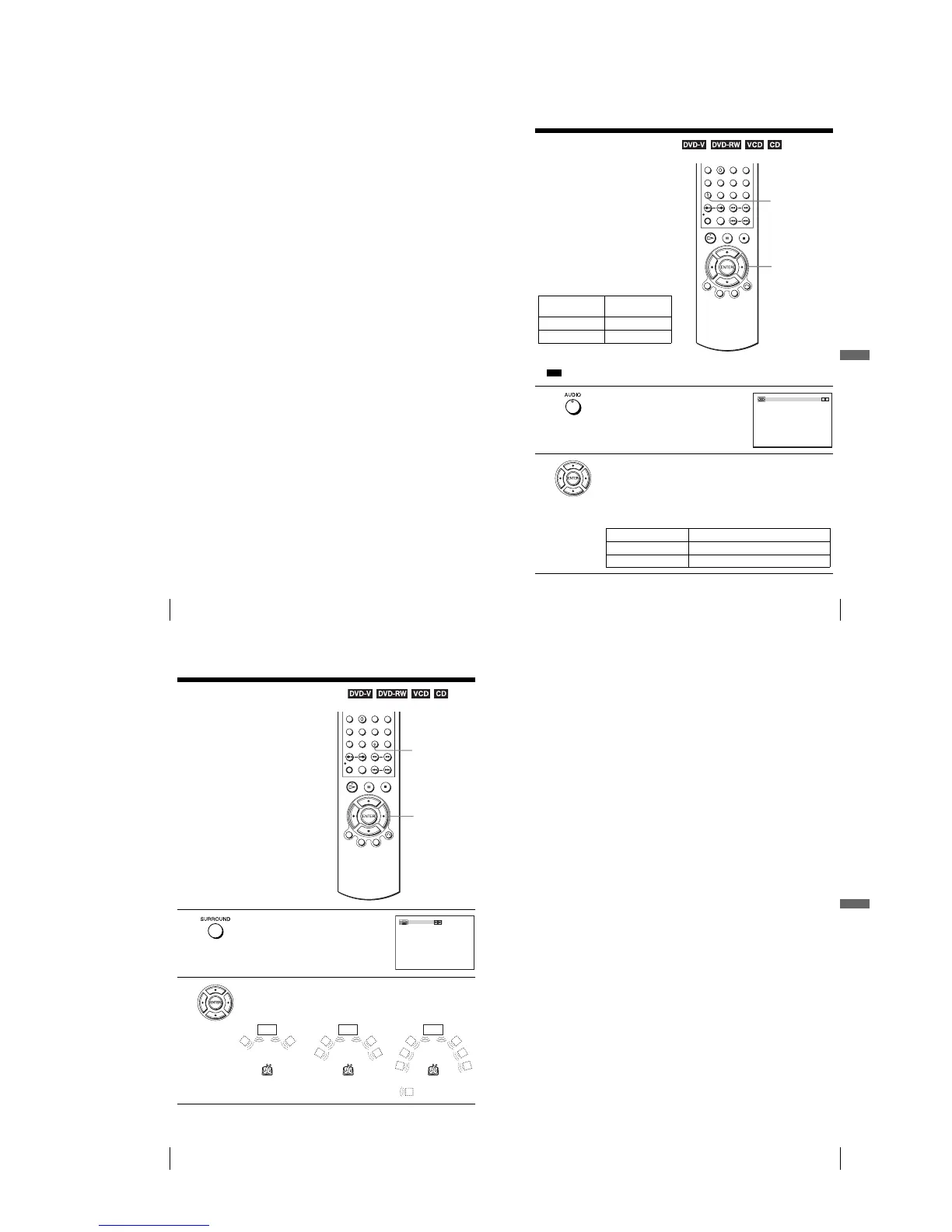
1
Press AUDIO during playback.
2
Press B/b repeatedly to select the desired language/audio setting.
•When playing a DVD
Depending on the DVD, the choice of language varies.
Refer to “DVD Audio/Subtitle Language” on page 126 for the
abbreviation of the language.
•When playing a VIDEO CD or CD
The default setting is indicated in bold print.
Disc type
Playback
instruments only
Karaoke VIDEO CD Yes
Karaoke DVD No
B-2
AUDIO
B/b
ENG DOLBY DIGITAL 3/2.1CH 1/2
bB
Stereo The standard stereo sound
Left The sound of the left channel (monaural)
Right The sound of the right channel (monaural)
88
Virtual surround setting
Virtual surround setting
When you connect a stereo TV or 2 front
speakers, SURROUND lets you enjoy surround
sound effects by using sound imaging to create
virtual rear speakers from the sound of the front
speakers without using actual rear speakers.
1
Press SURROUND during playback.
2
Press B/b repeatedly to select “Surround1,” “Surround2,” “Surround3.”
Surround effect increases as shown below.
SURROUND
B/b
Off
TV TV TV
Surround1 Surround2 Surround3
: Virtual speaker
89
Virtual surround setting
DVD Additional Operations
To cancel the setting
Select “Off” in step 2.
Notes
•When the playing signal does not contain a signal for the rear speakers, the surround effects
will be difficult to hear.
•When you activate the surround effect, turn off the surround setting of the connected TV or
amplifier (receiver).
•Make sure that your listening position is between and at an equal distance from your
speakers, and that the speakers are located in similar surroundings.
•If you use the DIGITAL AUDIO OUT (OPTICAL or COAXIAL) jack and set “Dolby
Digital” to “Dolby Digital” or “DTS” to “On” in “AUDIO SETUP” menu (page 66), sound
will come from your speakers but it will not have the surround effect.
•You cannot perform playback quickly or slowly with sound when a virtual surround effect is
set (page 36).





 To Next Page