1-24
98
Playing JPEG image files
About JPEG image files
Yo u can play back DATA CDs (CD-ROMs/CD-Rs/CD-RWs) or DATA DVDs (DVD-
ROMs/DVD+RWs/DVD+Rs/DVD-RWs/DVD-Rs) recorded in JPEG format.
However, the discs must be recorded according to ISO9660 Level 1/Level 2 or Joliet
format and DATA DVDs of Universal Disk Format (UDF) for the player to recognize
the tracks (or files). You can also play DATA CDs or DATA DVDs recorded in Multi
Session or Multi Border (see “Note on Multi Session/Border discs” on page 98).
Refer to the instructions supplied with the CD-R/CD-RW/DVD-R/DVD-RW drives
and the recording software (not supplied) for details on the recording format.
Notes
• If both video data and JPEG image files exist on a DATA DVD, the player recognizes only
the video data.
•A total of up to 999 files can be recognized for discs that contain both MP3 and JPEG files.
Files are recognized in the order that they were recorded. For example, if 990 JPEG files are
recorded then 100 MP3 files are recorded, the 990 JPEG files recorded first and only the first
9 MP3 files can be recognized.
Note on Multi Session/Border discs
If JPEG image files are recorded in the first session/border, the player will also play
JPEG image files in other session/border. If audio tracks and images in Music CD
format or Video CD format are recorded in the first session/border, only the first
session/border will be played back.
Tip
• If you add numbers (01, 02, 03, etc.) to the front of the file names, the files will be played in
that order.
Notes
•This player can play JPEG image files with the extension “.JPEG” or “.JPG.”
•Some DATA CDs or DATA DVDs cannot be played on this system depending on file format.
•The player may not be able to play some DATA CDs/DATA DVDs created in the Packet
Write format.
• If you add the extension “.JPG” or “.JPEG” to data not in JPEG format, “Can not Display”
will appear.
•Depending on the disc or the size of image files, playback may take some time to start.
•Progressive and lossless compression JPEG image files are not supported.
•The image size that can be displayed is limited. You can display the following images;
width 32 - 7680 pixels by height 32 - 8192 pixels.
99
Playing VIDEO CDs with “PBC ON/OFF” Functions
DVD Additional Operations
Playing VIDEO CDs with “PBC ON/OFF”
Functions
The PBC (Playback control) function allows
you to search and perform other operations
interactively. PBC playback follows a selection
menu displayed on your TV screen.
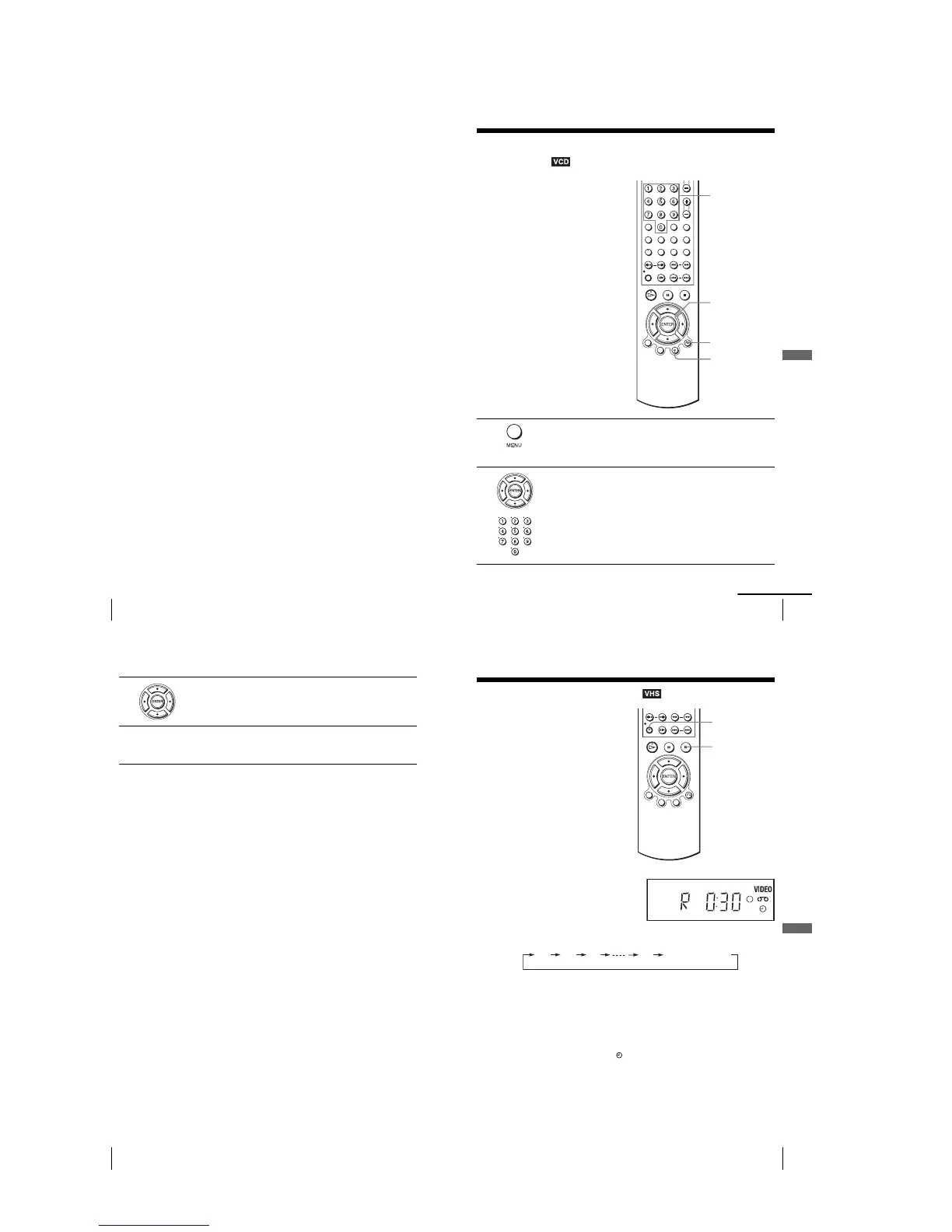
1
Press MENU to select “PBC ON.”
The menu for your selection appears.
2
Press V/v to select the item number you want.
Yo u can also use the number buttons to select the item number and track.
V/v
ENTER
Number
buttons
O RETURN
MENU
continued
100
Playing VIDEO CDs with “PBC ON/OFF” Functions
To return to the menu
Press O RETURN.
To play using “PBC OFF”
Press MENU to select “PBC OFF.”
When “PBC OFF” is selected, the DVD player starts continuous play. You cannot play still
pictures such as a menu.
To return to “PBC ON,” press MENU to select “PBC ON.”
Note
•Depending on the VIDEO CD, “Press ENTER” in step 3 may appear as “Press SELECT” in
the instructions supplied with the disc. In this case, press H PLAY.
3
Press ENTER.
4
Follow the instructions in the menu for interactive operations.
Refer to the instructions supplied with the disc, as the operating procedure
may differ depending on the VIDEO CD.
101
Quick Timer Recording
VCR Additional Operations
VCR Additional Operations
Quick Timer Recording
To extend the duration
Press z REC repeatedly to set a new duration time.
To cancel the duration
Press z REC repeatedly until the indicator disappears and the VCR returns to
normal recording mode.
To stop while recording
Press x STOP.
Note
•You cannot display the current tape time in the display window when setting the recording
duration time.
After you have started recording, you can
have the VCR stop recording automatically
after a specified duration.
1
While recording, press z REC.
2
Press z REC repeatedly to set the duration time.
Each press advances the time as follows.
The tape counter decreases minute by minute to 0:00, then the VCR stops
recording.
z REC
x STOP
0:30 1:00
1:30 4:00
Normal recording



 To Next Page