1-19
78
Using the DVD’s menu
Note
•Depending on the DVD VIDEO, you may not be able to use the TOP MENU button or search
a point by setting the time.
2
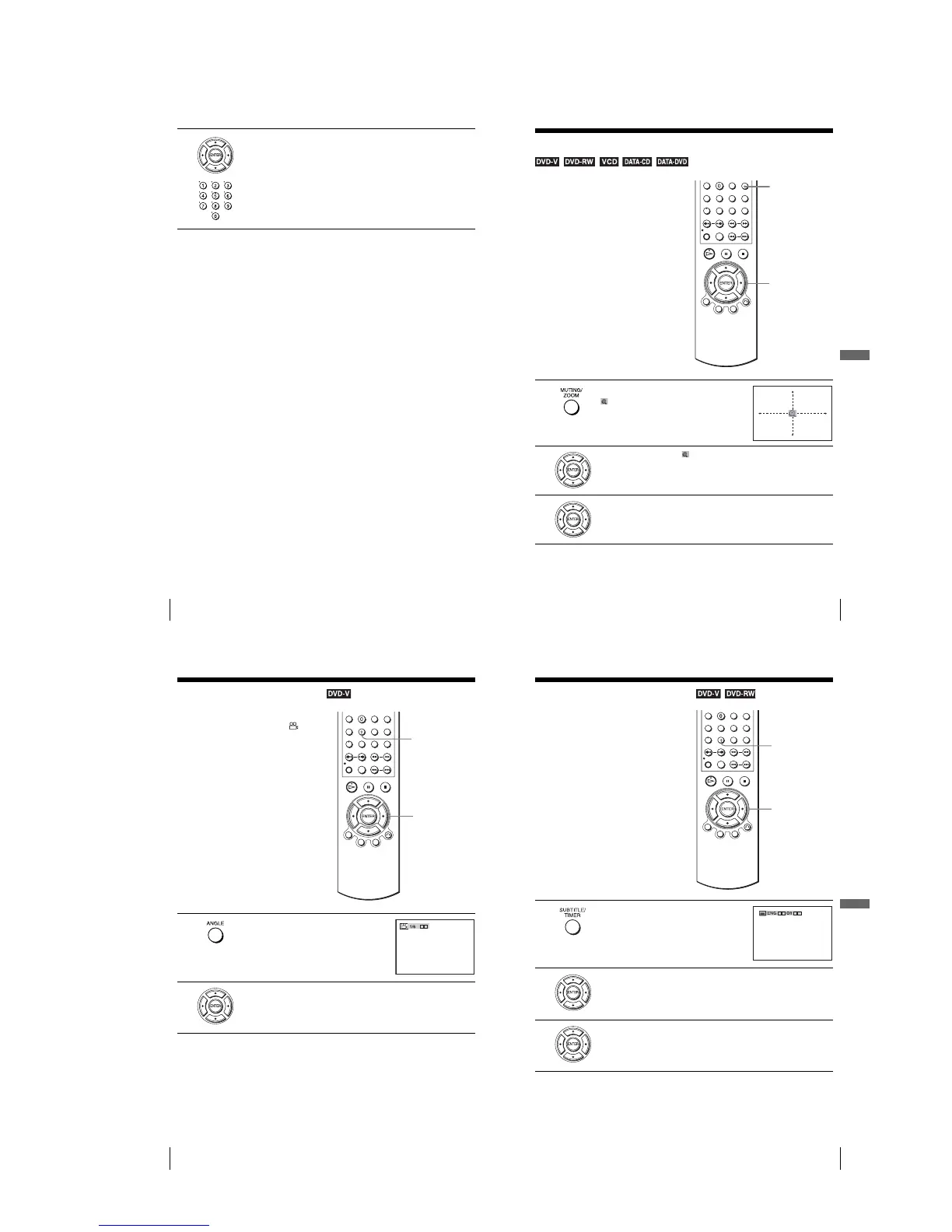
Press V/v/B/b to select the item you want to play or change, then press
ENTER.
You can also use the number buttons to select the item.
79
Zooming into a scene
DVD Additional Operations
Zooming into a scene
Notes
•You cannot use 4
×
magnification when you play VIDEO CDs.
•The zoom function may not work depending on the DVD.
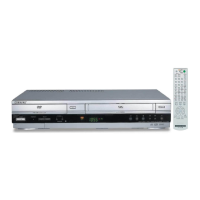
Yo u can zoom into a scene during playback
or still mode. To zoom into a JPEG image,
see “Playing JPEG image files” on page 95.
1
Press ZOOM.
“” appears.
2
Press V/v/B/b to move “ ” to the position where you want to zoom in.
3
Press ENTER repeatedly to change the magnification.
Each time you press the button, the magnification changes as shown below.
2× t 4× t 2× t normal magnification
ZOOM
V/v/B/b
ENTER
80
Changing the angles
Changing the angles
Note
•Depending on the DVD VIDEO, you may not be able to change the angles even if multi-
angles are recorded on the DVD VIDEO.
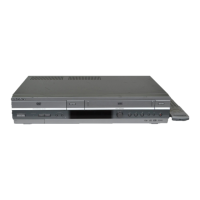
If various angles (multi-angles) for a scene
are recorded on the DVD VIDEO, “ ”
appears in the display window. This means
that you can change the viewing angle.
1
Press ANGLE during playback.
The angle number appears on the display.
The number after the slash indicates the total
number of angles.
2
Press B/b repeatedly to select the angle number.
The scene changes to the selected angle.
ANGLE
B/b
bB
81
Displaying the subtitle
DVD Additional Operations
Displaying the subtitle
To turn off the subtitles
Select “Off” in step 3.
Note
•Depending on the DVD, you may not be able to change the subtitles even if multilingual
subtitles are recorded on it. You also may not be able to turn them off.
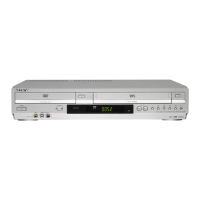
If subtitles are recorded on the disc, you can
change the subtitles or turn them on and off
whenever you want while playing a DVD.
1
Press SUBTITLE during playback.
2
Press B/b repeatedly to select the language.
Depending on the DVD, the choice of language varies.
Refer to “DVD Audio/Subtitle Language” on page 126 for the abbreviation
of the language.
3
Press V/v repeatedly to select “On.”
SUBTITLE
V/v/B/b
vVbB



 To Next Page