1-17
70
Screen Setup
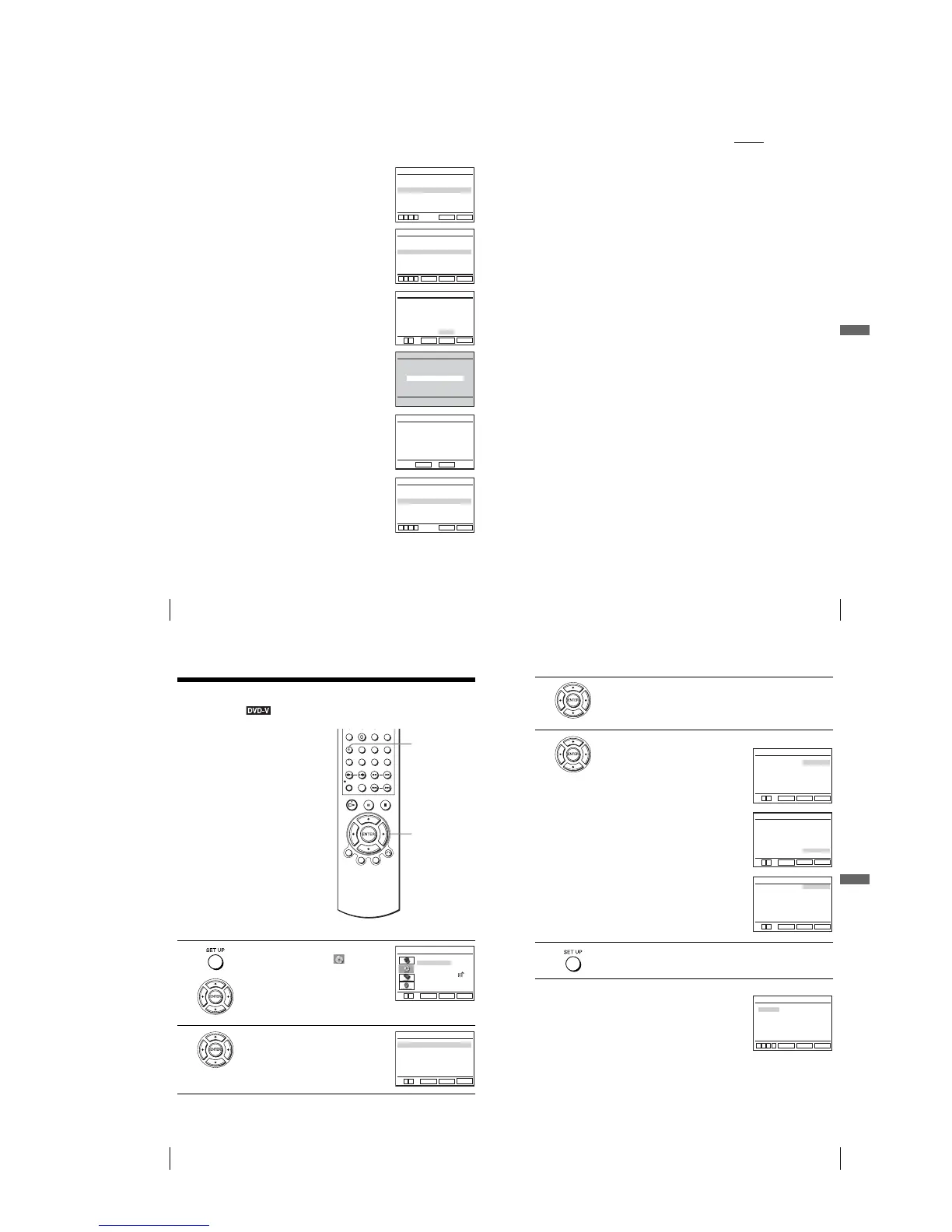
To set the “Progressive” setting
If your TV accepts progressive (480p) format signals, you will enjoy accurate color
reproduction and high quality image.
1
Follow step 1 and 2 on page 68, then press V/v to
select “Progressive.”
2
Press B/b to select “On,” then press ENTER.
3
Follow the instructions appearing on the screen.
1
Ensure your TV is (480p) Progressive Scan
capable.
2
Connect with Component Video Output jacks
(red/green/blue connections).
See “Use this hookup if your TV has component
video input jacks” on page 65.
3
Press B/b to select [OK] to test your video
signal.
4
If video signal appears OK, video connection is
complete. Press ENTER.
The PROGRESSIVE indicator on the unit lights up
in orange.
If picture is distorted, press O RETURN.
Check the connection (page 65).
5
Press SET UP to exit the menu.
Black Level
TV Type
Progressive
RETURN
SCREEN SETUP
SET UP
vV bB
[
Off
]
[
Off
]
[
4:3 Letter Box
]
Black Level
TV Type
Progressive
RETURN
SCREEN SETUP
ENTER
SET UP
vV bB
[
On
]
[
Off
]
[
4:3 Letter Box
]
Progressive Scan Output
1) Ensure your TV is (480P) Progressive
Scan capable.
2) Connect with Component Video Output
jacks. (red/green/blue connections)
3) Select [OK] to test your video signal.
4) If video signal appears OK,
video connection is complete.
RETURN
SCREEN SETUP
ENTER
SET UP
bB
OK CANCEL
TEST SCREEN
SCREEN SETUP
If picture is OK, press [ENTER] key.
If picture is distorted, press [RETURN] key.
To Deactivate
Press [PAUSE] on the unit for 5 seconds.
RETURN
SCREEN SETUP
ENTER
Black Level
TV Type
Progressive
RETURN
SCREEN SETUP
SET UP
vV bB
[
On
]
[
Off
]
[
4:3 Letter Box
]
71
Screen Setup
DVD Settings and Adjustments
Tip
•The “Progressive” setting can be canceled by pressing X on the unit
continuously for 5
seconds or more, or selecting “Off” in step 2.
Note
•If you select progressive signal when you connect the DVD player to a TV that cannot accept
the signal in progressive format, the image quality will deteriorate. In this case, set
“Progressive” to “Off”.
72
Setting the display or sound track language
Setting the display or sound track
language
You can set various languages for the disc’s
menu, sound track or subtitle.
1
Press
SET UP
when the DVD player is in stop
mode, then press V/v to select (DVD) and
press
ENTER
.
2
Press V/v to select “Language Setup,” then
press ENTER.
The “LANGUAGE SET UP” menu appears.
V/v/B/b
ENTER
SET UP
Language Setup
Screen Setup
Parental Setup:
Audio Setup
RETURN
DVD SETUP
SET UP
ENTER
V v
Audio
DVD Menu
Subtitle
RETURN
LANGUAGE SETUP
SET UP
: Audio Follow
: Original
: English
V
v
ENTER
73
Setting the display or sound track language
DVD Settings and Adjustments
Tip
•If you select “Others” in step 4, an additional language menu
appears. Press V/v/B/b to select the desired language,
then press ENTER.
Notes
•When you select a language that is not recorded on the DVD
VIDEO in step 4, one of the recorded languages will be automatically selected.
•Playback settings stored in the disc take priority over the DVD SETUP settings and not all the
functions described may work.
3
Press V/v to select the language setup item from the displayed list:
“DVD Menu,” “Audio,” or “Subtitle.”
Then press ENTER.
4
Press V/v to select the desired language, then press ENTER.
•DVD MENU LANGUAGE
You can select the desired language for the
disc’s menu.
•AUDIO LANGUAGE
Switches the language of the sound track.
When you select “Original,” the language
given priority in the disc is selected.
•SUBTITLE LANGUAGE
Switches the language of the subtitle
recorded on the DVD VIDEO.
When you select “Audio Follow,” the
language for the subtitle changes according
to the language you selected for the sound
track.
5
Press SET UP to exit the menu.
RETURN
DVD MENU LANGUAGE
SET UP
ENTER
V
English
Français
Deutsch
B
Español
Italiano
Nederlands
Others
DVD Menu
v
RETURN
AUDIO LANGUAGE
SET UP
ENTER
English
Français
Deutsch
B
Español
Italiano
Nederlands
Original
Audio
Others
V
v
RETURN
SUBTITLE LANGUAGE
SET UP
ENTER
English
Audio Follow
Français
Deutsch
B
Español
Italiano
Nederlands
Others
Subtitle
V
v
RETURN
DVD MENU LANGUAGE
SET UP
ENTER
vV
Cesky
Dansk
Magyar
Svenska
Norsk
Polski
Suomi
Afrikaans
Arabic
Chinese
Greek
Hindi
Japanese
Russian
Turkish
Thai
Korean
Português
B b



 To Next Page