1-25
102
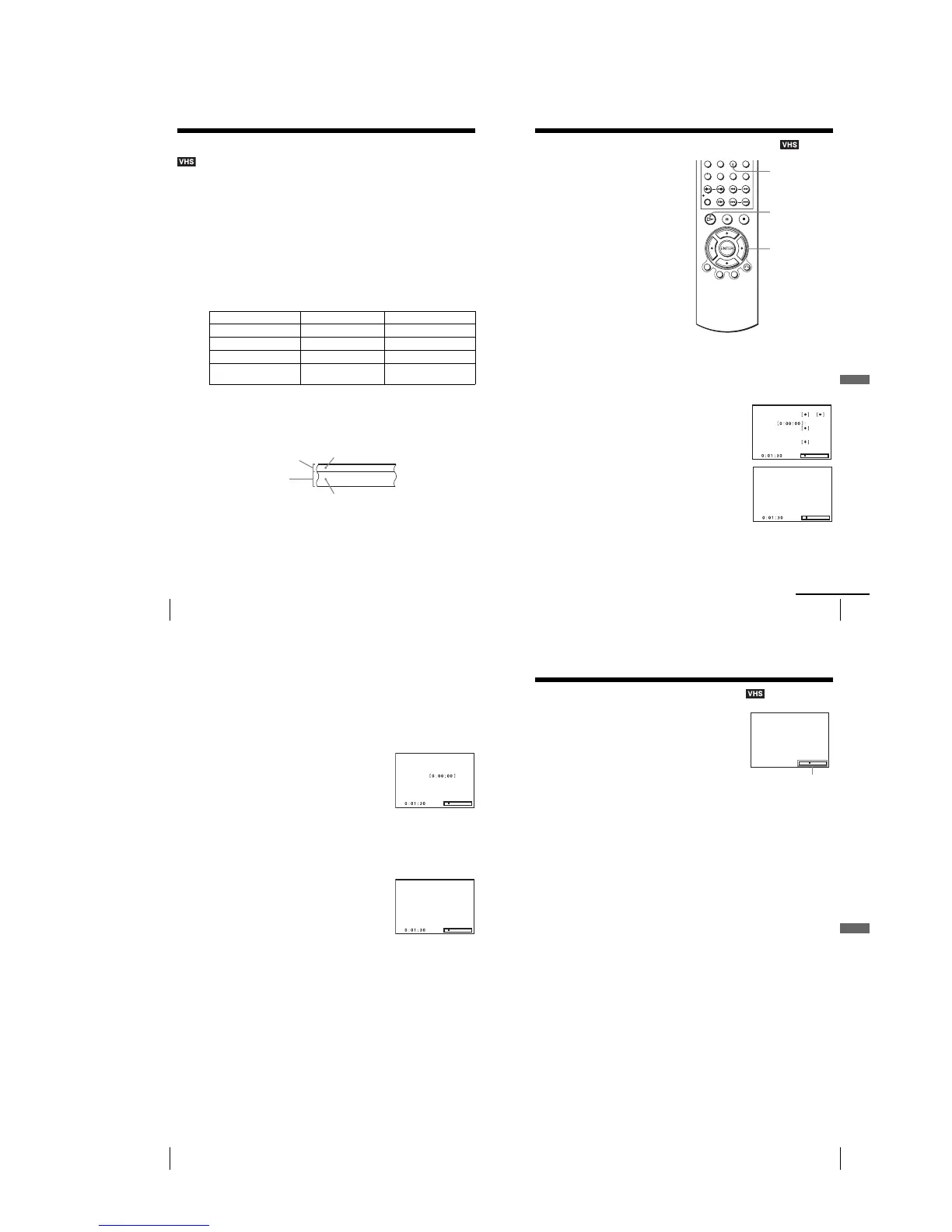
Recording stereo and bilingual programs
Recording stereo and bilingual programs
Recording stereo programs
When you receive a program broadcast in stereo, press AUDIO to display “Hi-Fi” on
the TV screen. You can also select “Left,” “Right,” or “Mono.” If there is noise in the
stereo program, select “Mono.” The sound will be recorded in monaural (on both hi-
fi and normal audio tracks) but with less noise.
Recording bilingual programs
Press AUDIO to display “SAP” on the TV screen. When a SAP (Second Audio
Program) is received, “SAP” appears on the TV screen. When “MAIN” is selected,
the VCR records only the main sound.
Selecting the sound during playback
During playback, press AUDIO to select the sound you want.
How sound is recorded on a video tape
The VCR records sound onto two separate tracks. Hi-fi audio is recorded onto the
main track along with the picture. Monaural sound is recorded onto the normal audio
track along the edge of the tape.
Notes
•To play a tape in stereo, you must use the A/V connections.
•When you play a tape recorded in monaural, the sound is heard in monaural regardless of the
AUDIO setting.
To listen to On-screen display Display window
Stereo Hi-Fi STEREO indicator
Left channel Left STEREO indicator
Right channel Right STEREO indicator
Monaural sound on the
normal audio track
Mono No indicator
Normal audio track
Hi-fi audio track
(main track)
Monaural sound
Stereo sound
(left/right channels)
103
Searching using various functions
VCR Additional Operations
Searching using various functions
To search using the index function (Scan and Play)
The VCR automatically marks the tape with an index signal at the point where each
recording begins. Use these signals as references to find a specific recording.
The VCR automatically marks the tape with
an index signal at the point where each
recording begins.
Yo u can easily find a specific point using
various search functions.
1
Insert an indexed tape into the VCR.
2
Press SEARCH.
3
Press b to scan ahead, or B to scan backwards.
The VCR searches and then plays back for about five
seconds.
4
Press H PLAY to view that program.
If you do not press H PLAY, the VCR automatically searches for the next index
mark, or until it reaches the end of the tape.
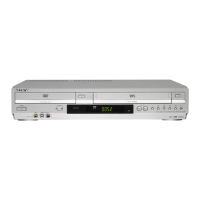
SEARCH
V/v/B/b
H PLAY
Scan and play:
Go to
End search:
Press
Press
Press
or
Scan and play
continued
104
Searching using various functions
To search for the counter 0:00:00 point
To mark a point on the tape that you want to find later, reset the tape counter to
“0:00:00.”
The VCR automatically fast-forwards or rewinds to the 0:00:00 point on the tape
counter.
To search for a blank portion of the tape
The VCR automatically searches for the beginning of a blank portion. You can easily
find a point you can start recording from.
Note
•Once in recording mode, if the VCR is put in pause and then released to start the recording,
no index mark will be inserted. An index mark will be inserted if the channel is changed
while VCR is put in pause.
1
Press SEARCH.
2
Press V.
The VCR starts searching and automatically stops at
the 0:00:00 point.
1
Press SEARCH.
2
Press v.
The VCR starts searching and automatically stops at
the beginning of a blank space. If no blank space is
found, the VCR reaches the end.
Go to
End search
105
Adjusting the picture (tracking)
VCR Additional Operations
Adjusting the picture
(tracking)
Although the VCR automatically adjusts the tracking
when playing a tape, distortion may occur if the
recording is in poor condition. In this case, manually
adjust the tracking.
Press TRACKING +/– to display the tracking meter.
The distortion should disappear as you press one of
the two tracking buttons.
To resume automatic tracking adjustment, eject the
tape and reinsert it.
Note
•The auto tracking adjustment cannot be guaranteed to work with tapes recorded in the LP
mode on other VCRs.
Tracking
Tracking meter








 To Next Page