1-7
30
Setting up the VCR Plus+
®
system (SLV-D560P only)
Step 7 : Setting up the VCR Plus+
®
system
(SLV-D560P only)
How the VCR Plus+ system works
Whenever you want to record a TV program,
all you need to do is look up the “PlusCode”
number, a number assigned to each program
published in the TV section of most
newspapers, cable TV listings, and even TV
GUIDE magazine. Then, just enter the
PlusCode number of the program you want
and the VCR is automatically programmed to
record that show. It’s that simple.
How to set up your VCR
Setting up your VCR involves coordinating
the TV channel number (the number you turn
to on your TV or VCR to watch a program)
with the guide channel (the number that is
assigned to that channel in your program
guide).
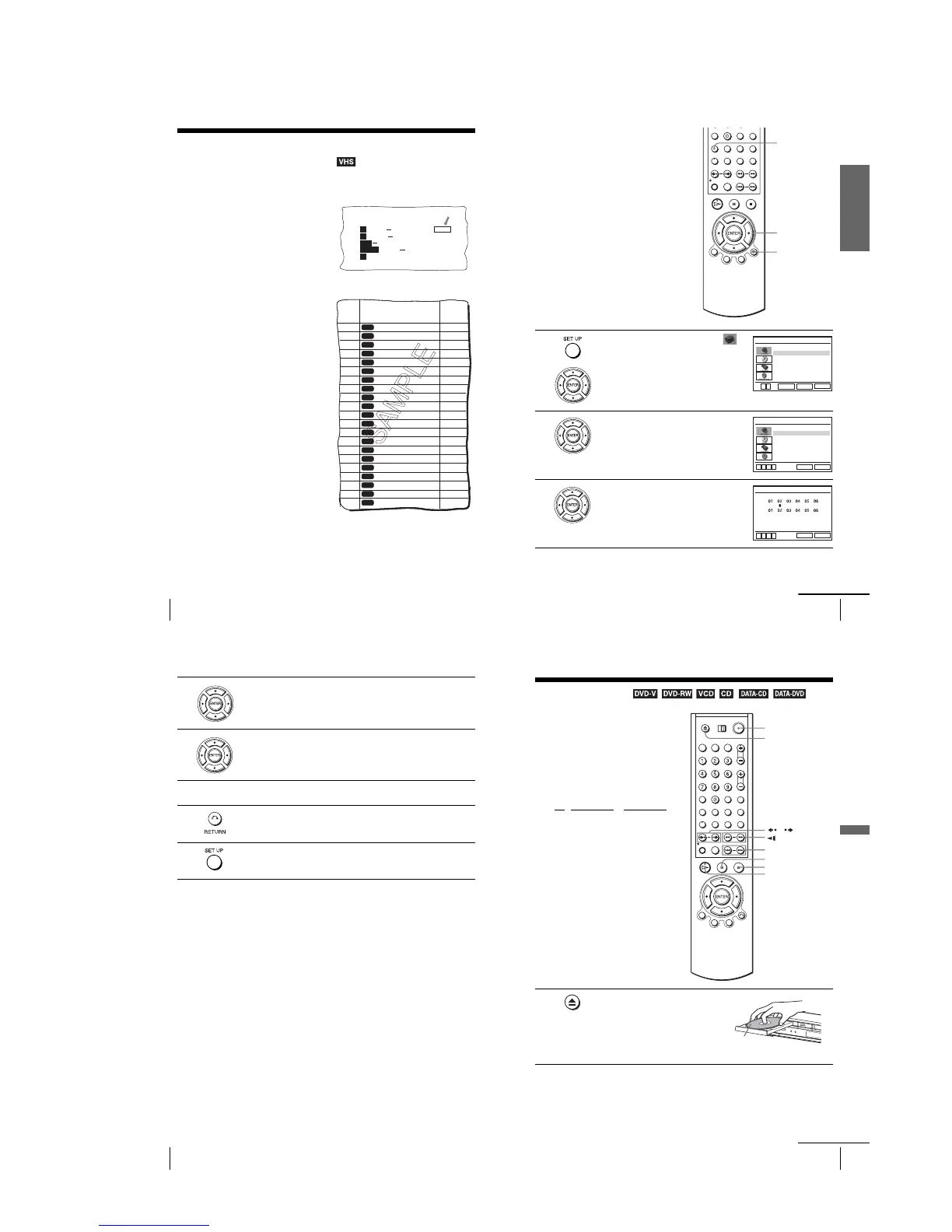
To find the guide channel numbers, look at
the “Channel Line-up Chart” in the program
guide for your area that features VCR
PlusCode numbers. It usually looks like the
example to the right.
To set the guide channels, use the Channel
Line-up Chart to check that the guide channel
numbers match the TV channel your VCR
receives. For example, if HBO is listed in the
Channel Line-up Chart as channel 33, and
your VCR receives HBO on channel 5, you
need to coordinate these numbers using the
following procedure. If the guide and TV
channel numbers are the same, you can skip
this procedure.
5:30
6:30
PlusCode
14
2
CNN
23
4
5
SCIENCE AND TECHNOLOGY
(1hr. 15min.) 73457
DRAMA
WS 9974
SPORT
MOVIE Musical (2hrs.)
33044
Golf (1hr. 25min.) 42060
Comedy (2hrs.) 17390
CABLE TV
AMC
BRV
CNN
CSP
DIS
DSC
ESN
FAM
HBO
LIF
MAX
MTV
NIK
SC
SCA
SHO
TBS
TMC
TNN
TNT
USA
VCR Plus+
GUIDE CH
35
54
42
28
53
37
34
47
33
46
45
48
38
59
70
41
43
58
49
52
44
American Movie Classics
Bravo (program grid only)
Cable News Network
C-SPAN
The Disney Channel
The Discovery Channel
ESPN
The Family Channel
Home Box Office
Lifetime
Cinemax
Music Television
Nickelodeon
Sports Channel
Sports Channel America
Showtime
TBS SuperStation
The Movie Channel
The Nashville Network
Turner Network Television
USA Network
CABLE
CH
16
17
20
21
22
25
34
35
5
27
29
31
38
39
45
17
44
49
50
51
30
Example of “PlusCode”
Example of “Channel Line-up Chart”
Getting Started
31
Setting up the VCR Plus+
®
system (SLV-D560P only)
1
Press SET UP, then press V/v to select
(OPTION) and press ENTER.
2
Press V/v to select “Channel Setup”, then
press ENTER.
The “CHANNEL SETUP” menu appears.
3
Press V/v to select “Guide Channel Setup,”
then press ENTER.
SET UP
O RETURN
V/v/B/b
ENTER
Language
Channel Setup
Auto Power Off
RF Output Channel
Clock Set/Adjust
:English
[ Off ]
[3CH]
RETURN
OPTION SETUP
SET UP
ENTER
vV
RETURN
CHANNEL SETUP
SET UP
Ant/Cable [ Cable TV ]
Auto Channel Memory
Channel Add/Delete
Guide Channel Setup
vV bB
RETURN
GUIDE CHANNEL SETUP
SET UP
vV bB
[TV CH]
[GUIDE CH]
Enter actual
receiving channel
continued
32
Setting up the VCR Plus+
®
system (SLV-D560P only)
4
The upper row shows VCR Plus+ guide channels and the lower row shows
TV channels or cable box out put channels. Press B/b to select the channel
number that does not match the guide channel.
5
•If you made Hookup 1 (page 15) or 2 (page 17): Enter the actual number
on your TV (and VCR), then press V/v.
•If you made Hookup 3 (page 19): Enter the cable box output channel
(usually 2, 3, or 4), then press V/v.
6
Repeat steps 4 and 5 for each channel number that does not match.
7
Press O RETURN to confirm the setting.
8
Press SET UP to exit the menu.
33
Playing discs
Basic Operations
Basic Operations
Playing discs
Depending on the disc, some operations may
be different or restricted. Refer to the
operating instructions supplied with your
disc.
Before you start ...
•Turn on the DVD-VCR and your TV.
•Switch the input selector on your TV so
that the signal from the player appears on
the TV screen.
•Set TV
/ DVD·VIDEO to DVD·VIDEO,
then press SELECT DVD to control the
DVD player (page 10).
1
Press Z to open the disc tray and
place a disc on the disc tray.
Z
H PLAY
X PAU SE
./ >
x STOP
?/1
/
m/M y
with the playback
side facing down
continued



 To Next Page