1-6
26
Presetting channels
Step 6 : Presetting channels
This DVD-VCR is capable of receiving VHF
channels 2 to 13, UHF channels 14 to 69 and
unscrambled CATV channels 1 to 125. First,
we recommend that you preset the receivable
channels in your area using automatic
presetting methods. Then, if there are any
unwanted channels, disable them manually.
If you have already decided which channels
you wish to preset, set them directly using
manual presetting methods (page 28).
Presetting all receivable
channels automatically
Before you start…
•Turn on the DVD-VCR and your TV.
When using a cable box, turn it on.
•To control the DVD-VCR, set TV
/
DVD·VIDEO
to DVD·VIDEO on the
remote (page 10).
•Set the “RF Output Channel” to “3CH” or
“4CH” in “OPTION SETUP” menu
(page 110). If your TV is connected to the
DVD-VCR using A/V connections, set the
TV to video input.
• If the DVD player is in play mode, you
cannot display the setup menu. Stop the
DVD playback.
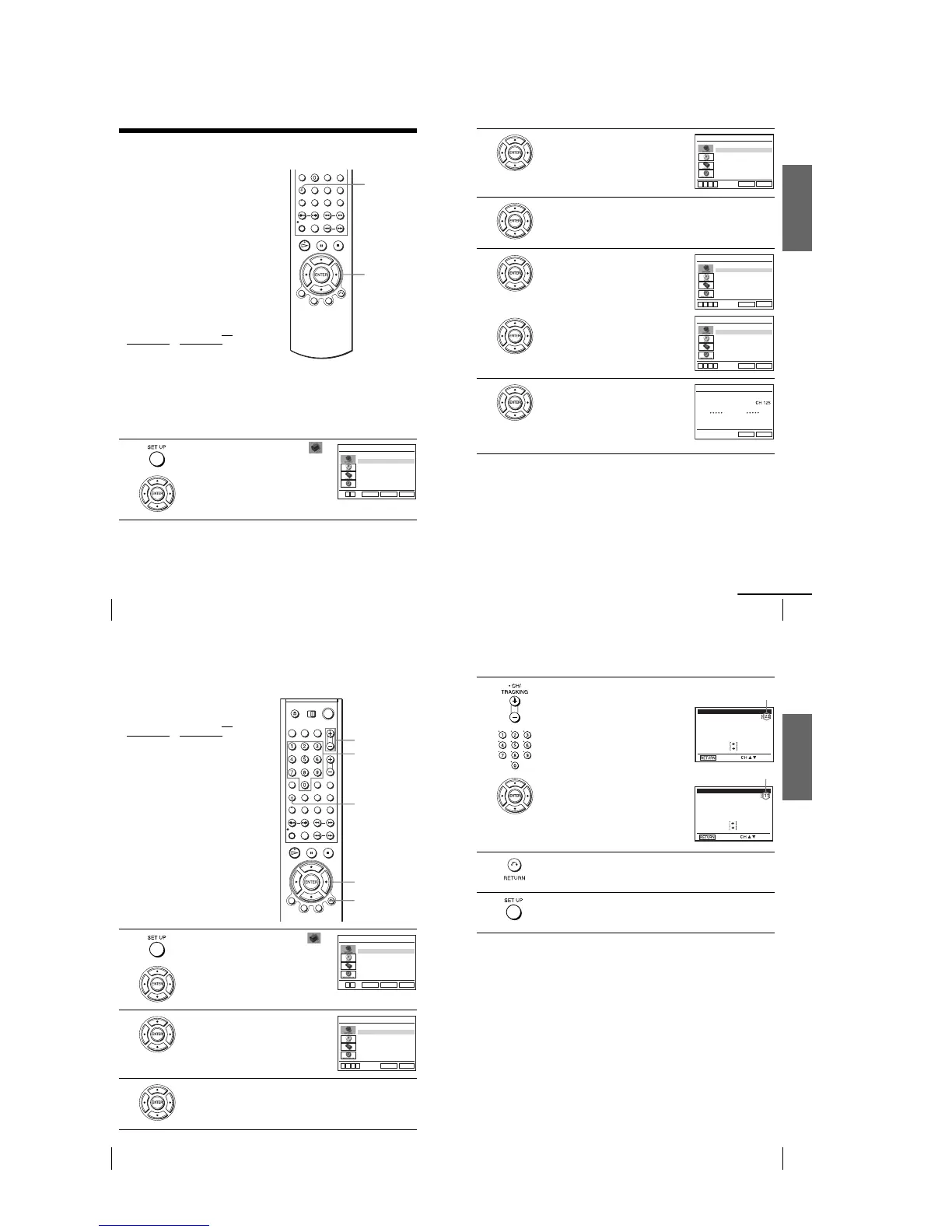
1
Press SET UP, then press V/v to select
(OPTION) and press ENTER.
V/v/B/b
ENTER
SET UP
Language
Channel Setup
Auto Power Off
RF Output Channel
Clock Set/Adjust
:English
[ Off ]
[3CH]
RETURN
OPTION SETUP
SET UP
ENTER
v
V
Getting Started
27
Presetting channels
2
Press V/v to select “Channel Setup”, then
press ENTER.
The “CHANNEL SETUP” menu appears.
3
Press V/v to select “Ant/Cable.”
4
•To preset cable TV channels:
Press
B
/
b
to select “Cable TV.”
•To preset VHF and UHF channels:
Press
B
/
b
to select “Antenna.”
5
Press V/v to select “Auto Channel Memory,”
then press ENTER.
All receivable channels are preset in numerical
sequence. When no more receivable channels
can be found, presetting stops and the picture
from the lowest numbered channel is displayed
on the TV screen.
RETURN
CHANNEL SETUP
SET UP
Ant/Cable [ Cable TV ]
Auto Channel Memory
Channel Add/Delete
Guide Channel Setup
vV bB
RETURN
CHANNEL SETUP
SET UP
Ant/Cable [ Cable TV ]
Auto Channel Memory
Channel Add/Delete
Guide Channel Setup
vV bB
RETURN
CHANNEL SETUP
SET UP
Ant/Cable [ Antenna ]
Auto Channel Memory
Channel Add/Delete
Guide Channel Setup
v
V
b
B
Memorizing
Please Wait
AUTO CH MEMORY
RETURN
SET UP
continued
28
Presetting channels
Presetting/disabling channels manually
Before you start…
•Turn on the DVD-VCR and your TV.
When using a cable box, turn it on.
•To control the DVD-VCR, set TV
/
DVD·VIDEO
to DVD·VIDEO on the
remote (page 10).
•Set the “RF Output Channel” to “3CH” or
“4CH” in “OPTION SETUP” menu
(page 110). If your TV is connected to the
DVD-VCR using A/V connections, set the
TV to video input.
• If the DVD player is in play mode, you
cannot display the setup menu. Stop the
DVD playback.
1
Press SET UP, then press V/v to select
(OPTION) and press ENTER.
2
Press V/v to select “Channel Setup”, then
press ENTER.
The “CHANNEL SETUP” menu appears.
3
Press V/v to select “Channel Add/Delete,” then press ENTER.
SET UP
CH +/–
Number
buttons
V/v/B/b
ENTER
O RETURN
Language
Channel Setup
Auto Power Off
RF Output Channel
Clock Set/Adjust
:English
[ Off ]
[3CH]
RETURN
OPTION SETUP
SET UP
ENTER
vV
RETURN
CHANNEL SETUP
SET UP
Ant/Cable [ Cable TV ]
Auto Channel Memory
Channel Add/Delete
Guide Channel Setup
vV bB
Getting Started
29
Presetting channels
Note
•If you have not preset channels automatically, you cannot preset/disable channels manually.
4
To preset/disable a channel:
1
Press CH +/– or number buttons to enter
the channel number.
2
Press B/b to select “ADD” (in memory)
or “DELETE” (deleted).
3
Press ENTER.
5
Press O RETURN to confirm the setting.
6
Press SET UP to exit the menu.
Select channel:
(in memory)
to ADD
to DELETE
CHANNEL ADD/DELETE
and press
press
Select channel:
(deleted)
to ADD
to DELETE
CHANNEL ADD/DELETE
and press
press
Channel to be preset
Channel to be disabled



 To Next Page