1-10
VPL-PS10/PX10/PX15
18
(GB)
Installing the Projector / Connecting the Projector
Installing the Projector
This section describes how to install the projector.
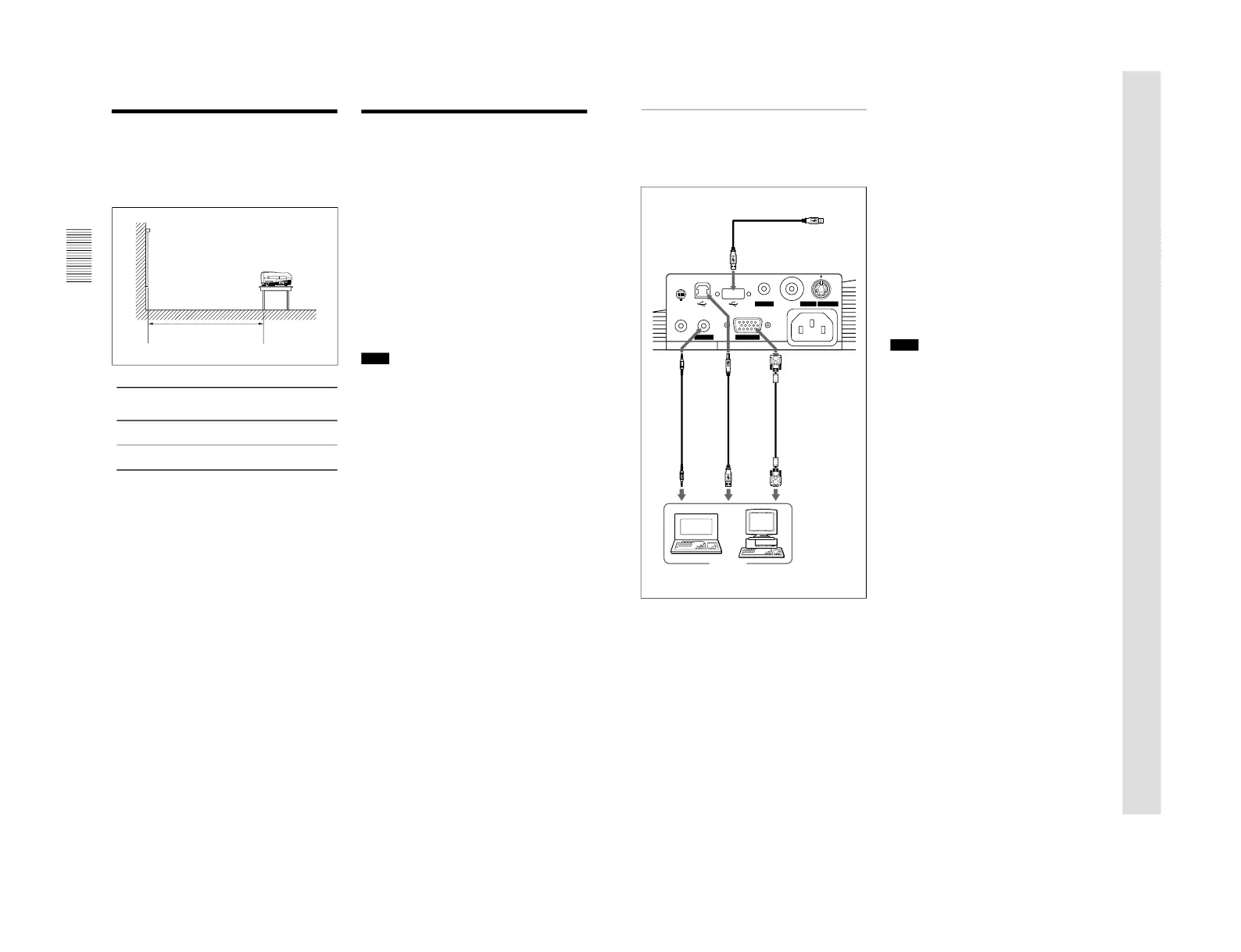
The distance between the lens and the screen varies
depending on the size of the screen. Use the following
table as a guide.
For details, see “Installation Example
” on page 34 (GB).
For details on ceiling installation, consult with qualified
Sony personnel (fee charged).
Distance between the screen
and the center of the lens
Unit: m (feet)
Screen
size
40 60 80 100 120 150 180 200 250 300
(inches)
Minimum
1.5 2.2 3.0 3.7 4.5 5.6 6.8 7.5 9.4 11.3
Distance
(4.8) (7.3) (9.8) (12.3) (14.8)(18.5) (22.3) (24.8) (31.0) (37.3)
Maximum
1.8 2.7 3.6 4.5 5.4 6.8 8.1 9.1 11.3 13.6
Distance
(5.8) (8.8) (11.8) (14.8) (17.8)(22.2) (26.7) (29.7) (37.2) (44.7)
Connecting the Projector
When making connections, be sure to do the
following:
•Turn off all equipment before making any
connections.
•Use the proper cables for each connection.
•Insert the cable plugs properly; plugs that are not
fully inserted often generate noise or cause picture
degradation. When pulling out a cable, be sure to
pull it out grasping the plug, not the cable itself.
Connecting to a Computer
This section describes how to connect the projector to
a computer.
For more information, refer to the computer
’s
instruction manual.
Notes
•The projector accepts VGA, SVGA, XGA, and
SXGA signals. However, we recommend that you
set the output mode of your computer to SVGA
(VPL-PS10) or XGA (VPL-PX15/PX10) mode for
the external monitor.
•If you set your computer, such as a notebook type, to
output the signal to both your computer
’s display and
an external monitor, the picture of the external
monitor may not appear properly. Set your computer
to output the signal to only the external monitor.
For details, refer to the operating instructions supplied
with your computer.
•The supplied mouse cable may not work properly
depending on your computer.
•This projector is compatible with DDC2B (Display
Data Channel 2B). If your computer is compatible
with DDC
1)
, turn the projector on according to the
following procedures.
1
Connect the projector to the computer using the
supplied HD D-sub 15-pin cable.
2
Turn the projector on.
3
Start the computer.
...............................................................................................................................
..........................................................................
1) DDC™ is a registered trademark of the Video Electronics Standards Association.
19
(GB)
Connecting the Projector
Setting Up and Projecting
On the USB function
When connecting the projector to a computer using
the USB cable for the first time, the computer
recognizes the following devices automatically.
1 USB hub (general use)
2 USB human interface device (wireless mouse
function)
3 USB human interface device (projector control
function)
The computer also recognizes the device connected to
the downstream connector on the projector.
Recommended operating environment
When you use the USB function, connect your
computer as illustrated in the box on the left.
This application software and the USB function can
be used on a computer loaded with Windows 98,
Windows 98 SE or Windows 2000.
Notes
• As the projector recognizes the USB mouse when
the computer is connected to the USB connector, do
not connect anything to the MOUSE connector.
• Your computer may not start correctly when
connected to the projector via the USB cable. In this
case, disconnect the USB cable, restart the computer,
then connect the computer to the projector using the
USB cable.
• This projector is not guaranteed for suspend or
standby mode. When you use the projector in
suspend or standby mode, disconnect the projector
from the USB port on the computer.
• Operations are not guaranteed for all the
recommended computer environments.
To connect an IBM
1)
PC/AT
1)
compatible
computer
When you use a USB mouse and USB
equipment
MOUSE
CTRL S
PLUG IN POWER
AUDIO
AUDIO
VIDEO
S VIDEO
INPUT A ~AC IN
USB cable
A type – B
type
(supplied)
Left side
HD D-sub 15-pin
cable (supplied)
Stereo
audio
connecting
cable (not
supplied)
to monitor
output
to audio
output
to USB
equipment
to USB
connector
...............................................................................................................................
..........................................................................
1) IBM
®
and PC/AT are a trademark and a registered trademark of International Business Machines Corporation, U.S.A.
Computer


 To Next Page