14
(GB)
Operations from a Computer
Projecting an Excel file onto the projector
You can display an Excel file on the projector by
operating from a computer.
Basic Operation Flowcharts
This section describes the operation flowchart for
using the projector via a network or for using the built-
in network function of the projector. There are two
types of flowcharts; for operations from a computer
and for those from the projector. For details, see the
pages in parenthesis.
Required conditions
•The projector and computer are connected to the
same LAN.
•The projector and computer are turned on.
•The INPUT-B FUNC. (VPL-PX15) or INPUT-C
FUNC. (VPL-FX50) is set to ON in the INSTALL
SETTING menu.
•The INPUT C/RS-232C/RS-422A select switch is set
to INPUT C. (VPL-FE110U/M)
•The input of the projector is set to INPUT B (VPL-
PX15) or INPUT C (VPL-FX50 and VPL-FE110U/M).
Operations from a Computer
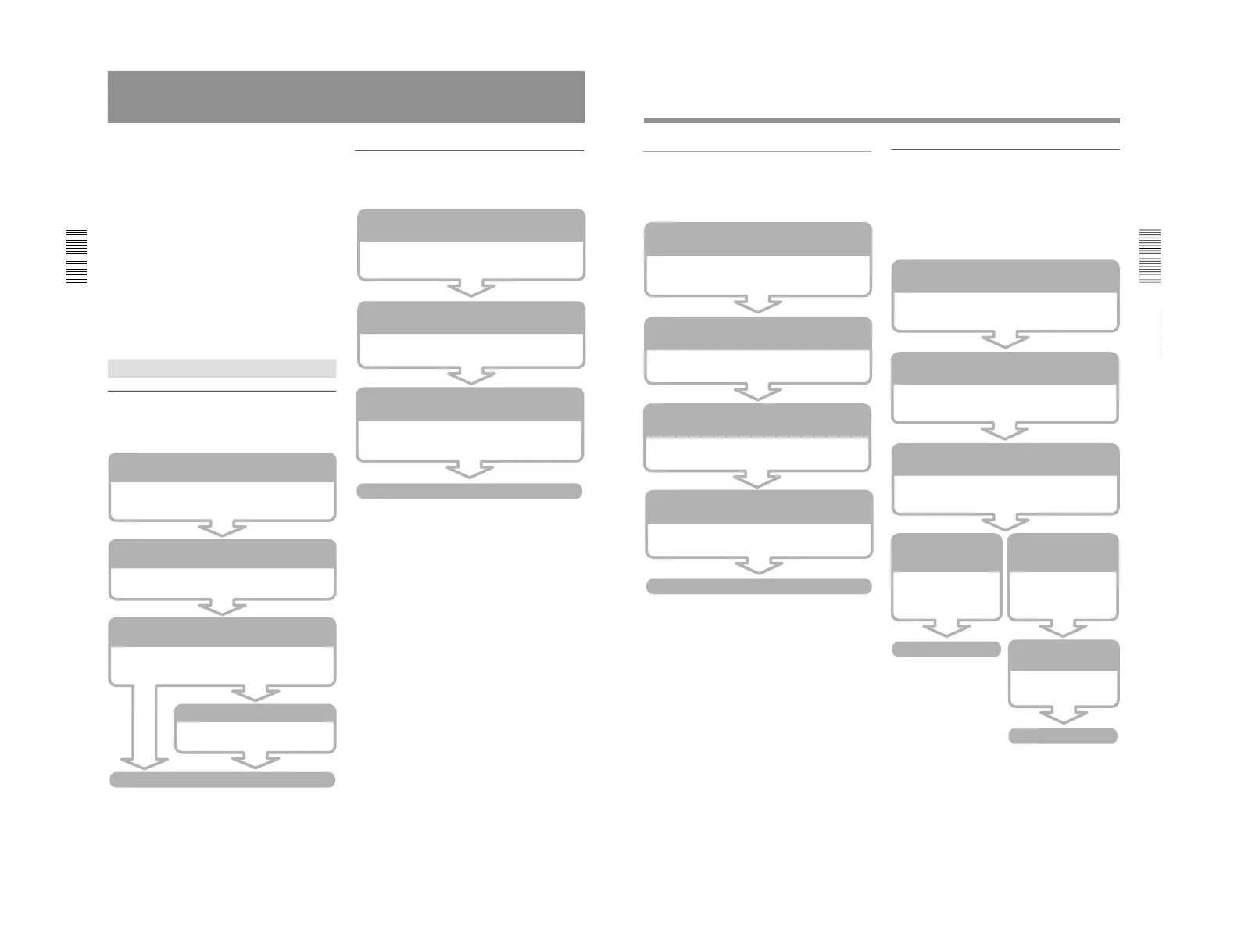
Running a presentation using a file
created with PowerPoint
You can control a presentation using a file created with
PowerPoint from a computer.
Starting a Web browser of a computer to access the
projector (page 19)
Start the Internet Explorer 4.0 or later versions, or
Netscape Navigator 4.5x or 4.7x version, and then enter
the projector’s IP address.
Selecting PRESENTATION VIEWER (page 20)
Select the PRESENTATION VIEWER icon in the
Application Select window.
Finding a file you want to use for your presentation
(page 20)
Select where the file is stored, the computer or projector,
then select the PowerPoint file you want. The Slide
Viewer starts.
Setting up a slide show (page 21)
Set which slides to use and how to
advance a slide in a slide show.
Running a slide show
Starting a Web browser of a computer to access the
projector (page 19)
Start the Internet Explorer 4.0 or later versions, or
Netscape Navigator 4.5x or 4.7x version, and then enter
the projector’s IP address.
Selecting PRESENTATION VIEWER (page 23)
Select the PRESENTATION VIEWER icon in the
Application Select window.
Finding a file you want to project on the projector
(page 23)
Select where the file is stored, the computer or projector,
then select the Excel file you want. The Worksheet
Viewer starts.
Projecting an Excel file
15
(GB)
Projecting an image onto the projector
using a file stored in a computer
You can project an image onto the projector by
operating from a computer.
Projecting an image or running a slide
show onto the projector using a file stored
in the projector
By using an image file stored in the projector or in the
PC memory card you can project it on the projector by
operating a computer. You can also run a slide show
using the slide show setting file preset on the projector.
Starting a Web browser of a computer to access the
projector (page 19)
Start the Internet Explorer 4.0 or later versions, or
Netscape Navigator 4.5x or 4.7x version, and then enter
the projector’s IP address.
Selecting the image Viewer of the projector
(page 25)
Select the IMAGE VIEWER icon in the Application
Select window.
Selecting where the file is stored
(page 25)
Select PROJECTOR in the Look In window. The Image
Viewer starts.
Selecting a folder to
project
(page 25)
Select a folder you want
in the Folder/.SHO File
Select window.
Selecting the setting
file to run a slide show
(page 25)
Select the .SHO file you
want in the Folder/.SHO
File Select window.
Projecting an image
Setting up a slide show
(page 25)
Set how to advance a
slide in a slide show.
Running a slide show
Starting a Web browser of a computer to access the
projector (page 19)
Start the Internet Explorer 4.0 or later versions, or
Netscape Navigator 4.5x or 4.7x version, and then enter
the projector’s IP address.
Selecting the Image Viewer of the projector
(page 23)
Select the IMAGE VIEWER icon in the Application
Select window.
Selecting where the file is stored
(page 23)
Select COMPUTER in the Look In window. The Image
Viewer starts.
Finding a file you want to project on the projector
(page 24)
Select the image file you want by clicking the Browse
button.
Projecting an image



 To Next Page