32
(GB)
Operations from the Projector
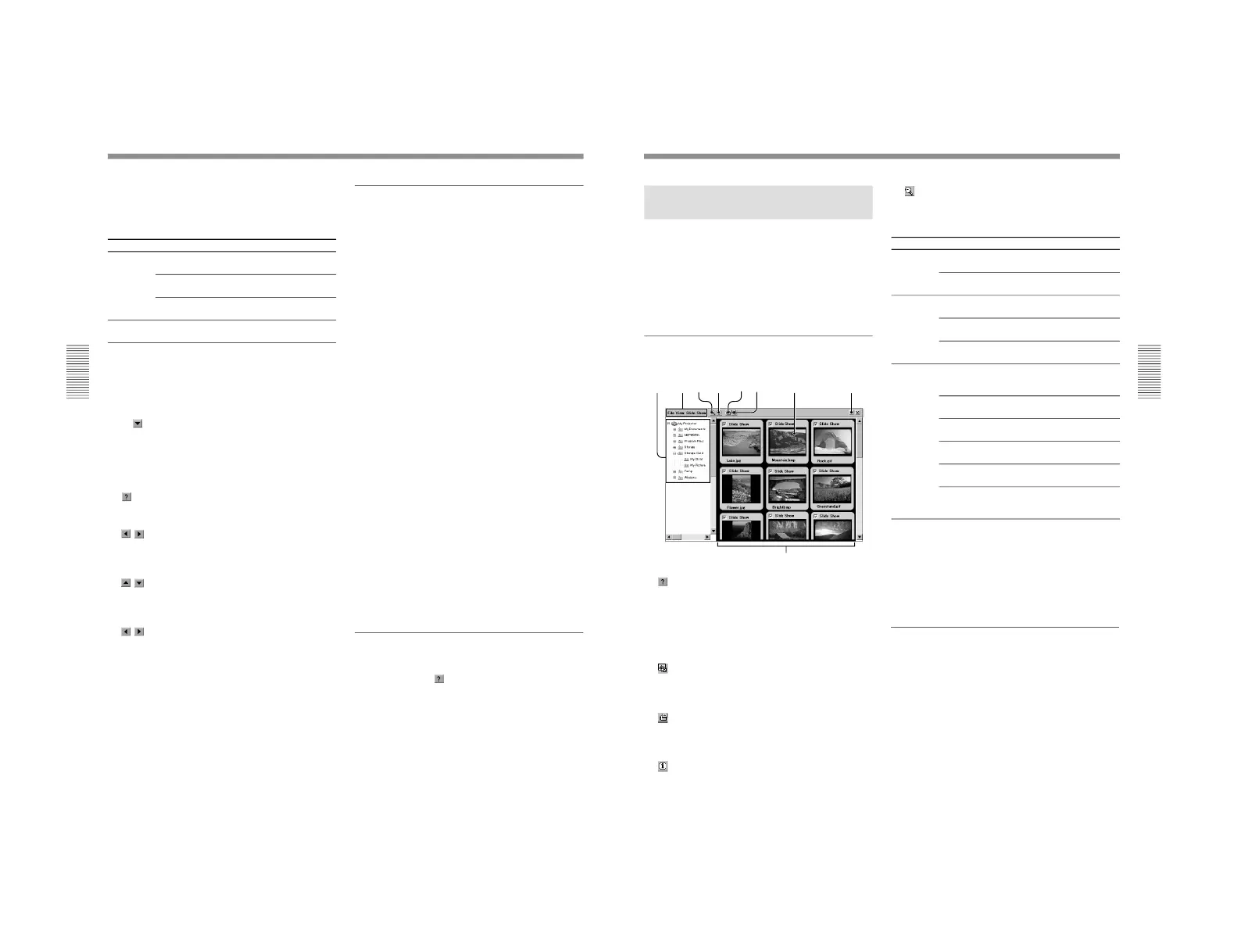
1 Name box
Identifies the currently selected cell.
2 Menu bar
3 Sheet tabs
Displays the names of sheets. Click the sheet tab to
make a sheet active.
4 Zoom box
Click
to select the magnification to reduce or
enlarge the display of an active worksheet.
5 Cell contents bar
Displays the result or constant value of the active cell.
6
(Help) button
Displays the Help topic for the Worksheet Viewer.
7
/
buttons
Use to scroll through the sheet tabs. Click an arrow of
the direction to which you want to scroll.
8
/
(up/down) scroll bar
Use to scroll the display up or down. To scroll, drag
the box or click the arrow.
9
/
(left/right) scroll bar
Use to scroll the display left or right. To scroll, drag
the box or click the arrow.
Projecting an Excel file
Using a file stored in a computer connected to
the LAN
1
Follow steps 1 and 2 in “Running a presentation
— Using a file stored in a computer connected to
the LAN” on page 31 (GB).
2
Select the folder which contains the Excel file you
want to project on the projector, then double-click
that file.
If the password is set for the selected computer,
enter the password.
The Worksheet Viewer starts and a worksheet in
the selected Excel file appears on the projector.
Using a file stored in the projector or in the
memory card
1
Double-click the Presentation Viewer icon in the
Network Projector window.
The Presentation Viewer starts, and the Open File
dialog box appears.
2
Select the Excel file you want to project, and click
the OK button.
The Worksheet Viewer starts, and a worksheet in
the selected file appears on the projector.
Changing the size or display area of the
projected worksheet
When you want to zoom in or out the projected
worksheet or change the area of the worksheet in view,
see Help for Worksheet Viewer.
About Help for Worksheet Viewer
For details on operation with Worksheet Viewer, see
Help. Clicking the
button on the tool bar opens the
Help topic.
Menu Command Function
File
View
Opens files stored in the
projector.
Closes the currently displayed
file.
Indicates version information
on the program.
Opens the Zoom dialog box to
enlarge or reduce the display.
Open
Close
About
Zoom
33
(GB)
Running a Slide Show Using the
Image Viewer
You can display thumbnail images of the files stored in
the projector or a memory card installed in the
projector, then run a slide show by selecting the
images you want.
When you start the Image Viewer of the projector and
select the folder which contains the files you want, the
main window opens.
About the main window of the Image
Viewer
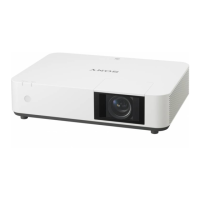
1
(Help) button
Click to display the Help topic for the Image Viewer.
2 Slide
Clicking a slide displays a green frame around the
slide. This indicates that the slide is selected.
3
(Slide Show Setting) button
Opens the Slide Show Setting dialog box for zooming,
rotating, etc.
4
(View Show) button
Clicking the button opens the sub menu for advancing
a slide.
5
(Information) button
Opens the information dialog box of the selected slide.
6
(Full screen) button
Displays the full-screen window of a slide you choose.
7 Menu bar
8 Folder dialog box
Browses the folders stored in the projector or a
memory card installed in the projector.
9 Slide display area
Displays thumbnail images of the slides included in
the folder you select.
Displaying a full-screen image
You can display a full-screen image of an thumbnail
image selected from the main window.
1
Double-click the Image Viewer icon in the
Network Projector window.
The Image Viewer starts.
2
Select the folder which contains the image files
you want to display from the folder dialog box.
You can choose the folder stored in the projector
or a memory card installed in the projector.
The main window opens, showing thumbnail
images of the slides contained in the selected
folder.
Menu Command Function
File
View
Slide Show
`
Closes the currently displayed
file.
Indicates version information
on the program.
Displays the full-screen window
of an image you choose.
Opens the information dialog
box of the selected image.
Sorts the slides in a folder by
specified order.
Runs a slide show by
advancing a slide selected in
the sub menu.
Sets up the slide show in detail.
Selects all the slides included
in the thumbnail window.
Cancels any selection of slides
in thumbnail images.
Loads the slide show setting
file stored.
Stores the current slide show
setting as a setting file
(Extension is “.SHO.”)
Close
About
Full Screen
Information
Sort slides
View Show
Slide Show
Setting
Select all
Clear all
Load...
Save...
(continued)



 To Next Page