VisionMaster Ship’s Manual Chapter 5
Diagnostics & Commissioning Service
65900011 5–29
3.6 Service
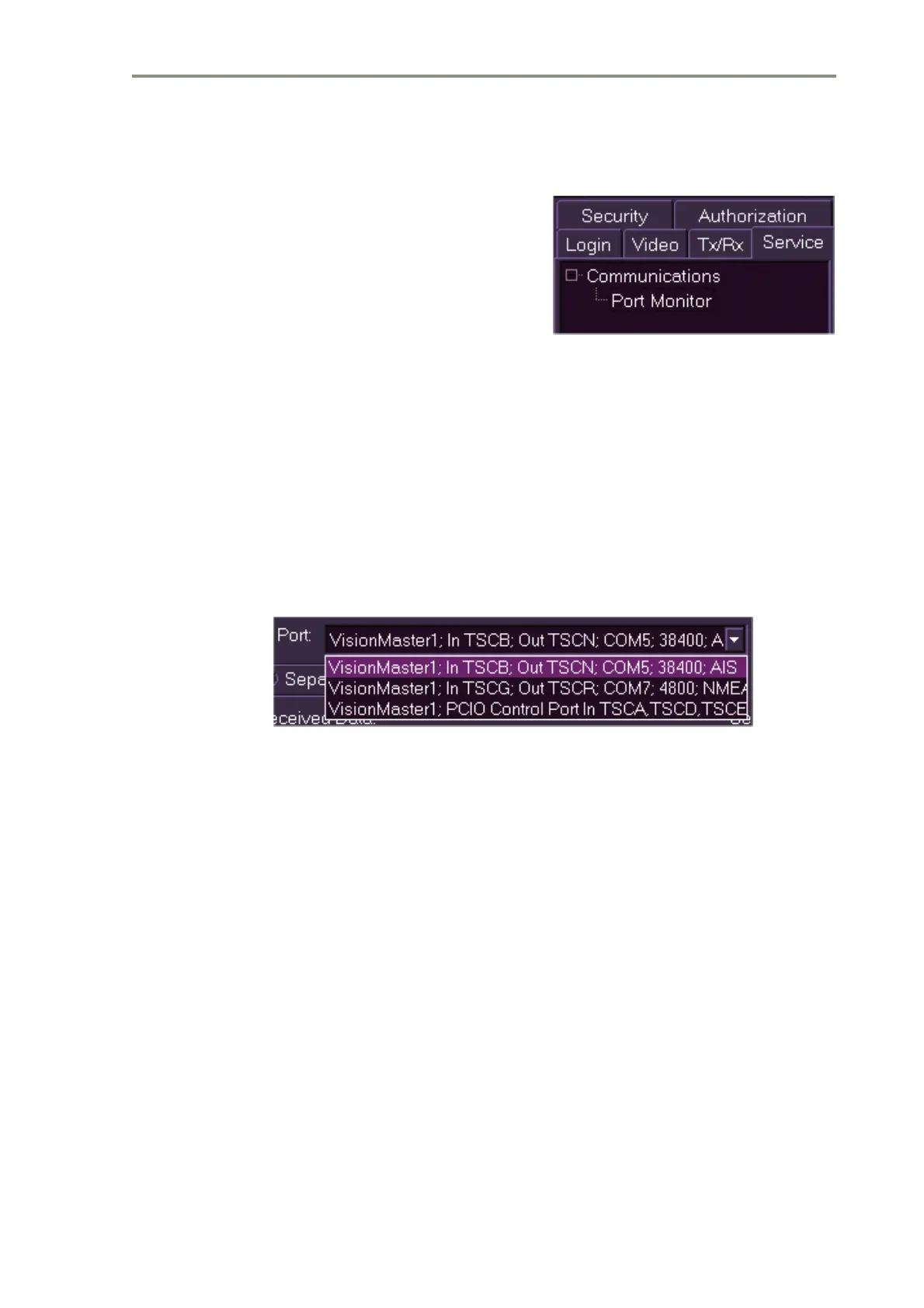
When logged on as a service engineer
the Service folder displays the following
tree menu item:
• Communications
• Port Monitor
Note: The Service folder displays more
service options when the
operator is logged on as a Developer.
The folder enables the service engineer to view data received from a selected
port and data sent to the port via the display.
3.6.1 Display Port Monitor Data
1. To view Port Monitor data click on the Communications + button,
highlight Port Monitor in the tree menu and click on the Display Selected
button at the bottom of the tab folder. A Port Monitor communications
window is displayed over the radar video display which can be moved
and scaled to suit.
2. The Port Monitor window lists the ports previously configured for the
system (see Section 5.2 ‘I/O Port Manager’ in Chapter 4 ‘Configuration’).
To select another port to monitor other than the displayed port click on
the Port drop down arrow and select from the list of currently configured
ports.
3. The Port Monitor window view options default to separate Received and
Sent data fields and data viewed as ASCII (see Figure 5.3). To change
these default options click in the Combined button to view all data in the
same field and click in the Binary button to view data as binary code.
4. With all required settings made click on the Start button. The Port
Monitor window displays real time received and sent data for the
selected port and the Start button changes to Stop, see Figure 5.3
below.



 To Next Page