VisionMaster Ship’s Manual Chapter 6
Chart Installation Registering the C-MAP eToken
65900011 A–3
A.1 Registering the C-MAP eToken
The C-MAP eToken is registered from the Service desktop. To access the
service desktop a suitably qualified user logs on as a service engineer via the
VisionMaster Login window, see Section 3.1 ‘Login’ in Chapter 5 ‘Diagnostics
and Commissioning’. After a successful login the user status is shown on the
login screen, e.g. ‘Logged In User service’.
A.1.1 Accessing the Service Desktop
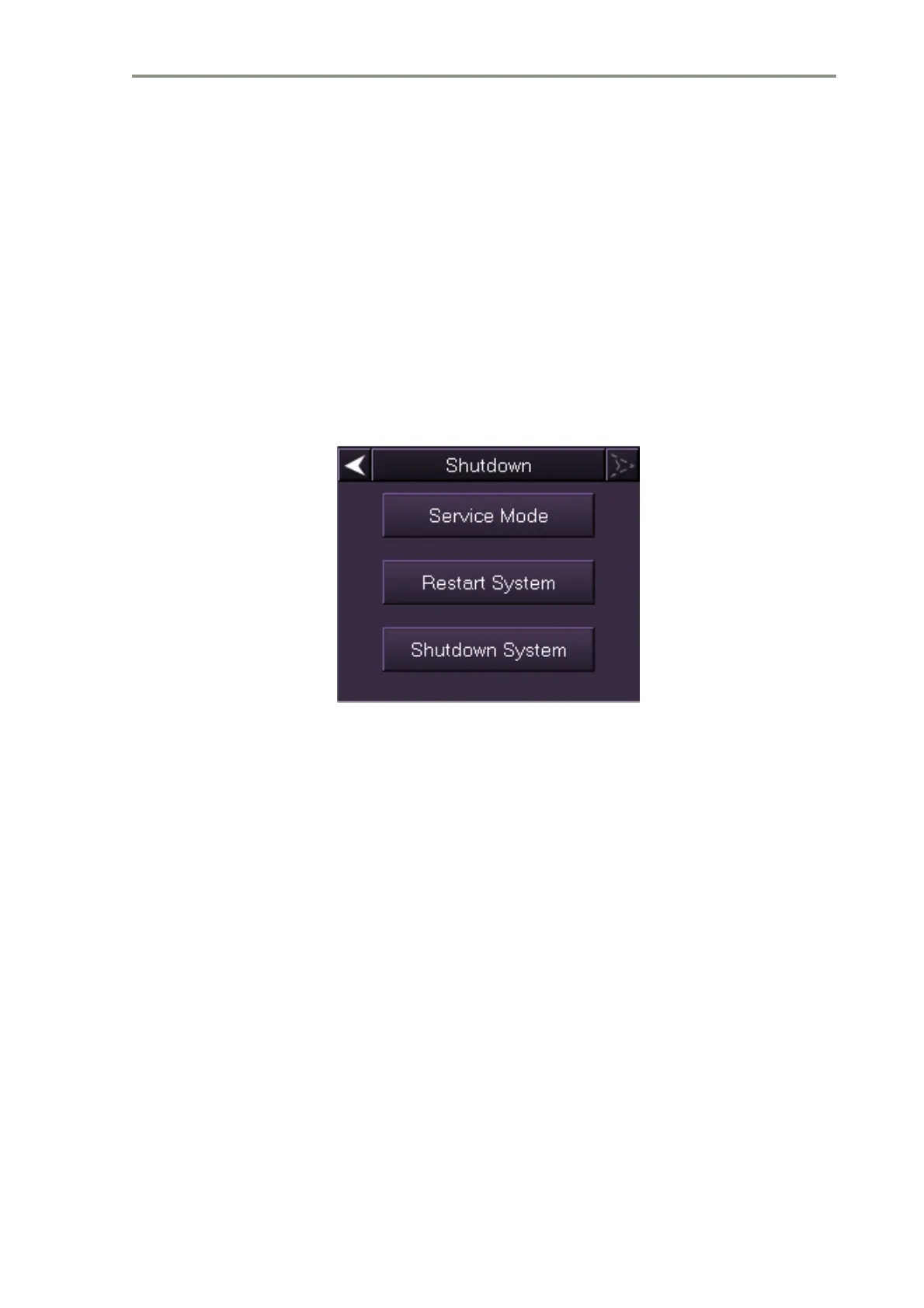
1. In VisionMaster, navigate to the System menu and select Shutdown. When
logged on the Service Mode button in the Shutdown menu is enabled, see
Figure A.1 below.
Figure A.1 Shutdown menu with Service Mode button enabled
2. Left click on the Service Mode button. The screen prompts to confirm that
you want to switch to service mode. Click the Yes button to confirm, or click
the No button to cancel and return to VisionMaster.
3. When switch to service mode is confirmed the VisionMaster system and
any other open applications power down and the windows desktop
displays two icons; Service Mode and Operator Mode.
4. Click on the Service Mode icon, the following typical service mode
desktop appears, see Figure A.2.



 To Next Page