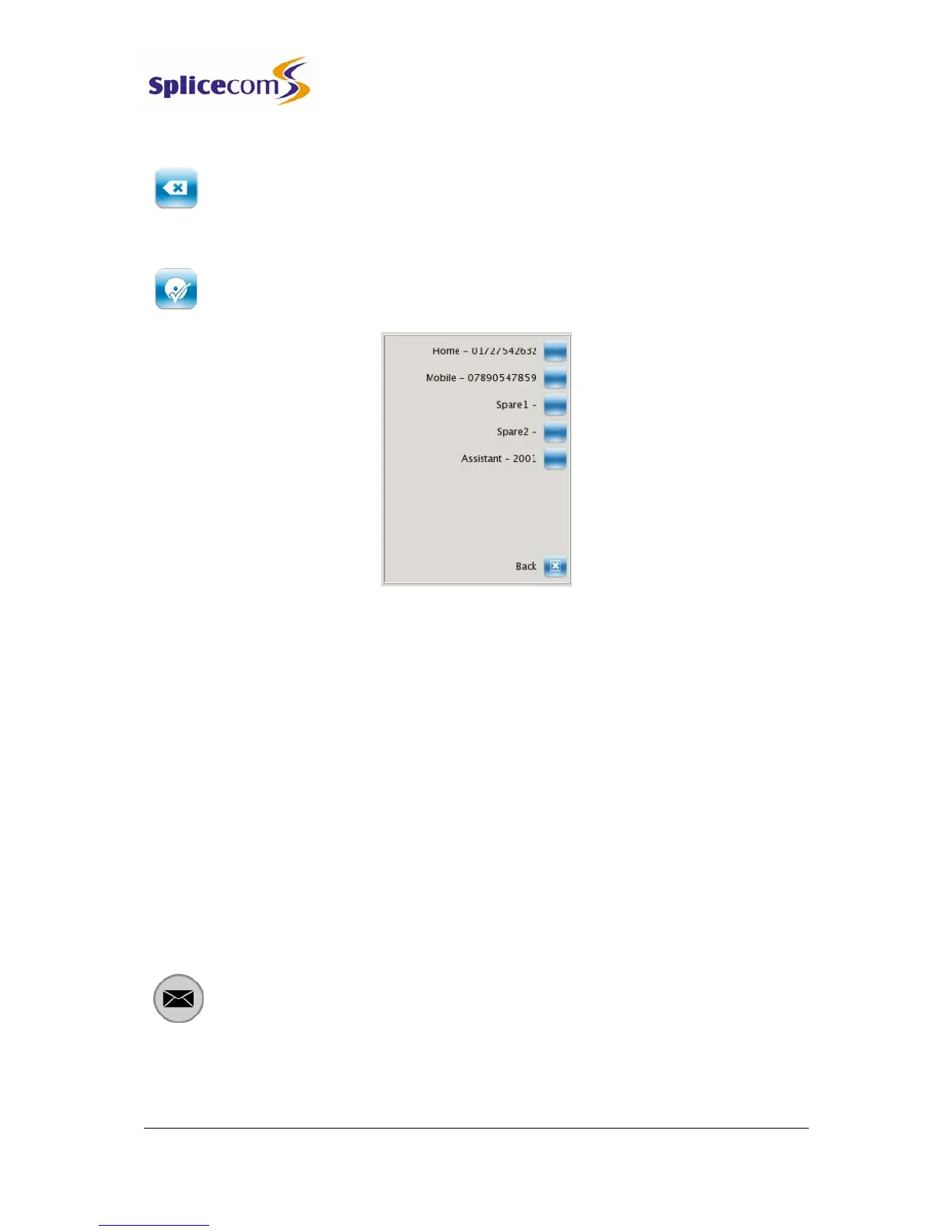
4 Select the context sensitive key beside the Assistant icon
5 Press the context sensitive key beside the Backspace icon to remove any
existing entry unless required. (This key can be used to make any corrections
while entering the number.)
6 Enter the number required. This can be an internal or external number.
7 Press the context sensitive key beside the Save icon. The number assigned as
your Assistant is now displayed.
Once this feature has been configured your caller can press 0 while listening to your greeting
and be transferred to your Assistant telephone number. You will need to re-record your
greeting to inform your callers that facility is available.
Please note:
• if the Telephone Numbers option is not available then you are unable to change your
Assistant telephone number. Please refer to your System Administrator for further details.
• the Assistant number is also used with the Call Forwarding feature, please refer to page
34 for further details.
Send a message to email
This facility allows you to forward a message to your email or a colleague’s email account.
The message will appear as a sound file in an email and a PC with a sound card and speakers
will be required to listen to the message. (This facility must be previously set up on your
telephone system – please refer to your System Administrator for further information.)
1 Press the Messages button.
2 Use the Page Down and Page Up buttons to display the entry required.
3 Press the context sensitive key beside the message required.


 To Next Page