Voicemail for Departments
Each Department can be configured to use the voicemail service provided by the maximiser
system. If voicemail has been enabled a call to a Department will automatically pass to
voicemail after the time specified by the Department’s configuration on the system. Please
refer to your System Administrator for further details.
Listen to a message for a Department
Voicemail messages received for a Department can be accessed via your Calls History. Your
System Administrator can configure this facility for you, if not already available. You can
retrieve and handle the messages in the same way as your personal messages.
1 Press the Messages button.
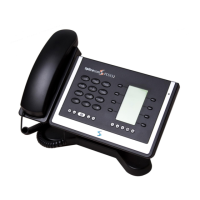
2 The new message will be displayed giving:
• The caller’s name, if recognised by the system
• The name of the relevant Department in brackets
• Time and date of the call
3 Press the context sensitive key beside the message required.
4 The entry will become green and the message will be played.
Please note that if you are able to access Department voicemail messages via your PCS 560
the answered and missed calls for the Department will also be displayed in your Calls History.
Please refer to page 14 for further information on the Calls History.
Leave a message for a Department
You will automatically transfer to a Department’s voicemail after the time specified by the
Department’s configuration on the system. However you can connect directly to a
Department’s voicemail to leave a message, as follows:
1 Dial the Department’s extension number on the keypad
2 Press the context sensitive key beside the Leave Message icon
3 Lift your handset, if required, and leave a message when requested
If you start to call a Department and then decide to leave a message instead press the
context sensitive key beside the Leave Message icon displayed at the top right hand side of
Call Status.


 To Next Page