8.4.2 DSP
With the built-in digital eects, you can give your music more expression and depth
in many ways, e.g. by using reverb eects or adding harmonies.
1. First, press the [FUNCTION] button to open the ‘DSP’ menu. The current setting
appears on the display.
2. Press the [+] or [–] buttons to turn the digital eects on or o. The default value
when the keyboard is turned on is ‘ON’ .
8.4.3 Reverb eect
The reverb eect lets you simulate the acoustic eects of dierent ambient condi‐
tions.
1. Press the [FUNCTION] button to select the setting for the reverb eect. The dis‐
play shows the current ‘XXX Rev Type’ setting.
2. Press the [+] or [] buttons to change the reverb type in a range from 0 to7.
8.4.4 Reverb eect depth
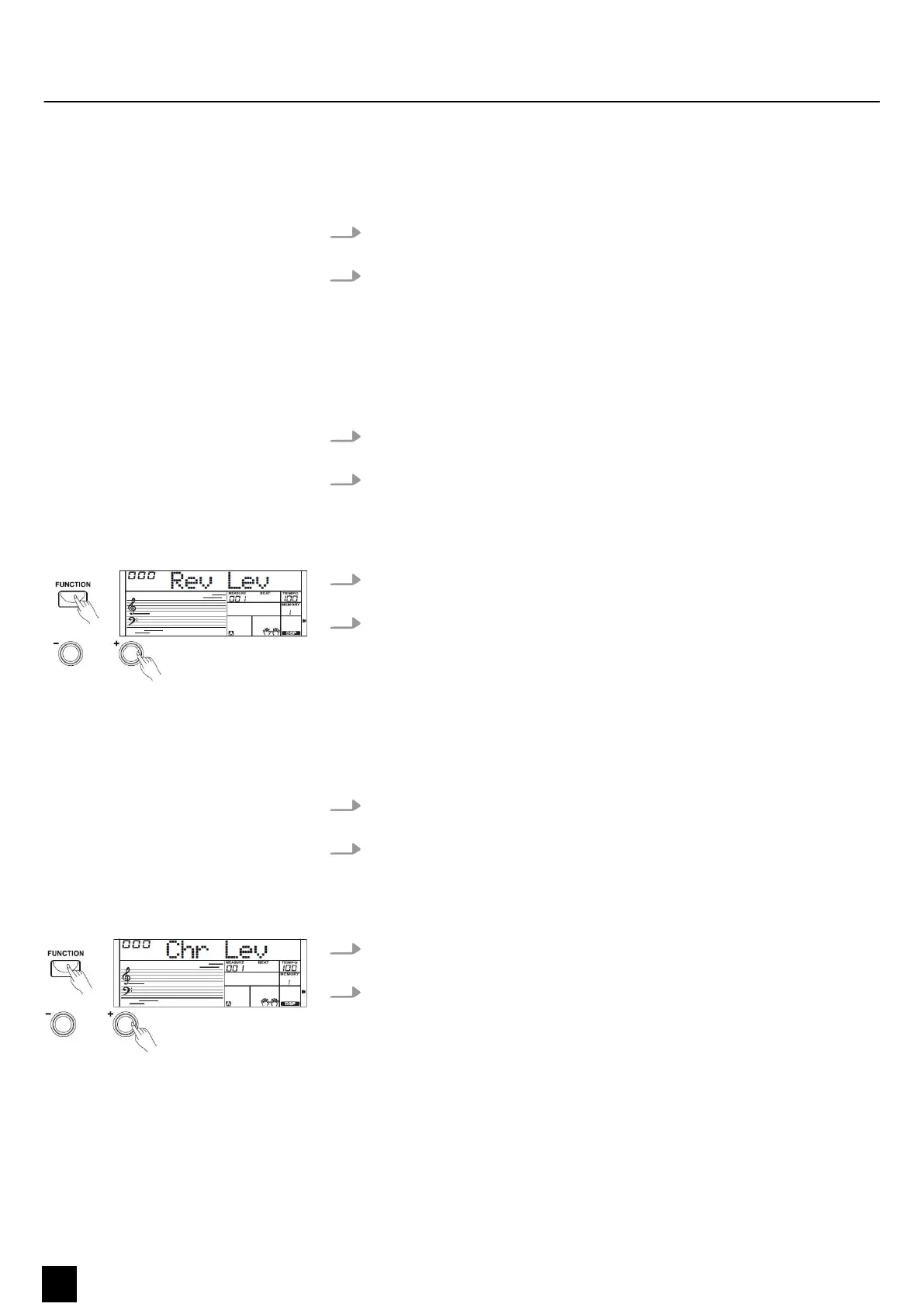
1. Press the [FUNCTION] button to select the setting for the reverb eect depth.
The display shows the current ‘XXX Rev Level’ setting.
2. Press the number buttons or the [+] and [–] buttons to change the reverb
eect depth in a range from 0 to 32.
8.4.5 Chorus eect
The chorus eect lets you simulate the acoustic eects of dierent ambient condi‐
tions.
1. Press the [FUNCTION] button to select the setting for the chorus eect. The dis‐
play shows the current ‘XXX Chr Type’ setting.
2. Press the [+] or [–] buttons to change the chorus type in a range from 0 to 7.
8.4.6 Chorus eect depth
1. Press the [FUNCTION] button to select the setting for the chorus eect depth.
The display shows the current ‘XXX Chr Level’ setting.
2. Press the number buttons or the [+] and [–] buttons to change the chorus
eect depth in a range from 0 to 32.
Functions
24
MK-300
Keyboard


 To Next Page