Diamante User Guide
72
© 2012 Stenograph, L.L.C.
Individual Key Adjustments
Adjust an individual key when it consistently drags or drops. If you are experiencing multiple keys that
drag or drop, first carefully follow all the steps in Keyboard Adjustments on page 70 before making
individual key adjustments.
If you press three or more keys five consecutive times while making individual key adjustments, the
Diamante automatically exits the screen. When you are in a job, you are returned to the realtime screen.
Any adjustments made prior to the five consecutive strokes are remembered but you are not prompted
at any time to save the changes to a profile.
To adjust an individual key:
1. Ensure the depth of stroke is customized to your writing style. See Keyboard Depth and Tension
Controls on page 24 for details.
2. Access the Adjust Keys option. Do one of the following:
• Before writing, press Setup, More, Keyboard, Adjust, Adjust Keys.
• During a job, press More, Setup, Keyboard, Adjust, Adjust Keys.
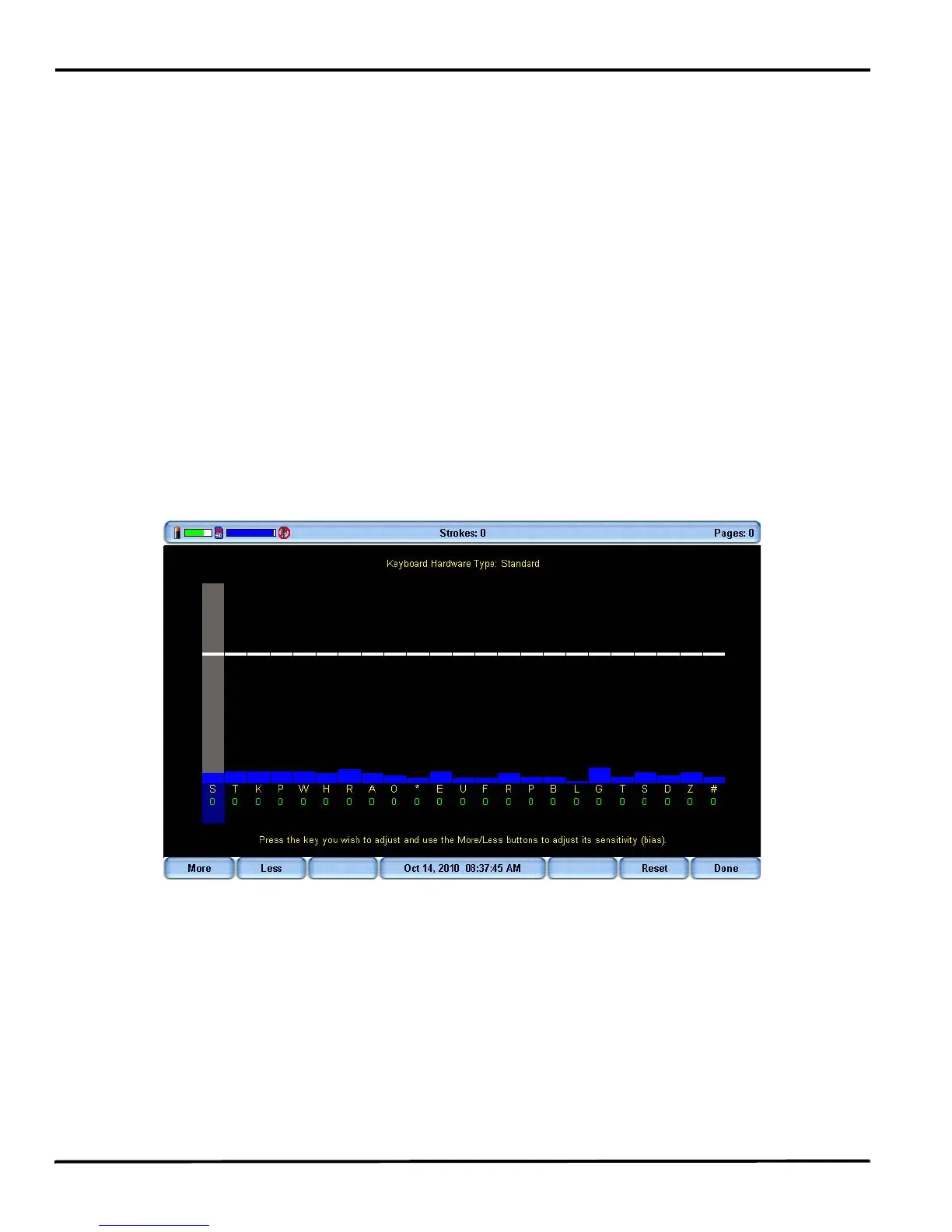
3. The Keyboard Hardware Type screen displays.
Keyboard at rest with the deepest depth of stroke setting.
The line of white bars at the top of the screen represents the bottom of the keyboard. The horizontal
position of the line varies depending on the depth of stroke setting. For example, a deeper depth of
stroke places the line closer to the top of the screen. Each individual bar indicates the point the key
must reach or move slightly past in order to register as a stroke. The number below each key is the
current setting. Zero is the factory default.
4. Press the key you want to adjust with enough pressure to move it past the white bar and then release
it. The gray vertical bar highlights the key selected for adjustment.



 To Next Page