78
NAVIGATION OVERVIEW
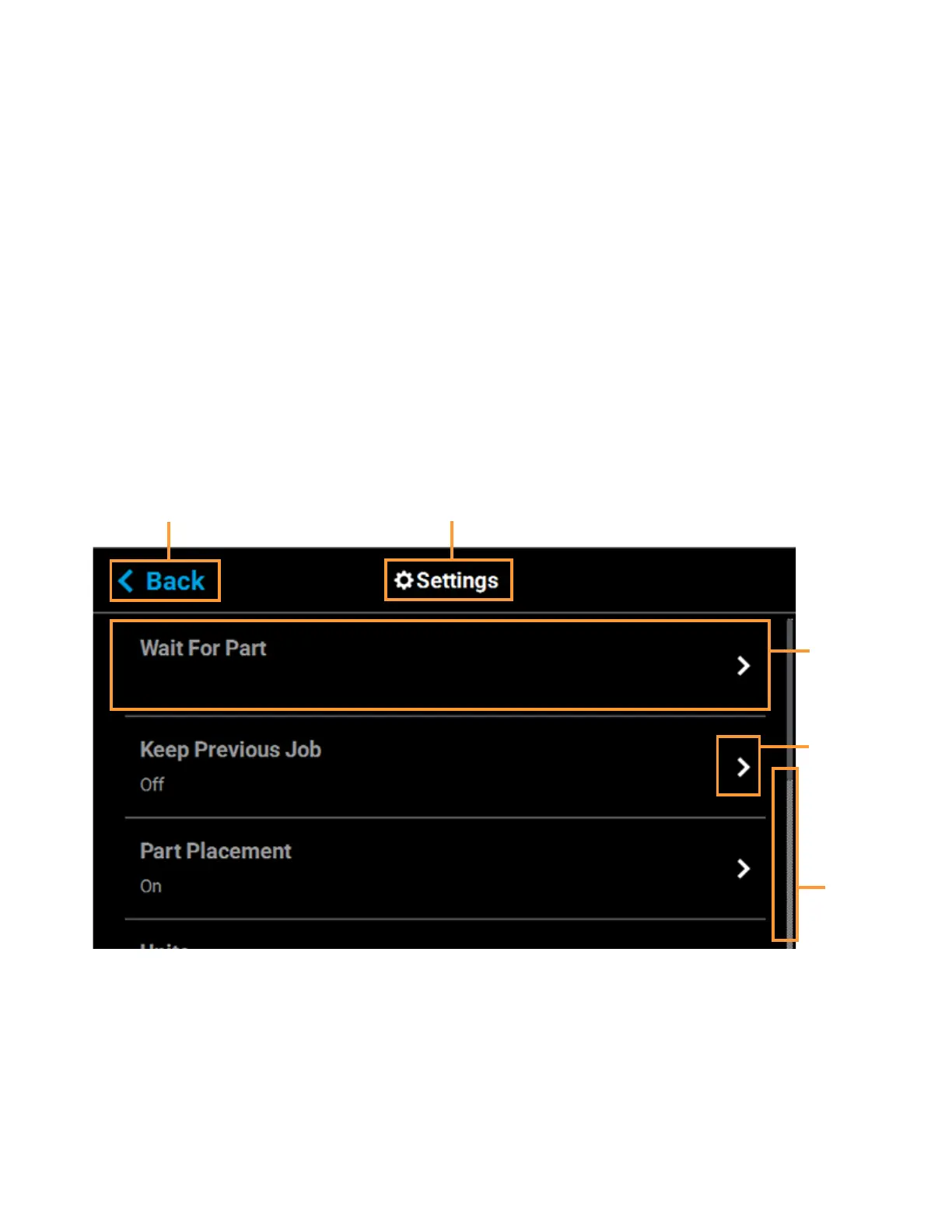
After selecting one of the buttons within the Tools page the touchscreen will refresh to display the details of the
page selected (i.e. selecting the Settings button will open the Settings page). Depending on the options
available for configuration within the selected page, the Display Area of the page may contain more options than
can be displayed at one time. In this case, a scrollbar is displayed along the right-hand side of the page. To
scroll up or down within a page simply touch the scrollbar displayed on the screen and pull the scrollbar in the
direction you’d like to scroll.
A heading is displayed at the top of each page, indicating the name of the page. Each page contains a variety of
settings and preferences that can be configured. Items are organized into individual rows within the Display
Area of the page. The name of the setting/preference to be configured is displayed in bold within the left side of
the row. For some items, current configuration information is displayed directly below the setting/preference
name within the row (for reference purposes).
The graphic displayed within the right side of a row will vary depending on the configuration options available for
that row. Rows containing a right arrow graphic will open a new page allowing you to configure that row’s
settings/preferences. Rows which do not contain a right arrow graphic do not have any configurable options.
After making the necessary adjustments to a row’s settings/preferences, press the Back button in the upper-left
corner of the page to exit the page.
Figure 4-35: Settings Page Content List
Right arrow
graphic
Scrollbar
Back button
Page heading
Row













 To Next Page