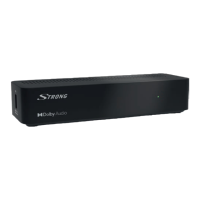
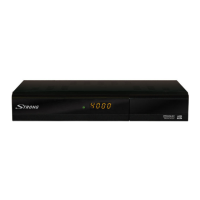
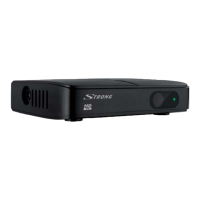
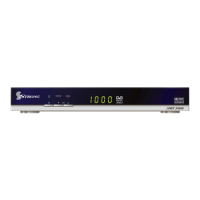
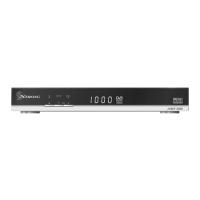
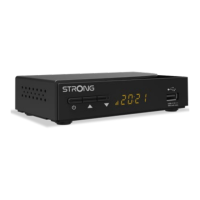
Fig. 5
By connecting your receiver to the latest digital amplifiers or Home Cinema systems you will enjoy
the best possible sound quality and multi-channel audio (depending on broadcast). Connect the
HDMI output of the receiver to an input of your amplifier, and then connect the HDMI output of the
amplifier to your TV set. Select the correct input on your amplifier to watch and listen to programmes.
Fig. 6
We recommend the use of a hard disk drive USB 2.0 or higher for recording
and play back of TV events.
For proper functioning of Timeshift and recording functions, a fast USB device (such as a hard
disk drive) is needed. Interrupted playback or distorted pictures during playback or Timeshift are
indications for a low device speed. STRONG cannot guarantee proper functioning of recoding and or
Timeshift functions with all USB devices.
Fig. 4
To view a TV channel on your TV (or a TV set in another room), alternatively you can use the UHF
analogue modulator output (TO TV) and connect it with a coaxial cable to the (other) TV set. You must
let the (other) TV set search or scan for the RF signal out of the modulator. (Refer to the manual of your
TV set.) Default channel is 38, PAL-BG, but it is adjustable in the System setup menu in the TV system.
Choose a channel which is not occupied by TV transmitters in your region to avoid interference.
Please note, when other connection options are available on your TV set, those are preferable.
4.0
If you use your receiver for the first time, the Welcome “Easy install” menu appears. Use p q to move
the highlight to the setting you wish to alter and use t u to change values. Start by selecting your
language using t u. Once you have selected your language, press q to move the highlight to the
next item and use t u to change.
Language Select your language.
Region: Select your region where this receiver is used.
Video Resolution: Use this option to select the video resolution of your TV screen. Press to
call a list with all possible resolutions. The options are: By Source (automatic
detection of video resolution offered to the receiver), By Native TV (automatic
detection of maximal resolution of TV screen), and manual selections 480i,
576i up to 1080p Please use a setting that matches your TV’s specifications.
After a selection is made, you will be asked to confirm.
Aspect Mode: Use this option to select the aspect ratio of your TV and the preferred
conversion method. Options are: Auto (automatic detection of aspect ratio),
4:3 Panscan (Displays 16:9 widescreen broadcasts full screen on your 4:3 TV),
4:3 letterbox (black bars on top and under the picture on a 4:3 TV) and 16:9
(use this setting for 16:9 TV sets).


 To Next Page