33
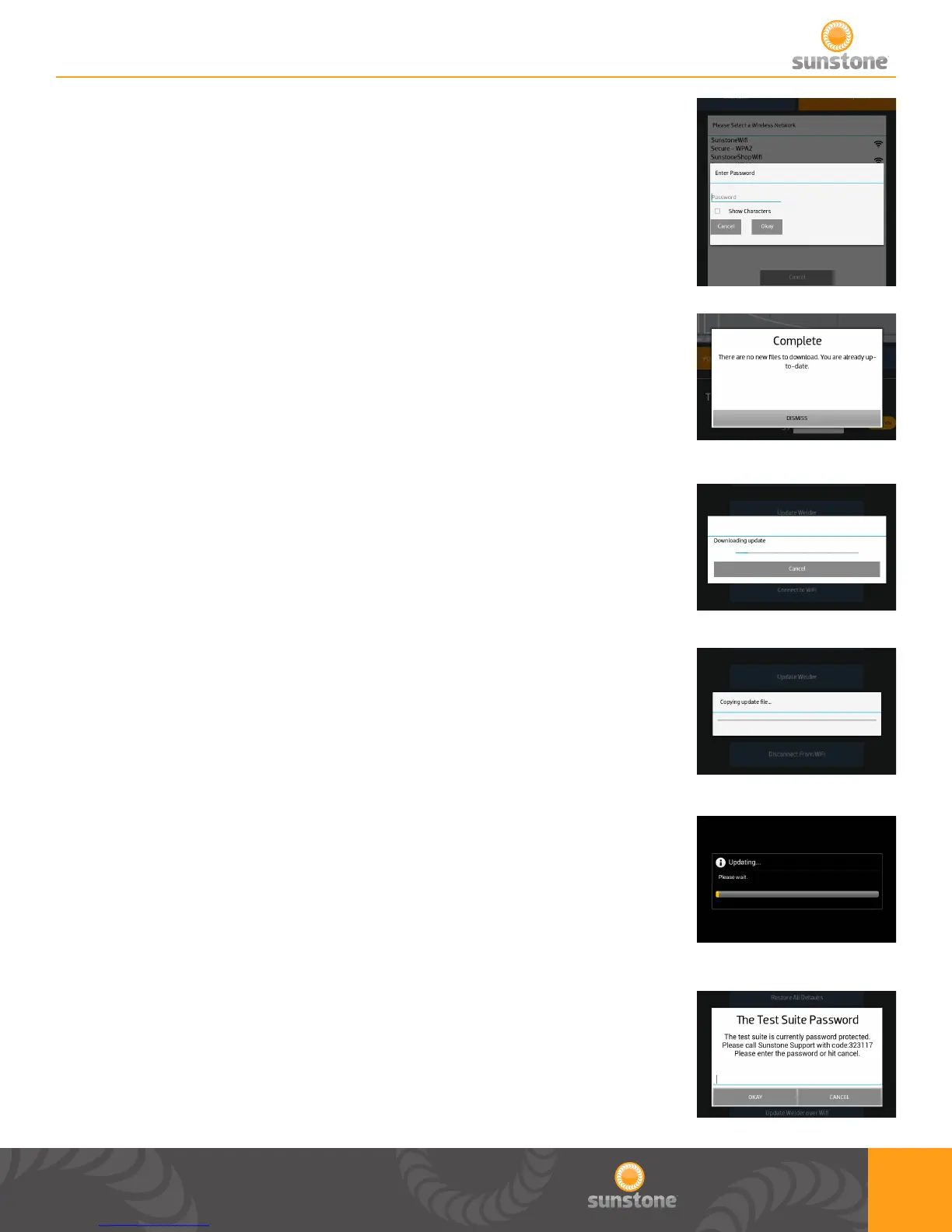
1. This dialog box appears after user has selected a secure network.
a. Enter your password to log into your network and press “Okay”.
b. Press the cancel button if you do not want to connect to your Wi-Fi
c. You will need to connect to a Wi-Fi with internet in order to update.
1. This pop up shows if you are attempting to update through Wi-Fi and the
welder is already updated to the current software.
1. If the update exists and the welder needs an update this pop up is
displayed with a status of the download.
a. Once the progress is at 100% this dialog box disappears and starts
updating the software.
1. This dialog pops up after user has chosen to update over USB.
a. Once the progress is at 100% this dialog box disappears and starts
updating the software.
1. After new update is downloaded or copied, this dialog box will appear
while the software updates.
a. Once the progress is at 100% this dialog box disappears and goes
back to the system settings tab.
1. Sunstone Support may have user go into this screen if diagnostics are
needed.
a. User can give Sunstone Support the support code.
b. Sunstone Support will then give the user a password to get into a
diagnostics screen.


 To Next Page