
 Need help?
Do you have a question about the SUNSTONE PicoDC and is the answer not in the manual?
Explains how welds are formed through contact and bulk resistance principles.
Details how surface roughness affects contact points and resistance during welding.
Provides essential factors like force, energy, length, and electrode choice for successful welds.
Explains how applied force impacts contact resistance and weld results, with notes for thermocompression.
Guides on adjusting weld energy, starting low and increasing for desired strength, and risks of high settings.
Details electrodes for magnet wires, their shaft size, and tip variations for different applications.
Describes electrodes for thin foils/strips, offering gap flexibility and step configurations.
Explains electrodes for consistent gap maintenance, suitable for similar applications but not step configurations.
Covers electrodes for cross-wire welds, allowing access to top and bottom of material.
Provides a guide for different electrode tip sizes and the amounts of force they can handle.
Explains current flow through electrodes for good weld nuggets and strength.
Details placing electrodes on same side of materials, noting challenges with pressure on uneven surfaces.
Describes electrodes on surface material only, noting potential for higher energy needs compared to direct welds.
Explains current passing through electrode tip, ideal for coated surfaces like magnet wire.
Documents process parameters like force and electrode details for repeatable weld outcomes.
Emphasizes reading safety booklets and user guides, and ensuring no obstructions before welding.
Details requirements for adequate space, clearance, ventilation, and a stable work surface.
Explains that the welder accepts 110VAC or 220VAC and automatically detects the voltage.
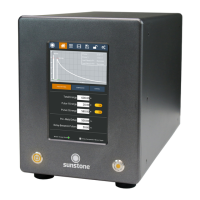
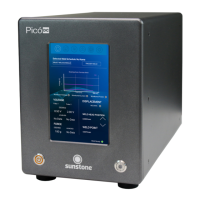
Describes the digital touchscreen as the primary interface for controlling welding parameters.
Explains the function of the power button for turning the welder on/off and the warning about during boot-up.
Details the Weld On/Off button's role in enabling/disabling welding and safety during adjustments.
Describes the Ethernet port for future network connectivity, enabling computer connection.
Explains the Accessory Port for communicating with external accessories like the Micro E weld head.
Details the PLC Port for logic inputs/outputs, enabling communication with PLCs.
Explains the E-Stop circuit, its bypass plug, and how it engages or disengages for safety.
Notes that the Weld Head Control Port is not currently used, with connections via the Accessory Port.
Describes the Primary Trigger Port for connecting foot pedals or switches to initiate welds.
Details the USB port's functions: software updates, data import/export, and connecting a mouse.
Instructs to unbox the welder and place it on a stable surface for setup.
Guides on connecting the E-Stop bypass plug or switch to the E-Stop port on the back panel.
Details connecting the power cord to the welder's power inlet and the AC outlet.
Explains connecting weld cables from the weld head to the positive and negative weld terminals.
Instructs connecting the Weld Head Control cable to the port if using the Micro E weld head.
Guides connecting the accessory port cable to the welder and the Comm Port on the weld head.
Advises determining the best trigger configuration, like Direct Control or Auto Mode.
Explains the Navigation Bar at the top of the screen for accessing the welder's main systems.
Describes accessing the Run Screen to view current settings and weld head status.
Guides on using the Weld Head Control Screen for weld head setup, which appears when connected.
Explains accessing the Weld Settings Screen to configure weld discharge parameters like pulse settings.
Guides on how to quickly load an existing weld schedule directly from the Run Screen.
Explains how to trigger a weld in Auto mode by pressing the Trigger Weld button.
Guides choosing between Direct Control and Automatic Control modes for weld head operation.
Explains controlling weld head position directly via an analog foot pedal.
Explains the need for force calibration and how it occurs immediately after setting desired force.
Guides verifying force calibration and using Auto Set Position or manual adjustments.
Details setting the Squeeze Time, the wait period before initiating weld discharge after reaching weld point.
Explains setting the Hold Time, the duration the servo maintains position after discharge before retracting.
Guides setting travel speed between Home Point and Hover Point using a slider.
Explains setting travel speed between Hover Point and Approach Point via a slider.
Details setting travel speed between Weld Point and Hover Point using a slider.
Guides setting minimum and maximum displacement limits or disabling displacement monitoring.
Describes the graph displaying expected waveform based on chosen weld settings and parameters.
Explains enabling or disabling weld pulses to increase weld quality and control energy release.
Guides adjusting the voltage for each pulse, from 0.1V to 5V, using a pop-up box.
Guides on typing a name, entering notes, and saving a new weld schedule.
Explains how to edit existing schedules by tapping on them and using the save over function.
Details reviewing pin states and programming schedules via the PLC tab and 8DIN connector.
Explains the Basic PLC I/O tab showing pin states for the 8DIN connector and available options.
Guides on programming and switching between four pre-saved schedules via PLC input pins.
Explains how to enable/disable alarms and set warning/alarm values for specific parameters.
Guides exporting past weld results history to a USB drive in CSV format.
Explains how to clear the past weld results history from the system.
Details saving all welder settings and schedules to USB for implementing multiple identical welders.
Explains uploading exported welder settings and schedules from a USB drive to another welder.
Describes copying saved weld schedules to a USB drive, not including system settings.
Guides changing language, speaker volume, and system date and time through the Interface panel.
Explains selecting a desired language from a list to change the software's language.
Details using the volume slider bar to increase or decrease the speaker volume.
Guides setting the system date and time by using the Set button and a pop-up calendar/time selector.
Explains preventing unauthorized changes by locking welder settings, requiring a PIN.
Guides restoring all welder settings to factory default status.
Explains erasing all memory, including saved schedules and weld history.
Details updating Pico's software using a USB drive by following on-screen instructions.
Guides updating Pico's software via Wi-Fi connection by following prompts.
Explains using the Test Suite for diagnostics and technical support, requiring a password.
Notes that System Information, like hardware and firmware revisions, is displayed at the bottom of the Settings Screen.
Details updating software using a USB drive by inserting it into the Pico and following prompts.
Explains updating software wirelessly by connecting to a network and following on-screen instructions.
Details the PLC port pinout, its mating connector, and functions for basic PLC connectivity.
Explains the E-Stop port pinout, its mating connector, and how to enable/disable the E-Stop function.
Describes the warranty that continues as long as the welder is covered by the Sunstone Circle.
Explains receiving a loaner unit while the primary welder is undergoing repair.
Details the option for replacing a broken welder with a new or refurbished model at discretion.
Highlights access to all software upgrades, enhancing productivity and capability.
Covers shipping costs for ground service within the US for repairs, with options for faster shipping.
Ensures customer service requests are prioritized, providing extra attention to VIP circle members.
Lists additional perks like Sunstone swag, magazine subscriptions, and VIP event invitations.
 General
| Brand | SUNSTONE |
|---|---|
| Model | PicoDC |
| Category | Welding System |
| Language | English |

 To Next Page