Questions? Call or Text +1-801-658-0015 • 23
e Micro Welder Experts
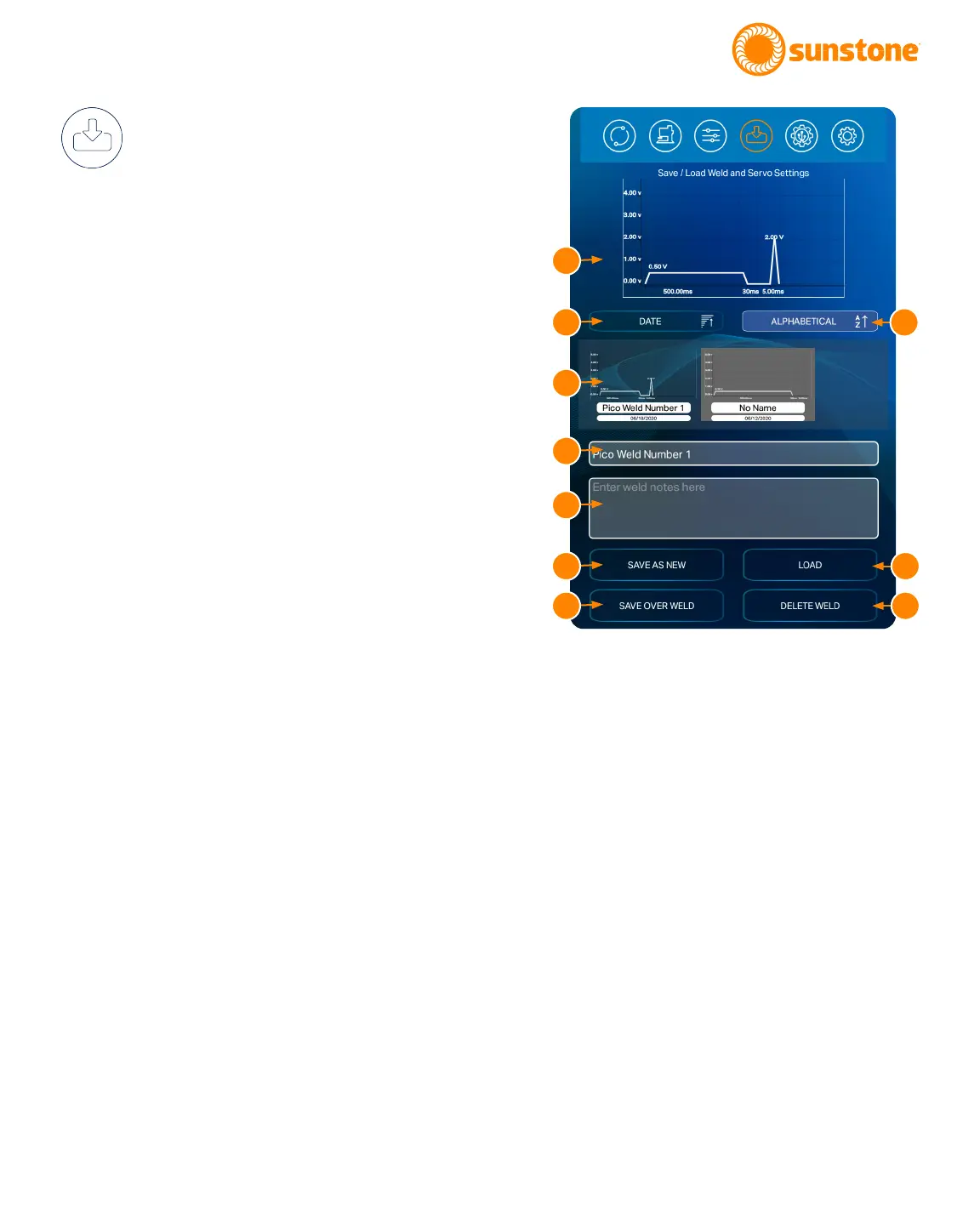
Figure 23.1. The Save/Load screen allows you to save and
load weld schedules, which are a collection of all settings
for a particular weld. Being able to save a schedule
decreases time spent re-entering preferred settings for a
particular weld.
Save/Load Screen Operation
The Save/Load screen allows you to save and
load weld schedules. See Figure 23.1. A weld
schedule is the collection of all settings for a particular
weld, such as energy levels, delays, number of puls-
es, etc. Being able to save a schedule decreases time
spent re-entering preferred settings for a particular
weld. The save and load options are displayed on the
same screen at the same time.
The top portion of the screen displays the waveform of
the current pulse settings (A); or, if the operator taps on
or highlights a previously saved schedule, the selected
settings of the previously saved schedule will be dis-
played as a waveform.
The center of the screen displays any previously saved
schedules (B). You can scroll through the list by swiping
left or right.
You can choose to list the saved schedules by date or
in alphabetical order by pressing the Date Button (C)
or Alphabetical Button (H) found under the waveform
graph (A).
To save a new schedule:
• Type the desired name in the Enter Weld Name
Here box (D).
• Enter custom notes in the Enter Notes on Weld
Here box (E).
• Press the Save as New Button (F) to save the
schedule. The schedule will now be added and
displayed in the list of saved schedules (C).
If you attempt to save a new schedule with the same
name a s a previously saved schedule, a message will
pop up to notify the operator that a “1” was attached to
the end of the name before being saved. If this occurs,
tap the Okay button. To edit the name, select the newly
saved schedule (with the “1” at the end), change the
name, and tap the Save Over Selected Weld button (G).
To save over an existing weld:
• Tap on the previously saved schedule.
A
B
C
D
E
F
G
H
I
J







 To Next Page