Questions? Call or Text +1-801-658-0015 • 29
e Micro Welder Experts
port Welds feature does not copy system settings from
one welder to another, only weld schedules.
Import Saved Welds (G)
After you’ve exported saved weld schedules using the
Export Welds feature, use the Import Welds feature to
import the les from a USB drive to the welder.
Settings Screen Operation
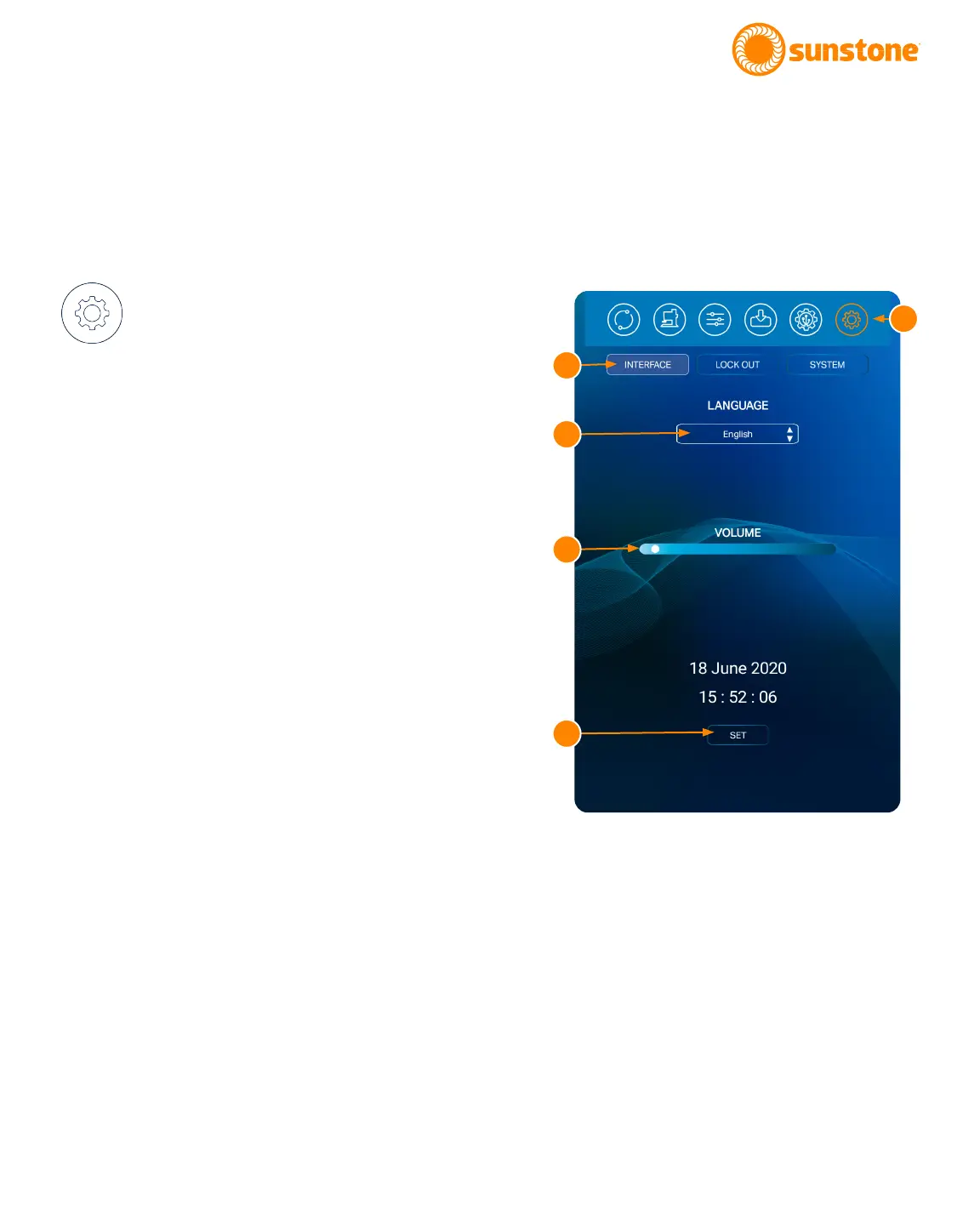
Use the Settings Screen to make changes to
the Pico’s general system settings, such as language,
defaults, Wi-Fi, and locks. To make changes to the
welder’s general settings, press the Settins Screen
Button (L) in the Navigation Bar. The Settings Screen will
appear (see Figure. 29.1).
INTERFACE PANEL
Tap the Interface Button (H) to choose the desired lan-
guage, speaker volume, and system date and time.
To change the language:
• Touch the Language box (I). A list of available
languages will appear.
• Press the desired language. The Pico’s soft-
ware will now use the selected language.
To adjust the volume:
• Press and move the Volume Slider Bar (J) to the
right to increase the volume.
• Press and move the Volume Slider Bar (J) to the
left to decrease the volume.
To Set the Date and Time:
• Press the Set Button (K) under the current
displayed system date and time.
• A pop-up box will open with place to change
the time and a calendar for choosing the time.
Scroll the time and calendars to nd the desired
times and dates.
• When time and date are selected the Pico will
now use the new time and date.
Figure 29.1. Use the Settings Screen to make
changes to the Pico’s general system settings, such
as language, defaults, Wi-Fi, and locks. .
H
I
J
K
L


 To Next Page