32
Sunstone Welders User Manual: CDDP-A
Settings Screen Pop Ups
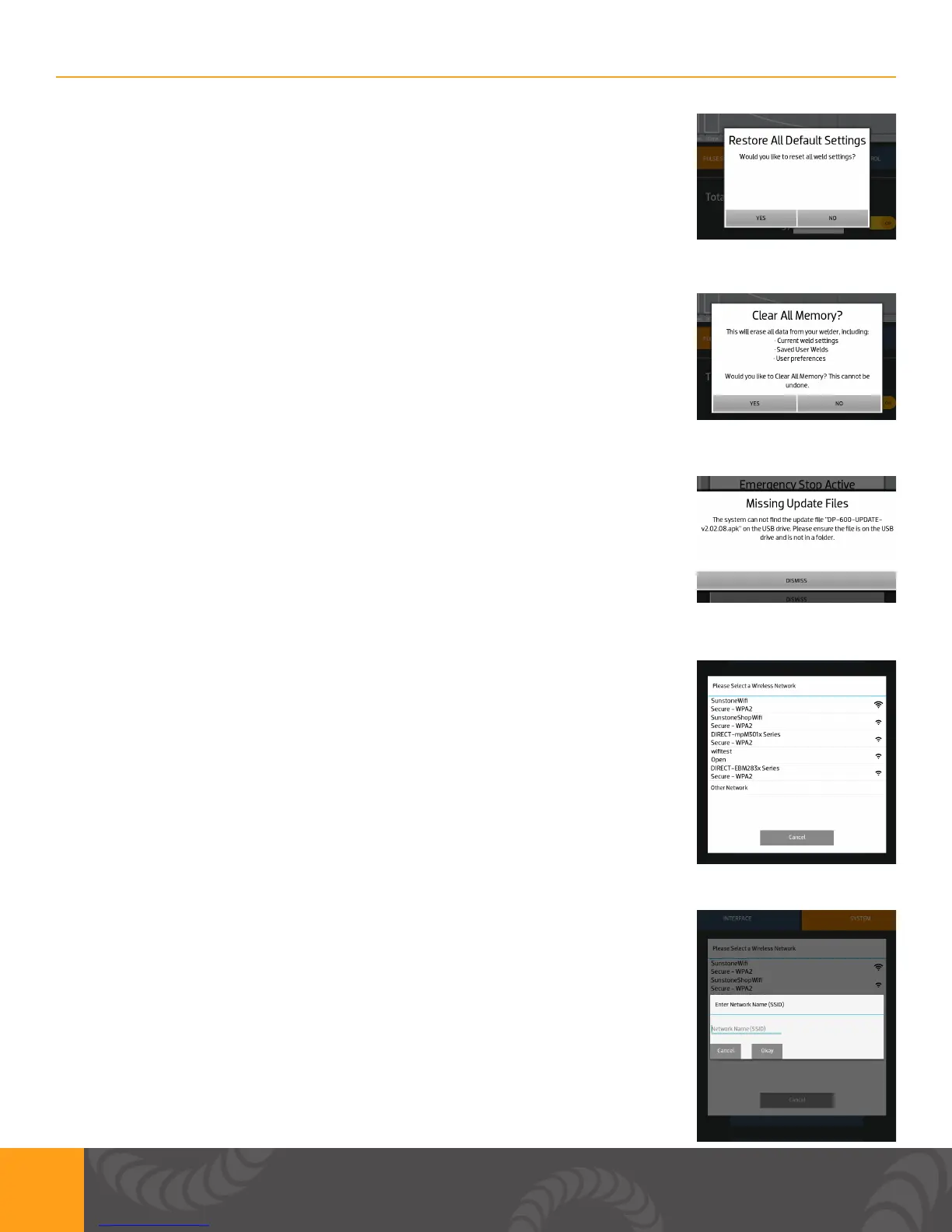
1. Restore all default settings pop up.
a. Click “Yes” to restore defaults and click “No” to not restore defaults and
go back to the system settings screen.
1. Clear all memory pop up.
a. Click “Yes” to clear all memory and click “No” to not clear memory and
go back to the system settings screen.
1. Missing update pop up.
a. The system cannot nd the update le “*.apk” on the usb drive. Please
ensure the le is on the usb drive and is not in a folder.
b. Sometimes a little time is required between inserting the USB drive and
pressing the update button. Press “Dismiss” and try again.
1. After pressing “Update over Wi-Fi” and welder is not connected to a
network this pop up will appear.
2. It will list the available networks and allow you to choose from one of
them.
3. If you do not see your network/your network is hidden, you can choose
“Other Network” to manually type in your network SSID.
4. You can cancel if you wish to not update over Wi-Fi.
1. This dialog box appears when user chooses to enter their own network
SSID, by pressing “Other” network.


 To Next Page