prefer, you can use the OUTPUT feature to take
audio from one channel and send it into both
channels or both sides of your headphones. How
to do this:
1. While the unit is stopped, press the MENU/
STORE button.
2. Turn the SELECT jog wheel until you see the
option OUTPUT.
3. Press the SELECT jog wheel to enter.
4. If display reads “STEREO” turn the SELECT jog
wheel to change the display to read “MONO.”
5. Press the MENU/STORE button to store the new
setting.
H. DISPLAY (DISP) button
While playing a CD in either drive, press the
DISPLAY button once to display the remaining
play time for the current track. The display reads
“TRACK.”
Press the button a second time to display the
remaining play time for the entire CD. The display
reads “TOTAL TRACK.” Press the DISPLAY button
again to return to the default display showing
elapsed track time.
I. PROGRAM (PROG) button
Use this button to program a play list of tracks or
MP3s (for the CD drive only.) (See pg. 19 for more
information).
J. CANCEL/DELETE button
Press this button to delete tracks from a program,
to delete text when entering CD text, to cancel
menu changes, or to return to a higher level in
the menu.
- 6 -
Track Repeat
While playing a CD in either drive press this
button once to repeat only the track being
played. The display reads “REPEAT 1.”
Entire CD Repeat
Press the REPEAT button twice to repeat the
entire CD. The display reads “REPEAT.”
Press REPEAT a third time to exit Repeat mode.
D. SINGLE TRACK PLAY (SINGLE) button
Press the SINGLE button to toggle Single Track
Play ON or OFF.
While in Single Track Play and when a track is
selected with the SELECT jog wheel, the track
does not automatically start playing. Instead, it is
paused and cued up at the beginning of the audio
and the PLAY/PAUSE button flashes.
Press the PLAY/PAUSE button to begin playback.
When the track is finished, the PSD340 will
automatically pause, cued to music, at the
beginning of the next track. (See pg. 27 on how
to adjust the cue point).
E. MENU/STORE button
Press this button to enter Menu mode. Menu
selections and changes are made using the
SELECT jog wheel. Turn the SELECT jog wheel to
scroll through the options. Press the SELECT jog
wheel to select an option. Press the MENU/STORE
button to store changes and exit Menu mode. (For
a complete list of menu selections see pg. 22).
F. TRACK INCREMENT (TR INC) button
During recording, press this button to manually
increment a new track. RECOMMENDED: When
using this feature, set AUTO TRACK to OFF (See
pg. 23).
G. BALANCE button
The BALANCE control allows you to adjust the
right-left stereo balance of the line output and
headphones and the R-L channel mix of the
speaker. Press the BALANCE button, then turn the
SELECT jog wheel to adjust the stereo balance.
When transcribing, you might want to zero in on
a particular instrument in the stereo mix. If that
instrument is located mostly in the right channel,
you may turn the BALANCE control all the way to
the right. However, this will remove all the sound
from the left channel and left headphone. If you
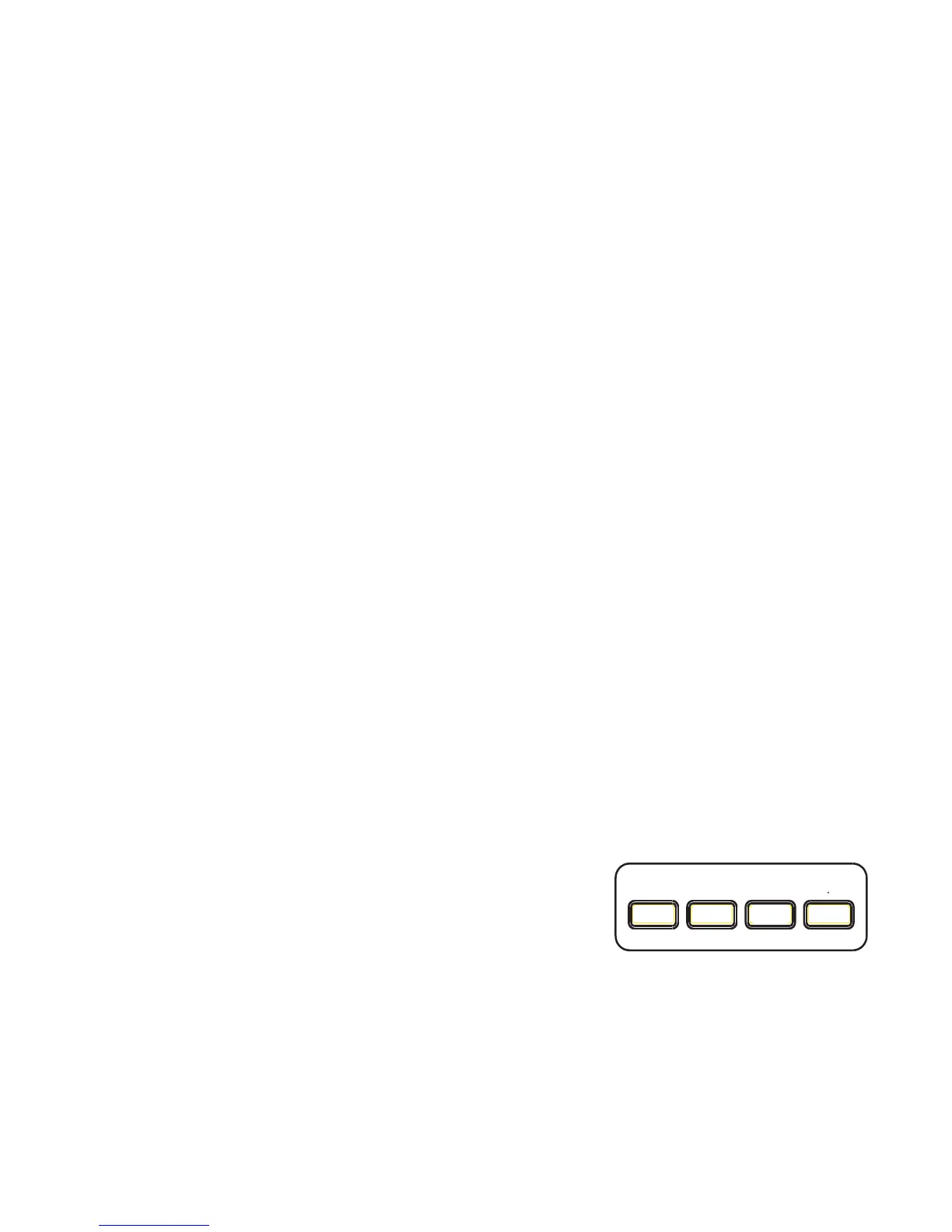
VR
METRO
TUNER
REV/DLY
K. Metronome
L. Reverb/Delay
M. Tuner
N. VR (Voice
Reduction)
[1
-2
] Music Practice Controls
K. METRONOME (METRO) button
Press this button to turn the metronome ON/OFF
and to adjust metronome settings (pg. 14).
L. REVERB/DELAY (REV/DLY) button
Press this button to add a Reverb or Delay effect
to AUX IN, the left MIC/LINE/INST input and/or
the right MIC/LINE/INT MIC input and to adjust
Reverb/Delay settings (pg. 18).
K L M N


 To Next Page