Authentication
15
Authentication
Auth Mode
Modifying Auth Mode
You can set the authentication method and schedule according to each credential.
1 Press and authenticate with the Admin level credential.
2 Press AUTHENTICATION > Auth Mode.
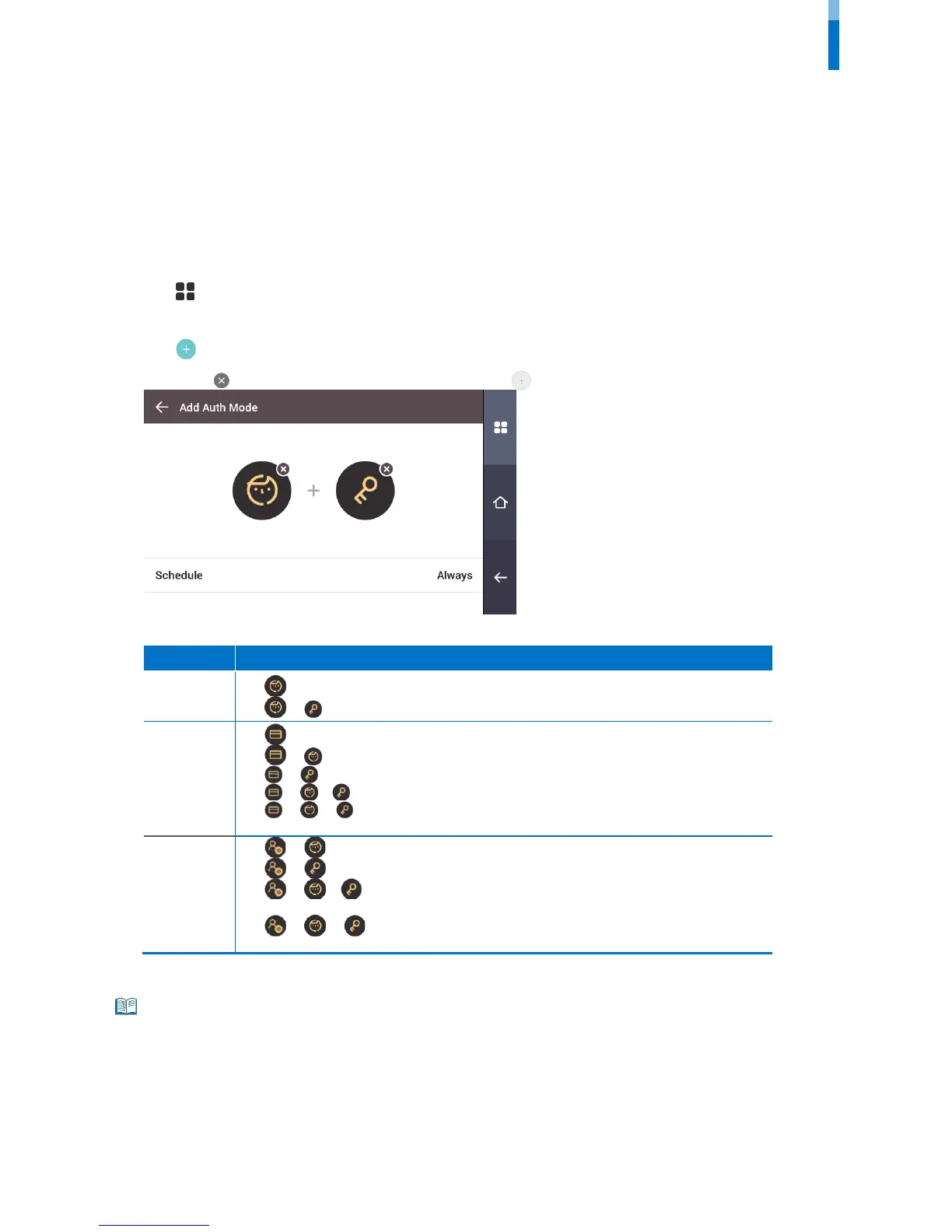
3 Press to add an auth mode or press an auth mode you wish to modify.
4 Pressing the icon will delete the selected credential, and pressing will display an addable credential on the screen.
5 Set the desired auth mode and select a schedule.
Classification Description
Face
• : Mode allowing authentication with a face only.
• + : Mode to authenticate with a face and PIN.
Card
• : Mode allowing authentication with a card only
• + : Mode allowing authentication with a card and then with a face.
• + : Mode allowing authentication with a card and PIN.
• + / : Mode allowing authentication with a card and then with a face or PIN.
• + + : Mode allowing authentication with a card and then with both a face and PIN
input.
ID
• + : Mode allowing authentication by entering ID and then authenticating the face.
• + : Mode allowing authentication by entering ID and then a PIN.
• + / : Mode allowing authentication by entering ID and then authenticating the
face or entering a PIN.
• + + : Mode allowing authentication by entering ID and then using both face
6 When you press OK, settings will be saved.
• A schedule can be set in BioStar 2. If there is no set schedule, only Always can be selected.
• For detailed contents regarding setting a schedule, refer to BioStar 2 Administrator's manual.



 To Next Page