4. Tap the settings icon in the upper right and tap on the ' + ' icon to add a new device.
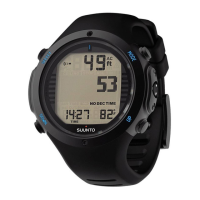
5. Tap on your dive computer from the list of found devices and enter the passkey shown on
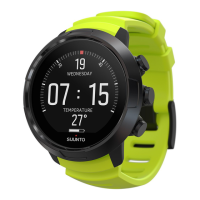
the Suunto D5 display.
To pair with Suunto app on Android:
1. Download and install Suunto app on your compatible Android device from Google Play.
The app description includes the latest compatibility information.
2. Start Suunto app and turn on Bluetooth if it is not on already. Leave the app running in the
foreground.
3. If you have not yet set up your Suunto D5, do so now (see 2. Getting started).
4. A pop-up screen opens on your Android device. Select [Pair] .
5. Enter the passkey shown on your dive computer display into the paring request field on
your mobile device and tap [OK] .
3.27. Suunto DM5
The Suunto DM5 software program allows you to track and analyze all of your dive logs and
plan your future dives. With DM5 you can customize your Suunto D5 and update the device
firmware. Download Suunto DM5 from www.suunto.com/dm5.
NOTE: Mono framework is required when using DM5 on a Mac.
3.27.1. Synchronizing logs and settings
To be able to synchronize logs and settings, you need to
first install Suunto DM5 (see 3.27.
Suunto DM5).
To download logs from your Suunto D5 and sync settings:
1. Start DM5.
2. Connect Suunto D5 to a computer with a USB cable.
3. Wait for the syncing to complete.
New dive logs appear in the DM5 DIVES list on the left sorted by date and time.
3.27.2. Updating
firmware
Suunto DM5 is required to install new firmware for your Suunto D5. If a new firmware version
is available, you are notified when connection is established between your Suunto D5 and
DM5.
Before updating the
firmware, make sure the USB is securely connected. The cable must not
be unplugged until update process is completed.
Watch the video on YouTube.
To update firmware:
1. Select Suunto D5 from the devices list in DM5.
2. Synchronize if needed.
3. Click update and wait for the update process to complete. This may take up to 10 minutes.
Suunto D5
39


 To Next Page