Operating the VC5090 3 - 9
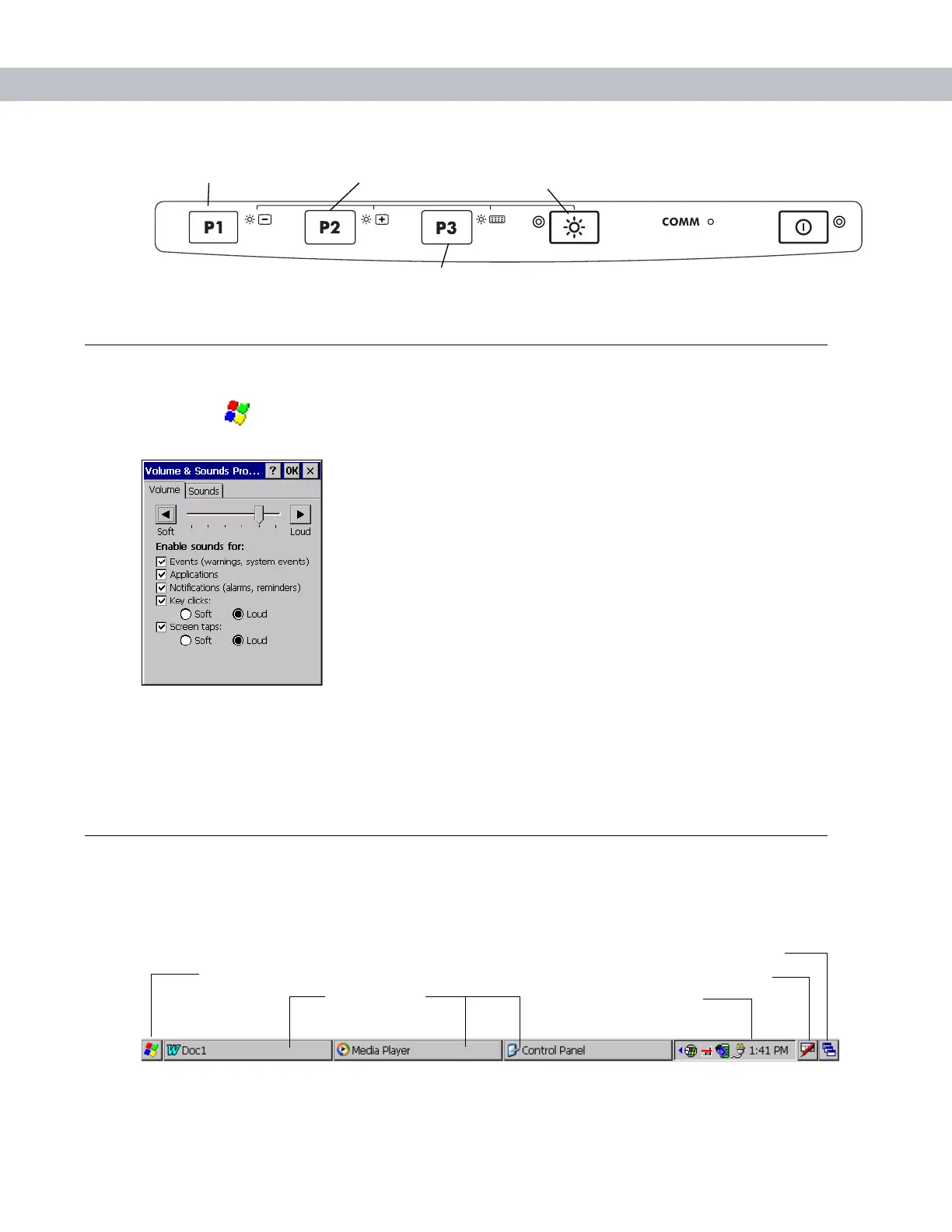
Figure 3-14
Brightness Control
Adjusting the Volume
1. Tap the > Settings > Control Panel > Volume & Sounds icon. The Volume & Sounds Properties window
appears.
Figure 3-15
Volume and Sounds Properties Window
2. Adjust the volume slider as necessary using the pointer or the up and down arrow keys. Check the Enable
sounds for
check boxes as desired.
3. Tap OK to save the setting or tap X to exit without saving.
Status Icons
The Taskbar at the bottom of the window displays the active programs, current time, battery status and
communication status.
Figure 3-16
Taskbar
Backlight Control Button
Decrease Brightness Increase Brightness
Keyboard Backlight
Start Button
Open Program
Status Icons
Desktop Button
Keyboard Input Panel Button


 To Next Page