2
Chapter 2: Get Started with Synology DiskStation
Manager
This Chapter explains how to log in to Synology DiskStation's web-based management UI, Synology
DiskStation Manager (DSM), customize your own desktop, manage its taskbar, and use the Main Menu to
access DSM settings and applications.
Install Synology DiskStation
For more information setting up Synology DiskStation and installing DSM, see the Quick Installation Guide that
came with your installation disc.
Log in to Synology DiskStation Manager
You can log in to DSM with Synology Assistant or with a web browser.
Use Synology Assistant
Windows User:
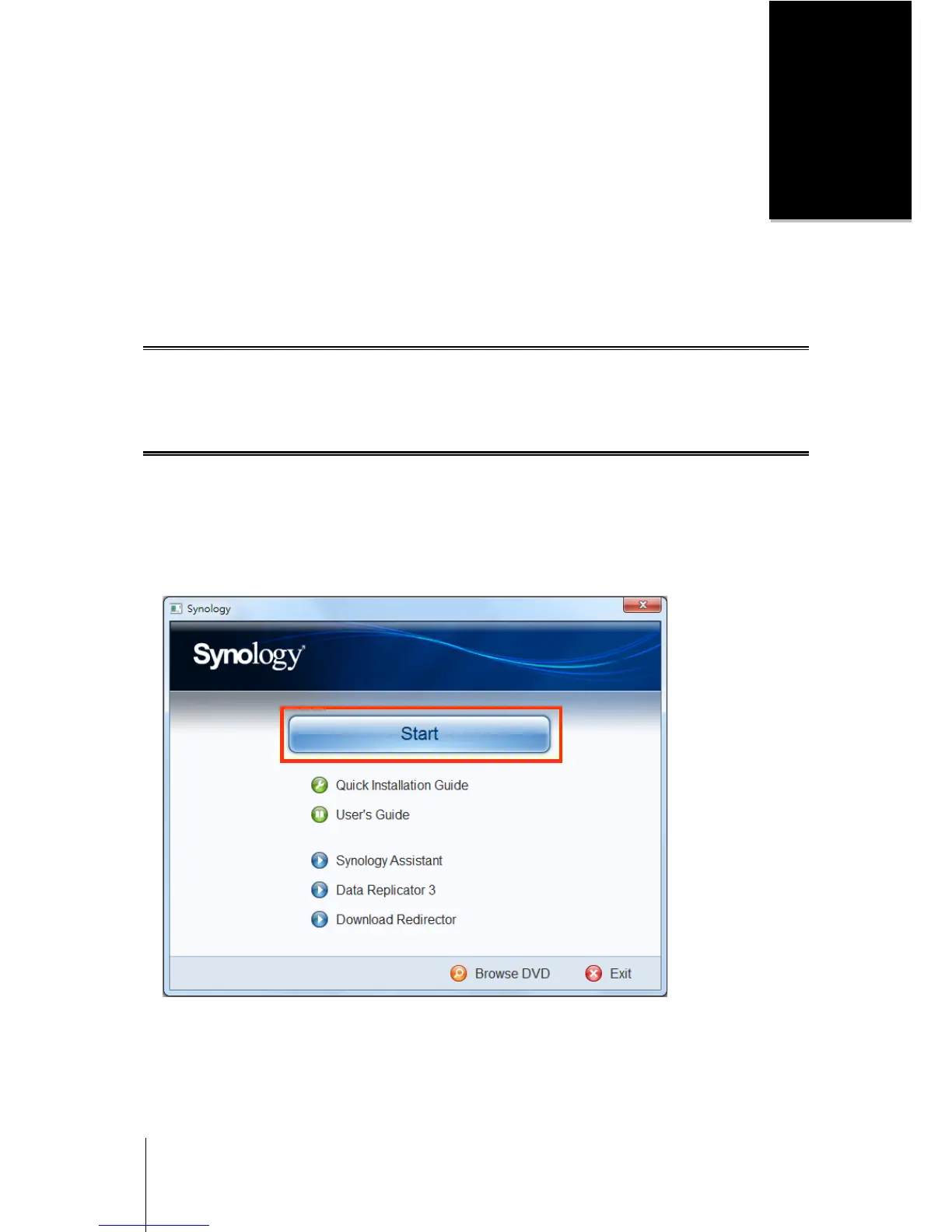
1 Insert the Installation CD or DVD into the CD/DVD-Rom Drive of your computer.
2 Choose Start from the autorun menu and follow the steps to complete installation.
3 After installation, double-click the desktop icon to launch Synology Assistant.




 To Next Page