Synology DiskStation User's Guide
Based on DSM 3.1
65 Chapter 6: Enhance Internet Security
4 Specify the source IP address in the Source IP section. You can choose to allow or deny access from a
particular source IP using one of the following options:
All: Choose this option to apply the rule to all source IP addresses.
Single host: Choose this option to apply the rule to an IP address.
Subnet: Choose this option to apply the rule to a subnet.
5 Choose Allow or Deny in the Action section to allow or deny the source IP address to access the specified
ports.
Note:
When you combine multiple LAN ports with link aggregation, firewall will apply the rules from the first network
interface, and reserve the rules of the second network interface. For more information about link aggregation, see
"LAN" on Page 30.
1
If your system has multiple network ports connecting to the same subnet, the firewall rules might not work properly.
To change the priorities of rules:
Reorder the rules by dragging any of them up or down. Rules at the top will have higher priorities.
To disable rules:
Uncheck the checkboxes next to the rules.
To delete rules:
Select the rules you want to delete and click Delete.
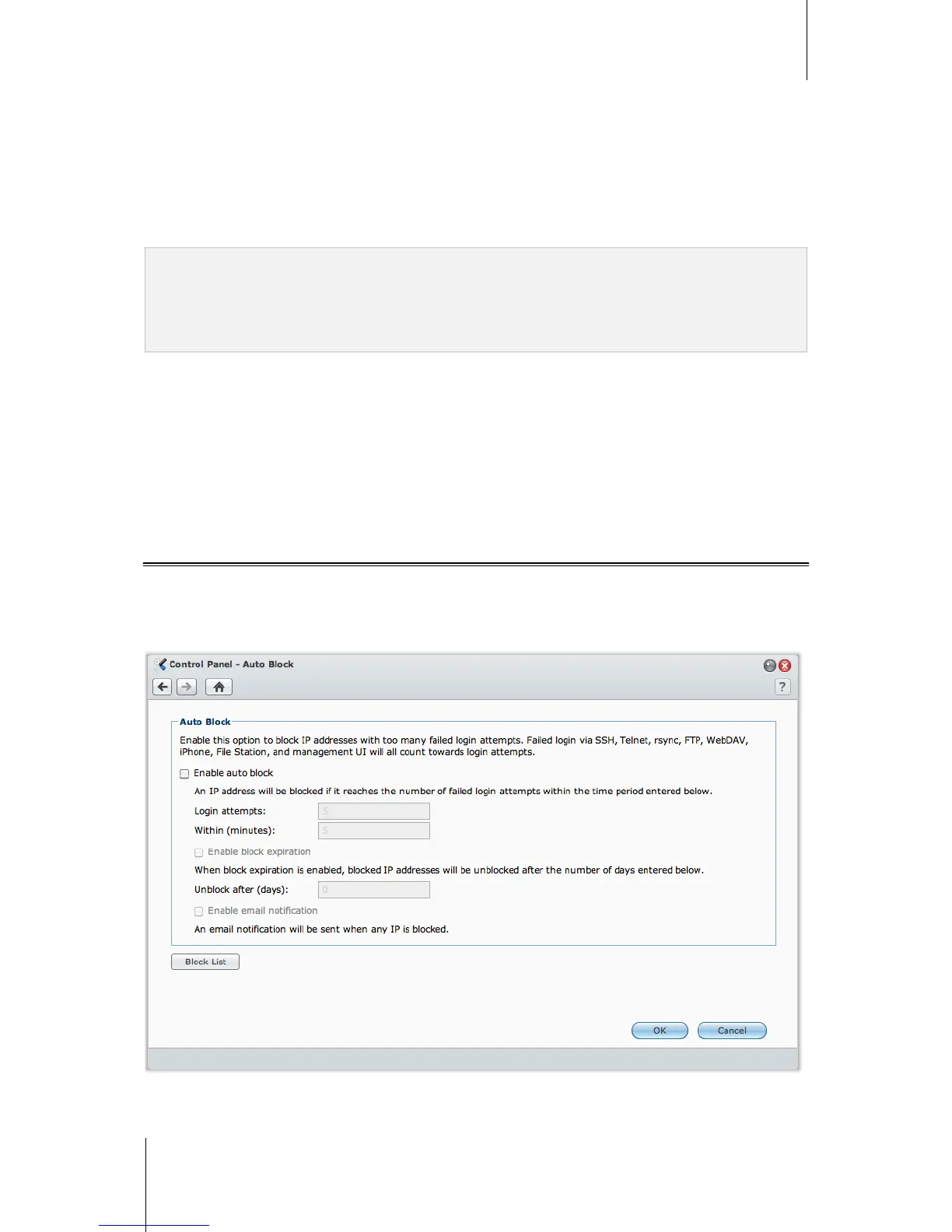
Automatically Block Suspicious Login Attempts
Auto block allows you to prevent unauthorized login via SSH, Telnet, rsync, FTP, mobile devices, File Station,
and the management UI. After enabling the service, an IP address will be blocked automatically if it has too many
failed login attempts.
Go to Main Menu > Control Panel > Auto Block to use the auto block function.
---------
1
Link Aggregation is supported on specific models only.




 To Next Page