Synology DiskStation User's Guide
Based on DSM 3.1
105 Chapter 8: Access Files from Anywhere
Display Additional Attributes
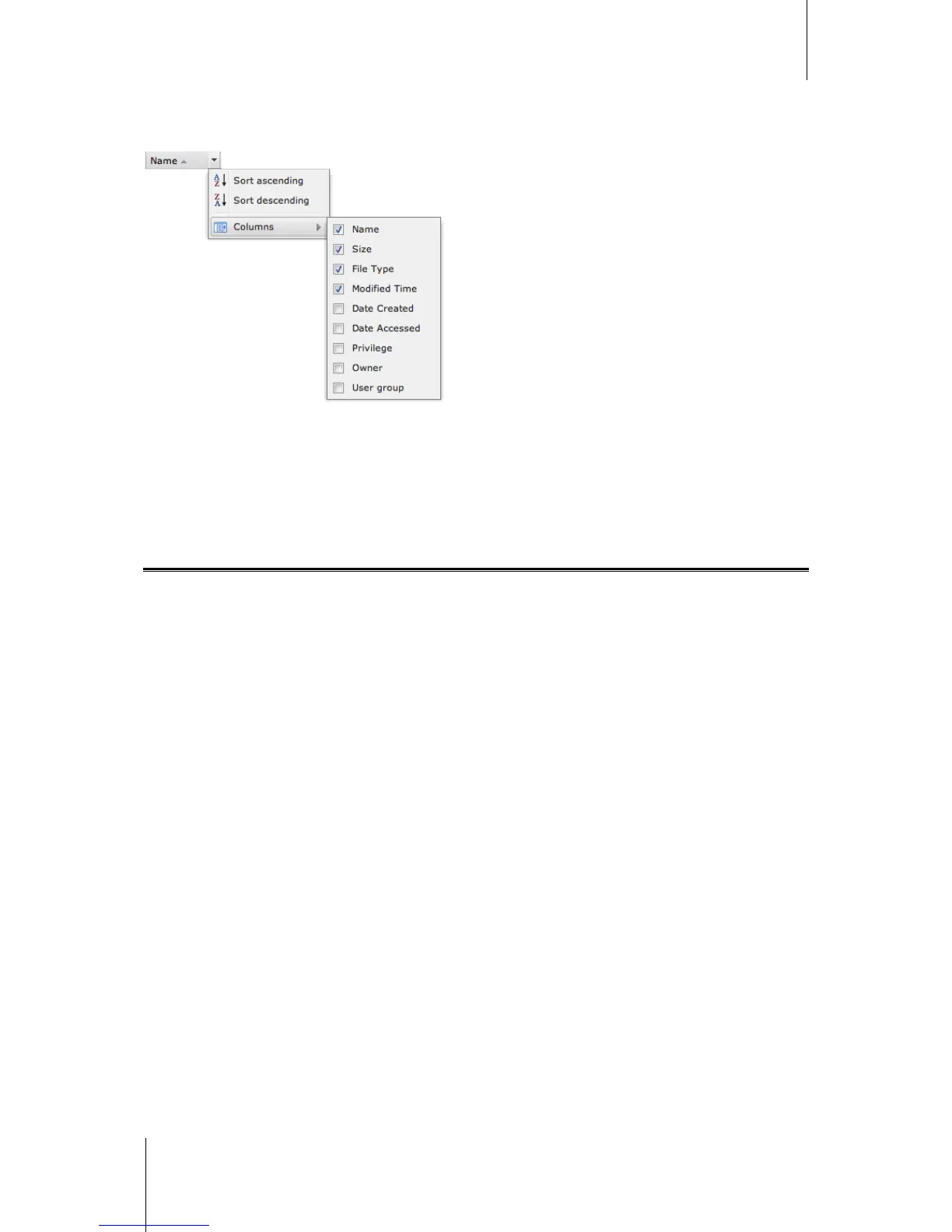
You can display additional attributes of files or folders to show them in new columns of the main section.
To display additional attributes:
1 Hover your mouse to any column header and click the downward triangle that appears on the right.
2 From the drop-down menu that appears, choose the Columns submenu.
3 Tick the checkboxes next to the extra attributes to show them in new columns.
Access Files via File Station
Go to Main Menu > Control Panel > File Station to enable File Station, which allows you to access DiskStation
files through a customized port.
To enable File Station:
1 Tick Enable File Station (HTTP) and specify a customized port number.
2 If you want to have the connection to File Station encrypted via the SSL/TLS encrypting mechanism, tick
Enable File Station (HTTPS) and specify a customized port number.
3 If you want to activate the mini banner to save vertical space, tick Use mini banner.
4 If you want to record the activities of all users, tick Enable File Station log.
5 Click OK.
To see the File Station log:
Go to Main Menu > System Information > Log, and choose File Station log from the drop-down menu. The
user activities are shown under the Event column, including Upload, Download, Delete, Rename, Move, Copy
and Property set.
To customize File Station:
1 Under Customization, do any of the following:
2 Customize the login message in the Message field.
3 Change the banner color in the Change banner color field.
4 Click the button next to Upload banner image to upload your favorite banner image.
5 Click OK.
To launch File Station, do any of the following:
Click the link next to Login at.
Go to Main Menu and click File Station.
Type Synology DiskStation's IP address or server name or domain name plus a colon and the customized port
number (e.g. http://ericawang.dyndns.org:7000) in the address bar of your web browser. Press Enter (PC) or
Return (Mac) on your keyboard.



 To Next Page