Synology DiskStation User's Guide
Based on DSM 3.1
19 Chapter 2: Get Started with Synology DiskStation Manager
4 Enter your user name and password, and click Login. The default password for admin is empty.
Note: To ensure your connection to DSM runs smoothly, please use the following browsers.
Chrome: 8.0 or later
Firefox: 3.5 or later
Safari: 4.0 or later
Internet Explorer: 7.0 or later
DiskStation Manager Appearance
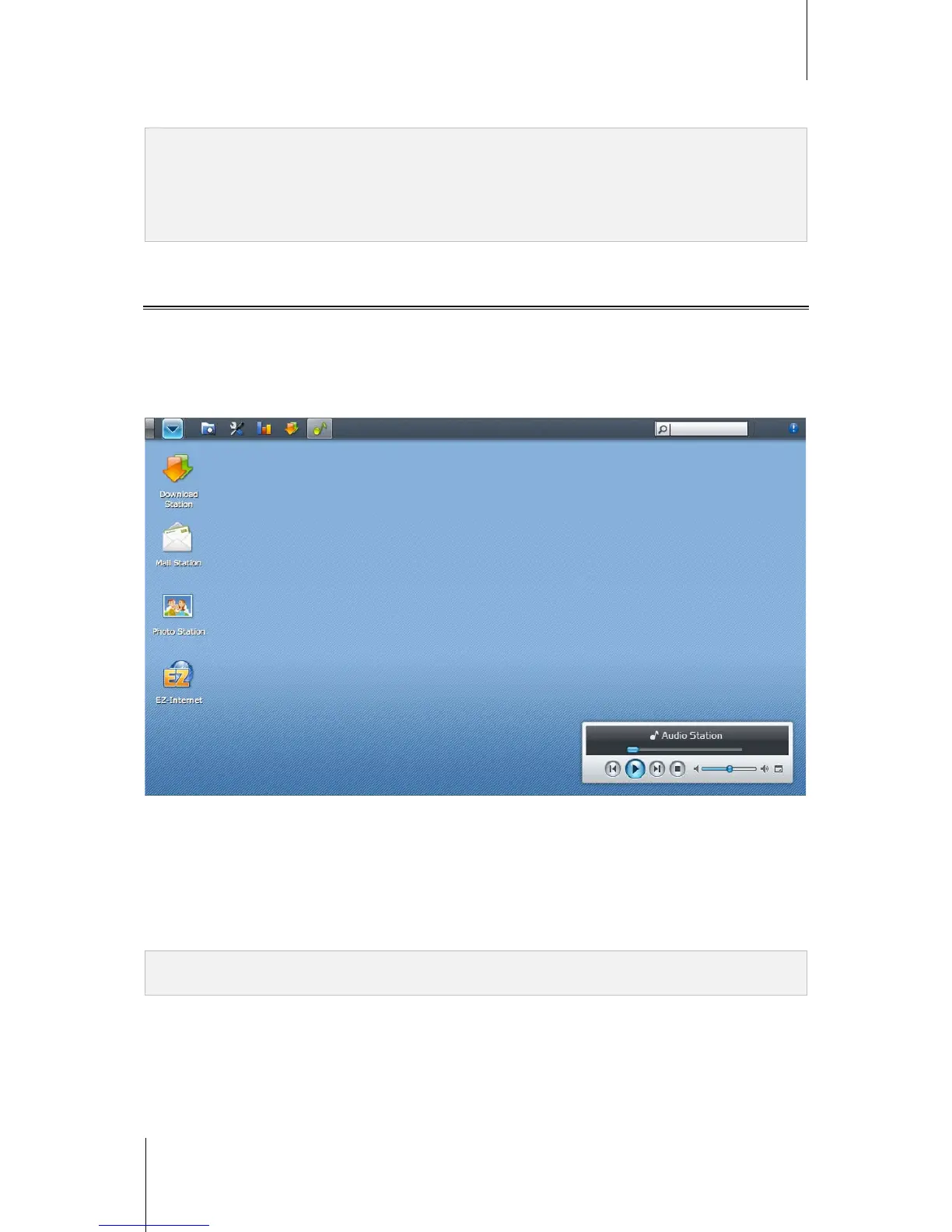
When you log in to Synology DiskStation Manager (DSM), you can see the desktop and the taskbar.
Desktop and Shortcuts
The desktop is where your application windows are displayed. You can also create desktop shortcuts to
frequently used applications.
To create a desktop shortcut to an application:
Drag its thumbnail from the Main Menu to the desktop.
To remove a desktop shortcut to an application:
Right-click the shortcut and choose Remove shortcut.
To open Audio Station or Download Station in a new browser window:
Right-click the applications' Main Menu thumbnail or desktop shortcut and choose Open in New Window.
Note: You can also customize your desktop background color or wallpaper with the Desktop function. See "Desktop"
on Page23 for more information.




 To Next Page