Synology DiskStation User's Guide
Based on DSM 3.1
160 Chapter 13: Download Files with Download Station
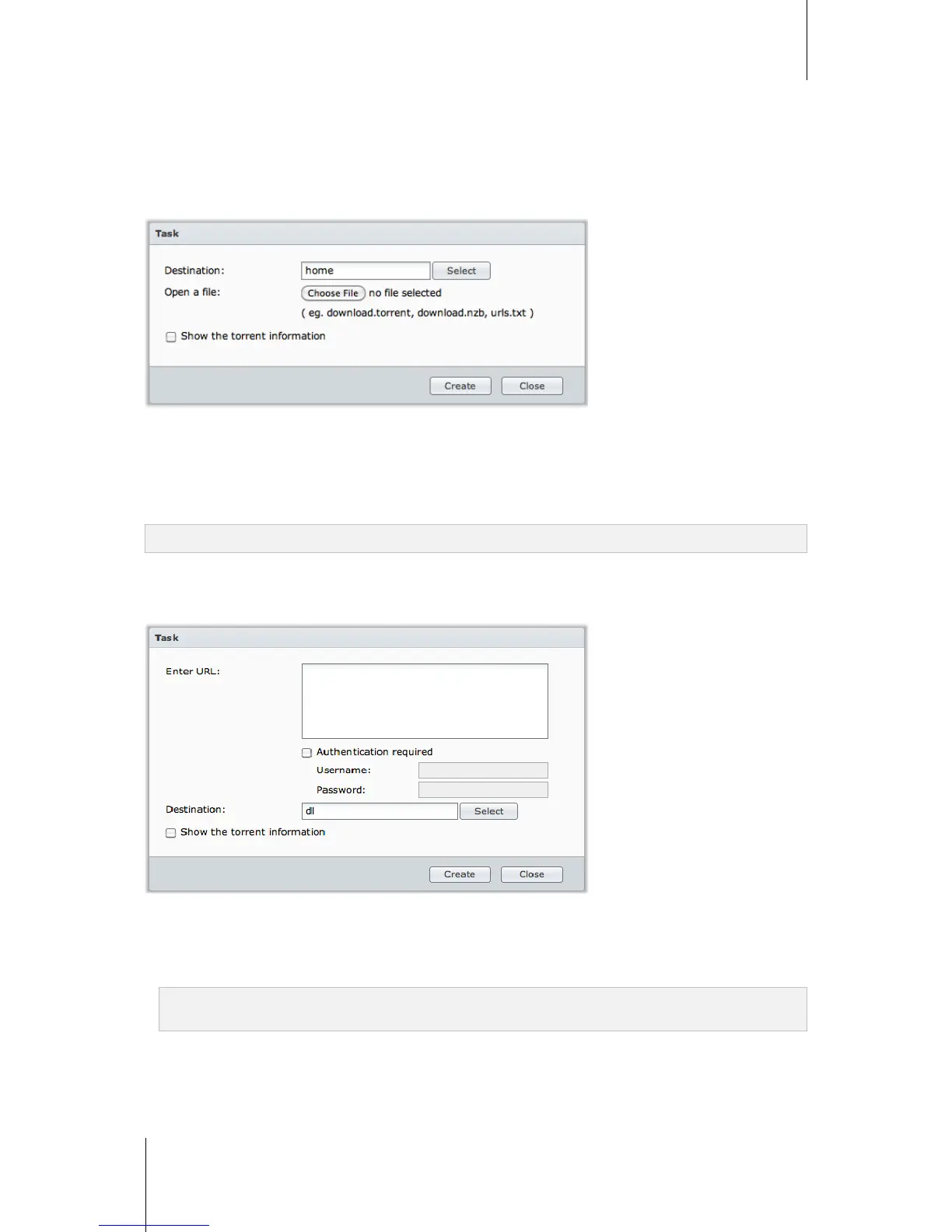
Create by Uploading Files
You can create download tasks by uploading the following files from your local computer to Download Station:
Torrent (.torrent) contains information for downloading files being shared over the BitTorrent network.
NZB (.nzb) contains information for retrieving posts from news servers.
URL (.txt) contains a list of HTTP/FTP URLs for downloading the linked files.
To create download tasks by uploading files:
1 Click the Create button.
2 Click the button next to Open a file and browse to the files for upload. (If you have installed Flash Player 9 or
later, you can make multiple selections.)
3 Click Create.
Note: You can upload up to 20 files at a time.
Create by Entering URLs
You can create download tasks by entering URLs.
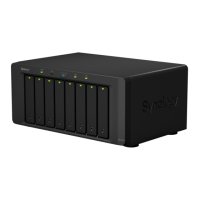
To create download tasks by entering URLs:
1 Click Add.
2 In the window that appears, enter the URLs of the file you want to download. You can enter up to 20 URLs in
the box.
Note: If you want to download a FTP folder, simply enter the FTP link with the forward slash (/) at the end of the
link. All of the files and sub-directories in the folder will be downloaded.
3 If authentication is required, tick Authentication required and enter your username and password.
4 If you want to change your download destination, click Select to select another folder.
5 Click Create.




 To Next Page