Synology DiskStation User's Guide
Based on DSM 3.1
210 Chapter 16: Perform Advanced Management Tasks
Update DSM
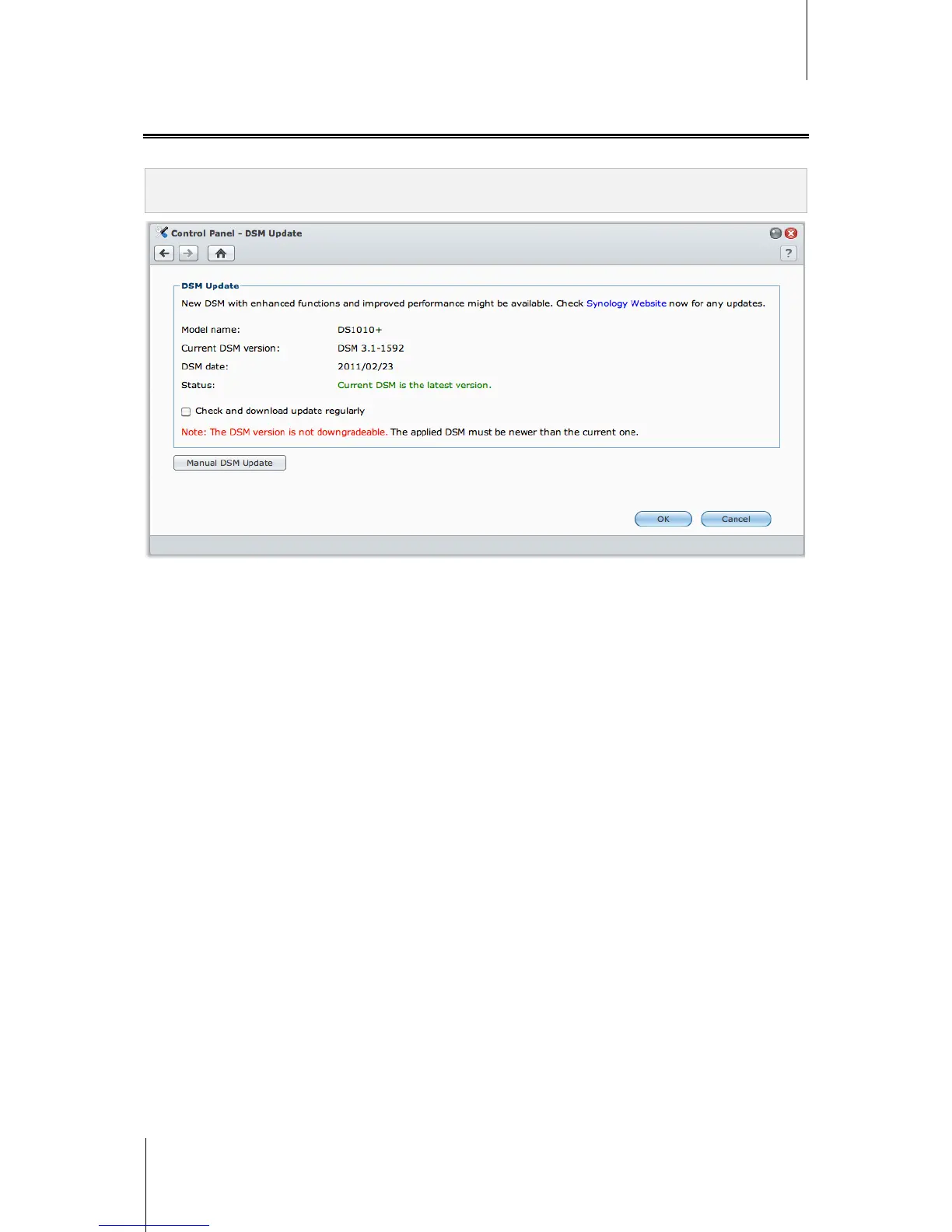
Go to Main Menu > Control Panel > DSM Update to keep your Synology DiskStation up to date.
Important: The data saved on the Synology DiskStation will not be erased during the updating process. However, for
security reason, we strongly recommend that you back up the data first.
To check if the latest DSM is available for download:
When you go to this page, the system will check with Synology Website for any updates. The check results
(shown in the Status field) might be any of the following:
Current DSM is the latest version.
The latest [DSM_VERSION] is ready for download.
To have the system download the latest DSM and perform the update:
1 If the latest DSM is ready for download, click the Download link to have the system download the latest DSM
for you.
2 The system will display any of the following desktop notifications to tell you whether the download is successful
or not: DSM Download Completed or DSM Download Failed.
3 Click the desktop notification window to go to DSM Update.
4 Do any of the following:
If DSM download completed, click Update now to start updating DSM immediately.
If DSM download failed, click Retry to have the system download the latest DSM from Synology again.




 To Next Page