Synology DiskStation User's Guide
Based on DSM 3.1
104 Chapter 8: Access Files from Anywhere
Play Videos
1 Browse to the folder where the video is located.
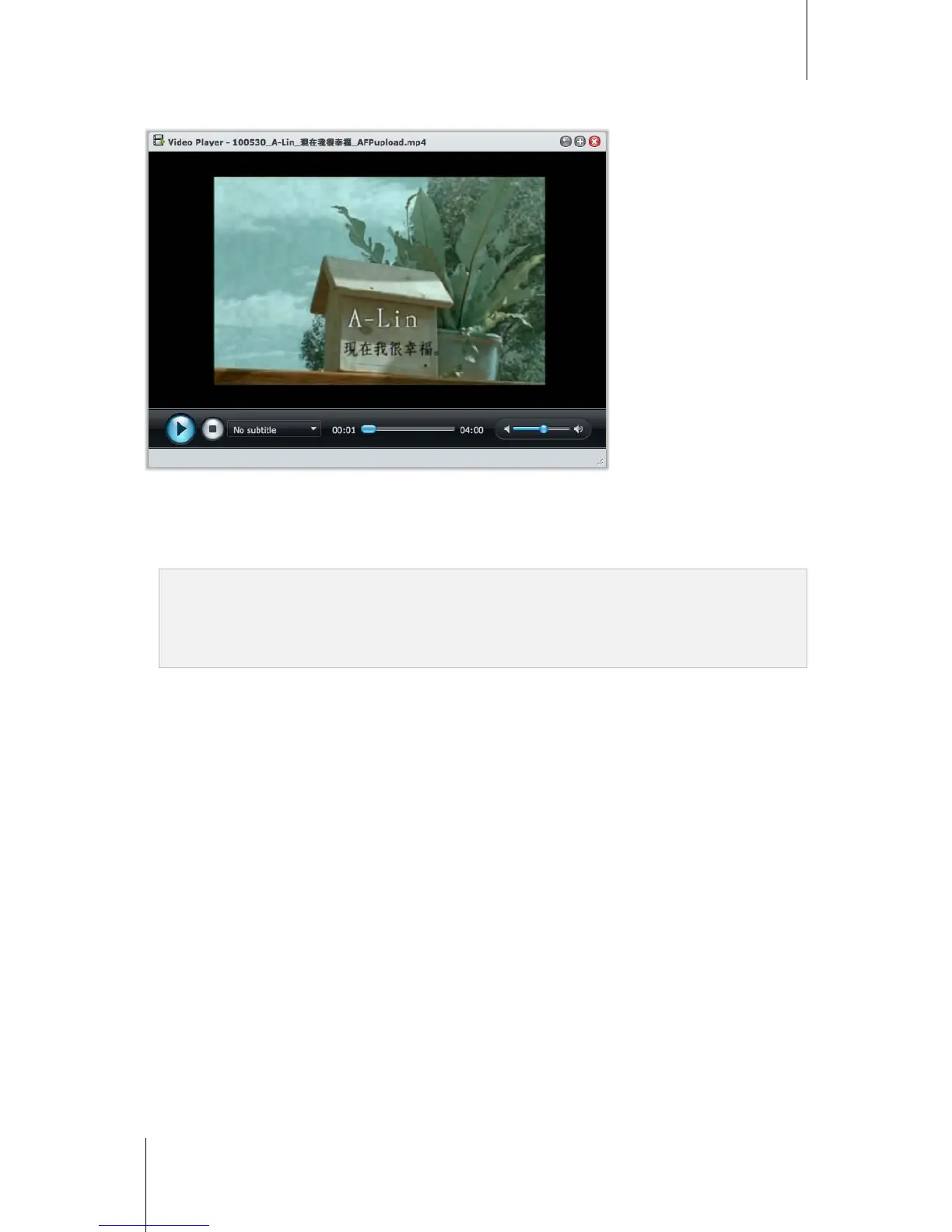
2 Right-click the video and choose Play to open the Video Player window.
3 The video should start playing right away. If not, please make sure you have installed VLC Player (Windows,
Linux) or VLC web browser plug-in (Mac) on your local computer.
Note:
VLC Player or web browser plug-in is not supported by Chrome for Windows and Safari for Mac.
Video Player supports the following formats: avi, dat, mkv, vob, asf, wmv, mov, qt, divx, flv, swf, rm, rmvb, mpg,
mpeg, mpeg1, m1v, mpeg2, m2v, mp2, dvr-ms, m2ts, mts, m2t, ts, tp, trp, mpeg4, m4v, mp4, 3g2, 3gp, 3gp2,
ogv, webm
4 At the bottom of Video Player, do any of the following to control video playback:
Click Play/Pause to play or pause the video.
If you have a subtitle file with the same name and in the same folder as the video, you should be able to see
the subtitle during video playback. If you want to use another subtitle file, choose it from the drop-down
menu.
Use the Progress bar to skip to any point you want.
Use the Volume bar to adjust the volume.
Click Stop to stop playback.




 To Next Page