Synology DiskStation User's Guide
Based on DSM 3.1
49 Chapter 4: Manage Storage Space
Change RAID Type
If you have created a Basic, RAID 1 or RAID 5 volume or Disk Group, you could add a new drive to the
Synology DiskStation, and then use Storage Manager to change the RAID type.
Available RAID type change includes:
Basic to RAID 1, RAID 5 or RAID 5+Spare
RAID 1 to RAID 5 or RAID 5+Spare
Add mirror disk to RAID 1
RAID 5 to RAID 5+Spare or RAID 6
RAID 5+Spare to RAID 6
To change the RAID type:
1 Click the Volume or Disk Group tab.
2 Select the volume or Disk Group you want to change.
3 Click Manage.
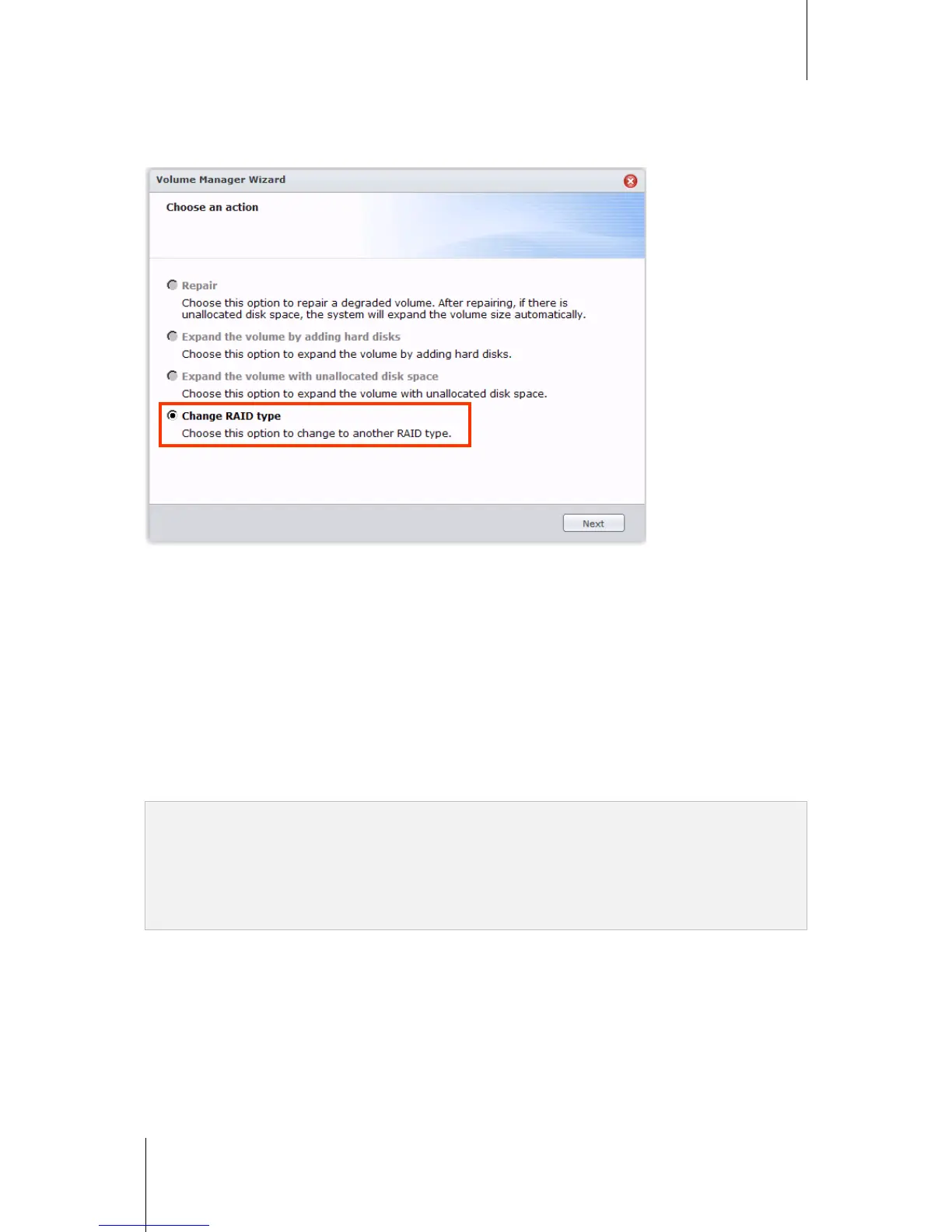
4 Choose Change RAID type and follow the wizard to complete the setup.
Note:
The status of the volume or Disk Group must be normal.
The status of the added drive must be Initialized or Not Initialized.
If you want to change the RAID type, enough number of hard drives for the new type is required. See
"Synology DiskStation Supported RAID Types" on Page 43 for the required amount of disks for the RAID type.
The size of the replacement hard drive must be larger than the smallest disk size of the volume or Disk Group.
Expand a Volume or Disk Group
You can expand the storage capacity of a volume or Disk Group.
Expand a Volume by Changing Volume Size
If your volume is created by allocating partial space on a Disk Group, you can do the following to expand the
volume.
To expand a volume by changing volume size:
1 Under the Volume tab, click the volume you want to expand.




 To Next Page