20
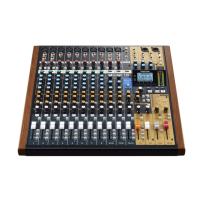
TASCAM Model 24
3 – Preparation
Connecting microphones
Dynamic mics
Connect to MIC input jacks.
Condenser mics
When using a condenser microphone that requires phantom power,
connect it to a MIC input jack and then turn the PHANTOM +48V
switch on.(see “Setting phantom power” on page 26)
The PHANTOM +48V indicator lights when the PHANTOM +48V
switch is on.
Guitar
When connecting a guitar or bass guitar directly to this unit, use the MIC
jacks on channels 1-2 and turn the INST switch on for that jack.
Connecting electronic devices and other audio
equipment
Use the following inputs to connect electronic devices and other audio
equipment.
o
LINE/INST (BAL) input jacks
o
LINE (BAL) input jacks
o
L/MONO (BAL)/R (BAL) input jacks
o
−10dBu input jacks
o
STEREO input jack
Connecting monitor speakers
Connect monitor speakers (powered speakers or an amplifier and
speaker system) to the CONTROL ROOM L/R jacks.
Depending on the PFL switch and AFL switch settings, signals from the
MAIN MIX L/R bus and PFL/AFL L/R bus can be monitored
Use the CONTROL ROOM knob to adjust the speaker volume.
Connecting headphones
Connect headphones to the PHONES jack (standard stereo).
Depending on the PFL switch and AFL switch settings, signals from the
MAIN MIX L/R bus and PFL/AFL L/R bus can be monitored
CAUTION
Before connecting headphones, minimize the volume with the
PHONES knob. Failure to do so could result in a sudden loud noise
that could harm hearing, for example.
Computer connections
Use a commercially-available Type-A-Type-B USB cable to connect the
unit to a computer USB 2.0 port.
When the USB connection is working, the USB indicator in the screen
operation section lights.
ATTENTION
The unit should be connected directly with the computer instead of
via a USB hub.
Connecting with Bluetooth devices
This unit can output sound from a computer, portable audio device or
other equipment that supports Bluetooth (A2DP).
Pairing
Follow the procedures below to enable communication with a Bluetooth
device.
NOTE
Pairing also requires operation of the Bluetooth device.
Refer to the operation manual of the Bluetooth device for procedures.
1.
Press the ON/MUTE switch to unmute.
2.
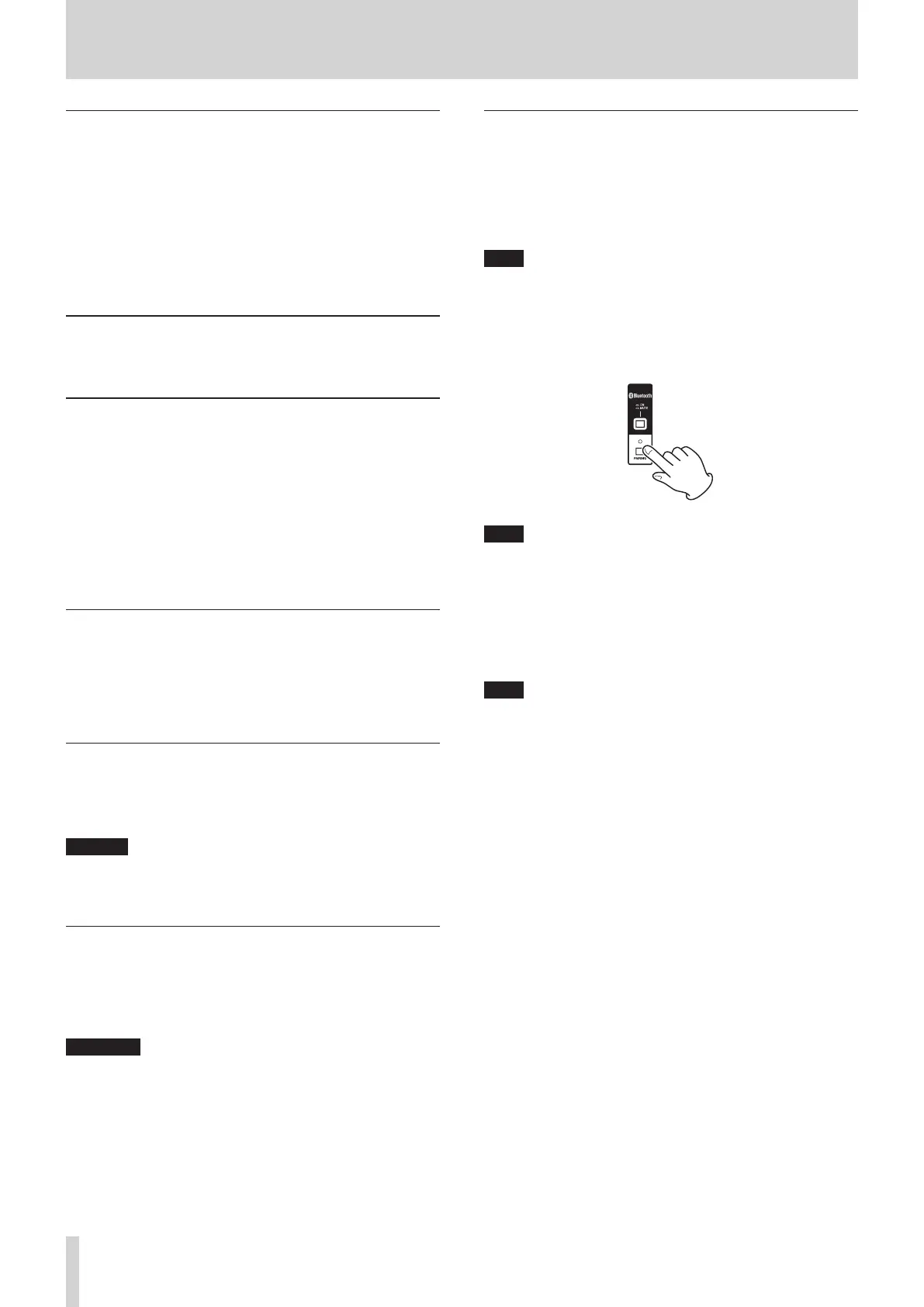
Confirm that the PAIRING indicator on the unit is blinking. If the
PAIRING indicator is unlit, press the PAIRING button.
NOTE
When the unit is turned on, it automatically becomes ready for pair-
ing. If 2 minutes pass in pairing mode, it will end. Press this button to
reactivate pairing mode when it is disabled.
3.
Select "Model 24" (this unit) on the other Bluetooth device.
When pairing succeeds, the PAIRING indicator will stop blink-
ing and remain lit, and connection with the other device will be
complete.
NOTE
i
Some older Bluetooth devices require the input of a passkey. Enter
"0000" in such cases.
i
Pairing will automatically end if connection is not confirmed within
two minutes.
i
When this unit is turned on, it will automatically try to connect with
the Bluetooth device to which it was previously connected. At this
time, pairing will automatically end after five minutes if connection
is not possible because that Bluetooth device is not turned on or its
Bluetooth function is turned off.
Unpairing
The Bluetooth device that is currently connected can be unpaired from
the unit.
1.
Press and hold the PAIRING button for at least two seconds.
2.
This ends the pairing. The PAIRING indicator will start blinking and
the unit will be ready to pair.



 To Next Page