22
TASCAM Model 24
3 – Preparation
Turning the power off
Follow the procedures above in reverse when turning the power off.
Failure to follow the correct order could result in clicking noises, for
example, that might damage equipment.
ATTENTION
i
Do not disconnect the power cord when the unit is operating (includ-
ing recording, playing back, or writing data to an SD card). Doing so
could cause proper recording to fail, recorded data to be lost, and
sudden loud noises from monitoring equipment, which might dam-
age the equipment, harm hearing or cause other trouble.
i
When the unit is started up for the first time (or when the built-in
clock is reset after being left unused without power for a long time),
the DATE/TIME Screen appears before the Startup Screen to allow the
date and time of the built-in clock to be set.(see “Setting the built-in
clock date and time” on page 22)
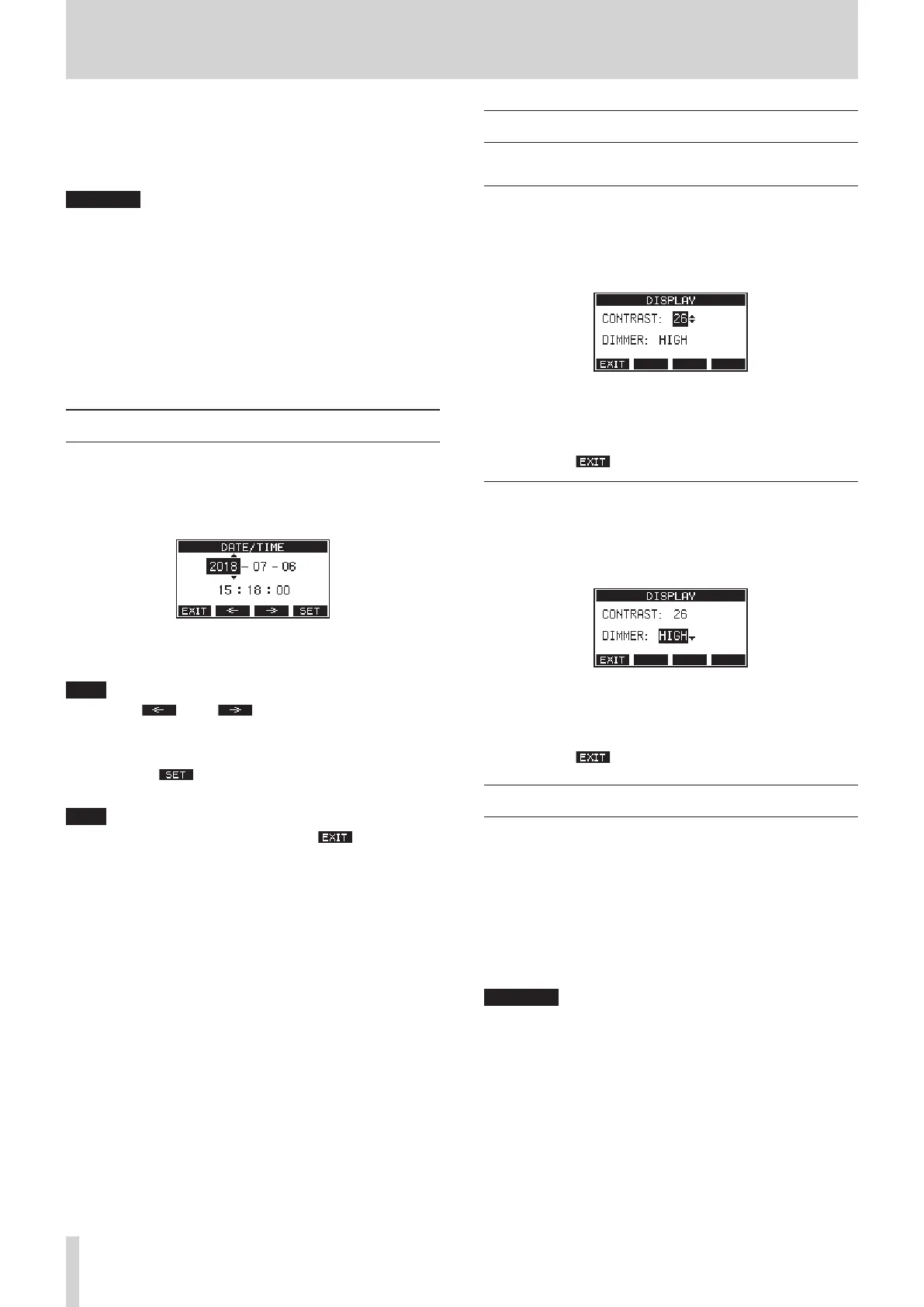
Setting the built-in clock date and time
Using its internal clock, this unit includes the date and time when a file is
recorded.
1.
On the SYSTEM Screen, select DATE/TIME to open the DATE/TIME
Screen.(see “Menu operation procedures” on page 18)
2.
Turn the MULTI JOG dial to change a value, and press the MULTI
JOG dial to confirm it and move the cursor to the next item.
NOTE
Use the F2
and F3 buttons to move the cursor.
3.
Change the year, month, day, hour and minute in order, and com-
plete the date and time setting.
4.
Press the F4 button to confirm the setting and return to the
SYSTEM Screen.
NOTE
i
When making a setting, you can press the F1
button to cancel
the changes and return to the SYSTEM Screen.
i
When setting the time, the time display will be stopped.
i
By setting the TYPE item to DATE on the SONG NAME Screen, the date
and time set here can be used for song names.(see “Setting the song
name format” on page 34)
Adjusting the display
The display contrast and brightness can be adjusted.
Adjusting the display contrast
1.
On the SYSTEM Screen, select DISPLAY to open the DISPLAY Screen.
(see “Menu operation procedures” on page 18)
2.
Select CONTRAST, and press the MULTI JOG dial.
3.
Adjust the display contrast.
Options: 10–40 (default: 26)
4.
Press the MULTI JOG dial to confirm the setting.
5.
Press the F1 button to return to the MENU Screen.
Adjusting the display brightness
1.
On the SYSTEM Screen, select DISPLAY to open the DISPLAY Screen.
(see “Menu operation procedures” on page 18)
2.
Select CONTRAST, and press the MULTI JOG dial.
3.
Adjust the display brightness.
Options: HIGH (default), LOW
4.
Press the MULTI JOG dial to confirm the setting.
5.
Press the F1 button to return to the MENU Screen.
Preparing an SD card for use
In order to use an SD card in this unit, this unit must be used to create a
system file on it first.
1.
"No sys file Make sys file Are you sure? appears in a pop
up when a new card or a card formatted by another device is
inserted into the unit.
2.
Press the MULTI JOG dial to create a system file.
When system file creation is complete, the Home Screen will
reopen.
ATTENTION
In order to record, this unit must be used to format it first.(see “For-
matting SD cards” on page 35)



 To Next Page