EasyManua.ls Logo

TC Electronic Finalizer - User Manual

TC Electronic Finalizer
46 pages
Print Icon
To Next Page IconTo Next Page
Loading...
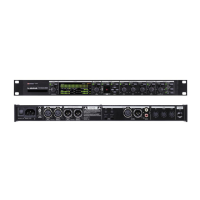
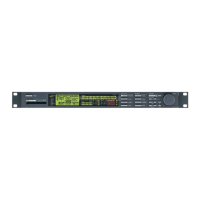
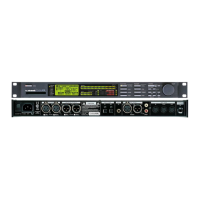
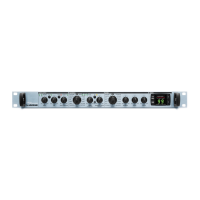
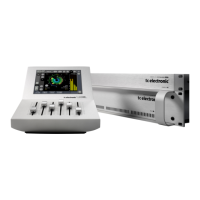
Finalizer
STUDIO MASTERING PROCESSOR
USER’S MANUAL

Other manuals for TC Electronic Finalizer

Questions and Answers

  • W
    walteradamsJul 26, 2025
    How to fix distortion on TC Electronic Finalizer Computer Hardware?
    • E
      elizabeth27Jul 26, 2025
      If you're experiencing distortion with your TC Electronic Computer Hardware, and the SAMPLE RATE is set to DI while using the analog input, change the SAMPLE RATE to 44.1 or 48. Alternatively, connect an external clock to the digital input. If the SAMPLE RATE is set to 44.1KHz while the digital input signal is 48KHz (or vice versa), this can also cause distortion. In that case, also set the SAMPLE RATE to 44.1 or 48 or connect an external clock to digital input.
  • E
    Eric AllenJul 30, 2025
    What to do if the picture on my TC Electronic Computer Hardware display is frozen?
    • C
      Chad LopezJul 30, 2025
      If the picture on the display of your TC Electronic Computer Hardware is frozen, try turning the power off and on. Automatic re-initialization of the display is implemented in software version 1.08 or higher.
  • Z
    znelsonAug 3, 2025
    Why are there lines or spots on my TC Electronic Finalizer display and the backlight is blinking?
    • V
      Valerie MahoneyAug 3, 2025
      If you see lines or spots on the display of your TC Electronic Computer Hardware and the backlight is blinking, make sure there is no external equipment influencing the display, such as magnetic or hot fields. If the picture is still distorted, replace the display. If the backlight is bad or blinking, check the soldering on the display itself, especially the two connections going to the upper part of the display.
  • C
    Chelsea ShawAug 8, 2025
    What does 'Preset Error' mean on TC Electronic Computer Hardware?
    • W
      wellsjenniferAug 8, 2025
      If you see a 'Preset Error' message on your TC Electronic Computer Hardware, it normally appears at the first power up after the RAM memory was corrupted. All Presets are set to factory default!
  • D
    David VillanuevaAug 12, 2025
    How to turn off TC Electronic Finalizer Computer Hardware with the power switch?
    • J
      John VaughnAug 12, 2025
      To turn off the TC Electronic Computer Hardware using the power switch on the front, the switch must be pressed for at least 1 second. This delay prevents unintended power offs.
  • A
    Amanda BrownAug 16, 2025
    How to fix a blank display on TC Electronic Finalizer?
    • J
      Jordan MooreAug 16, 2025
      If the display of your TC Electronic Computer Hardware is blank and you cannot run the application software, enter the SOFTWARE BOOT menu by keeping the HELP button pressed at power on. Dial the option to INFO and press OK to check the application software. If it is corrupted, load the application software again.
  • S
    shawtravisAug 21, 2025
    What to do if TC Electronic Finalizer displays the message 'RAM corrupted'?
    • D
      David DavisAug 21, 2025
      Check the BATTERY of your TC Electronic Computer Hardware with the Built-in Test program.

Summary

WELCOME

About this Manual

Provides an overview of the manual's structure and how to use it.

FRONT PANEL

Electronic Power Switch

Details the function and operation of the main power switch on the front panel.

PC Card Slot

Explains the functionality and use of the PC card slot for preset storage.

REAR PANEL

Rear Panel Connectors

Identifies and describes all input and output connectors on the rear panel.

SIGNAL FLOW

FINALIZER SETUP

RECALL

Factory;User Presets

Explains how to access and select stored presets from factory and user banks.

STORE

Storing Presets

Guides on saving new presets to RAM and using a memory card, including deletion.

MAIN PAGE Input

Input Settings

Covers input level ranges, sample rate selection, and low-cut filter.

MAIN PAGE EQ

EQ Parameters

Details EQ ranges, frequency, gain, and bandwidth/slope settings.

MAIN PAGE Inserts

Insert Effects Overview

Describes Digital Radiance Generator, Stereo Adjust, and De-Esser insert options.

MAIN PAGE Normalizer

Normalizer and Clipper

Explains optimizing signal level and the clipping function within the Normalizer.

MAIN PAGE Expander

Expander Modes

Covers User, Expert, and Cross-over pages for setting expander parameters.

MAIN PAGE Compressor

Compressor Modes

Details User, Expert, and Cross-over pages for compressor settings.

MAIN PAGE Limiter

Limiter Modes

Covers User, Expert, and Cross-over pages for limiter adjustments.

MAIN PAGE Output

Output Configuration

Details fade settings, primary output selection, dithering, and auto-fade functions.

TOOLS Phase Meter

Phase Meter Function

Describes the phase meter for analyzing stereo channel phase relationships.

TOOLS Calibration Tone

Calibration Tone Function

Explains how to generate a 1000 Hz test tone for calibration purposes.

TOOLS Flow Meter

Flow Meter Function

Details the flow meter for displaying internal signal levels across different sections.

TOOLS Peak-Hold Meter

Peak-Hold Meter Function

Describes the peak-hold meter for displaying maximum output levels with infinite hold.

TOOLS Digital I;O (DIO)

Digital I;O Status and Copyright

Covers received and output status bits, including copy protection settings.

WIZARD

Wizard Operation

Explains how the Wizard simplifies setup by automatically configuring key parameters.

COMPARE

Compare Functionality

Describes how to compare the processed sound with the original or bypassed signal.

UTILITY

Display Settings

Covers adjustments for the LCD display, such as viewing angle.

MIDI Settings

Configures MIDI input and output parameters, including channel and program changes.

Security and Memory Management

Details security lock, PIN code, memory protect, and backup options.

Pedal Input Function

Sets the function for the pedal input, such as external fader or bypass.

RESET PAGE

Reset Options

Explains how to load defaults, store user settings, reset parameters, and clear presets.

TECHNICAL SPECIFICATIONS

TROUBLESHOOTING

MIDI IMPLEMENTATION CHART

SELF TEST

Key and Adjust Wheel Tests

Verifies the functionality of front panel keys and the adjust wheel.

LED and Display Tests

Tests the functionality of front panel LEDs and the LCD display.

I;O Tests

Tests analog, digital, and MIDI input/output connections and communication.

Pedal and PC Card Tests

Checks the pedal input and PC card compatibility.

System and Battery Tests

Performs system checks and verifies battery status.

APPENDIX Tutorial

Tutorial Overview

Introduces the tutorial's purpose and how to use the Finalizer for mix enhancement.

Tutorial: Input and EQ

Guides on input settings and modifying spectral shape using the EQ.

Tutorial: Inserts and Normalizer

Details insert effects and optimizing overall level with the Normalizer.

Tutorial: Expander and Compressor

Explains using the Expander for noise reduction and Compressor for mix punch.

MASTER FADER

Connecting and Calibrating the Master Fader

Outlines the steps to connect and calibrate the Master Fader for remote control.

Activating the Master Fader

Explains how to enable the Master Fader's control of the Finalizer's digital fader.

Cables and Lengths

Provides information on suitable cables and maximum cable lengths for the Master Fader.

TC Electronic Finalizer Specifications

General IconGeneral
Bit Depth24-bit
TypeMastering Processor
InputsAnalog XLR, Digital AES/EBU, S/PDIF
OutputsAnalog XLR, Digital AES/EBU, S/PDIF
ProcessingEQ, Compression, Limiting, Stereo Enhance
Sample Rate32 kHz, 44.1 kHz, 48 kHz

Related product manuals