46
3. Operation & Setting
45
* TUXTEXT POSITION: Press the [MENU] button to go to the Main Menu.
Go to - (6)
Setup (3)System Settings (5)OSD Settings
press the [YELLOW] button (TuxText position)
.
To ensure that all transmitted information, clock, etc is displayed, you can adjust
the viewing border of your TV. Press the [HELP] button for further information.
Press the [RED] button to move the top left point of the rectangle and use
the [UP/DOWN/LEFT/RIGHT] Navigation buttons to adjust it.
Press the [
GREEN] button to move the bottom right point of the rectangle
and use the [UP/DOWN/LEFT/RIGHT] Navigation buttons to adjust it. Press
the [OK] button to exit. Press the [
GREEN] or [OK] button to save.
TuxtText is a Plugin (additional software) that allows the receiver to decode
digital Teletext.
Note
··
If you can not see the rectangle, then they are out of range. Please
adjust the rectangle into the middle of the screen.
··
TuxText = Teletext.
Note
··
Teletext is only available if the broadcaster transmits it.
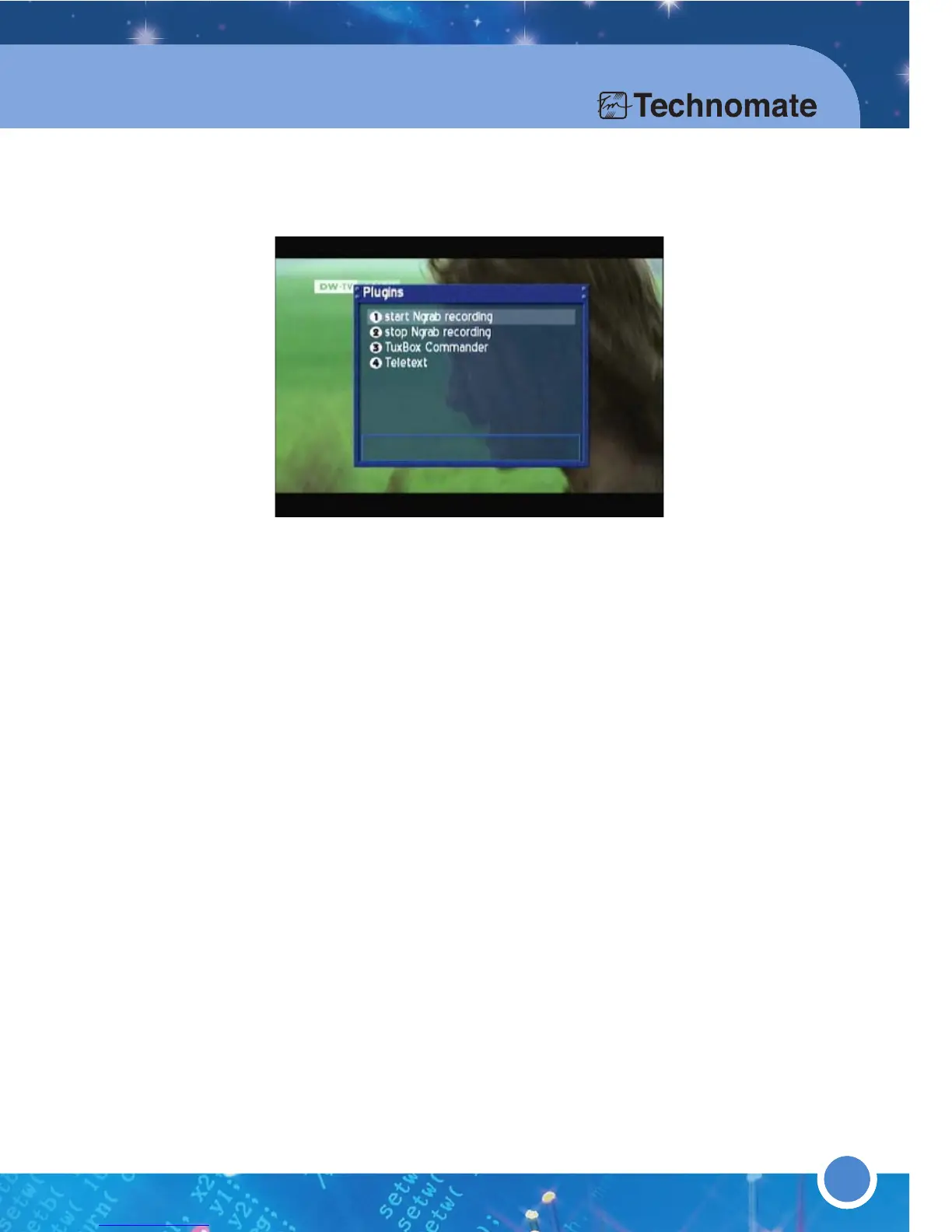
Press the [OK] button to open the Info-Bar to make sure that the PVR-Mode
is not activated. Press the [BLUE] button to open the Plugins menu.
Use the [UP/DOWN] Navigation buttons to go to Teletext and press the
[OK] button. Use the Navigation-Buttons to select a text page and press the
[OK] button to open the page. You do not need to type in a Text page
number in this mode.
Press the [EXIT] button to exit.
* TUXTEXT VIEWING OPTIONS
Press the [MUTE] button more than once to change between: Alpha mode,
Full mode and Invisible mode.
Alpha mode: Teletext is slightly transparent.
Full mode: Teletext is in original colors.
Invisible mode: Teletext is invisible.



 To Next Page