52
3. Operation & Setting
51
* NGRAB STREAMING SETUP
Press the [MENU] button to go to the Main Menu. Go to - (6)Setup
(6)Expert Setup (2)Ngrab Streaming Setup.
The Ngrab Server is used to record a movie over the Network to another
PC. First install the Ngrab Server Software on a PC and configure it.
Srv IP: Enter the IP-Address of the PC on which the Ngrab Server Software
runs.
Srv MAC: The Ngrab Server Software must be started and configured
before detecting the MAC-Address of the PC. Press the [BLUE] button to
detect the MAC-Address.
Srv Port: Enter the Server Port-Address which is configured in the Ngrab
Server Software. The MAC-Address is used for the WOL (Wake On LAN)
function, which must be supported by the PC’s NIC (Network Interface
Card). You can configure a PC to use full APM (Advanced Power
Management). The PC awakes upon access through the NIC and the Ngrab
recording starts.
* SOFTWARE UPDATE
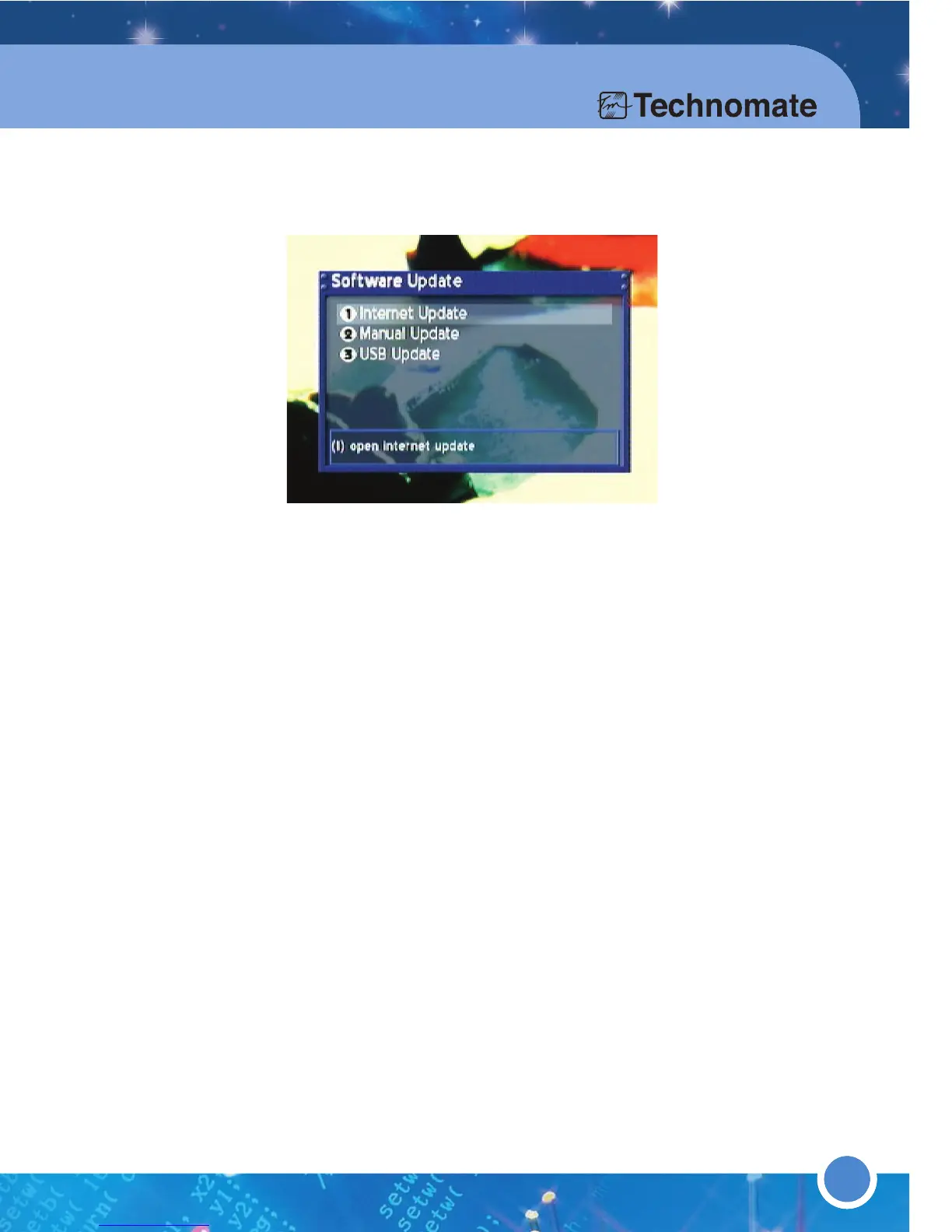
SOFTWARE UPDATE VIA INTERNET
Press the [MENU] button to go to the Main Menu. Go to - (6)Setup
(6)Expert Setup (3)Software Update (1)Internet Update
Internet Software Update only works if you have configured the Network.
This window shows the currently installed Software. The latest software
version/release is always on the top of the list. Select the Software you want
by pressing the [OK] button and following the on-screen instructions.
SOFTWARE UPDATE VIA FTP OR SAMBA
Press the [MENU] button to go to the Main Menu. Go to - (6)Setup
(6)Expert Setup (3)Software Update (2)Manual Update
If the TM-500/600 is not connected to the internet but is configured for
Network LAN, yoo can manually update by FTP or Samba. Select the
Software you want by pressing the [OK] button and following the on-screen
instructions.
SOFTWARE UPDATE VIA SERIAL (RS-232C) CABLE
1.Download Technomate Control Center Loader Program from
www.technomate.com
2.Turn the TM-500/600
’
s AC Power Off
3.Hold the OK button on the front panel, and whilst still holding the
OK Button, turn the AC Power On. A black screen (uboot) will appear.



 To Next Page