57
3. Operation & Setting
Repeated Timer: Go to Repeated Timer and press the [OK] button (A
check/tick will appear in the checkbox). Select the day(s) and the Starttime
and Endtime.
Go to the record DVR dropdown list and press [OK] to change the
recording method.
Switch - the Timer switches to this event.
Record DVR - the Timer records this event.
Ngrab - the Timer records to an Ngrab PC.
Press the [GREEN] button to apply these settings. The Event will be marked
as a Timer event in the Service List. Press the [EXIT] button to exit the
Service List. To check a set Timer event, enter this menu to see Timer List.
58
RECORDING A SERVICE
Select a channel/service that you want to record from the Service List. This
could be either a TV or Radio channel/service. Press the [PVR] button to
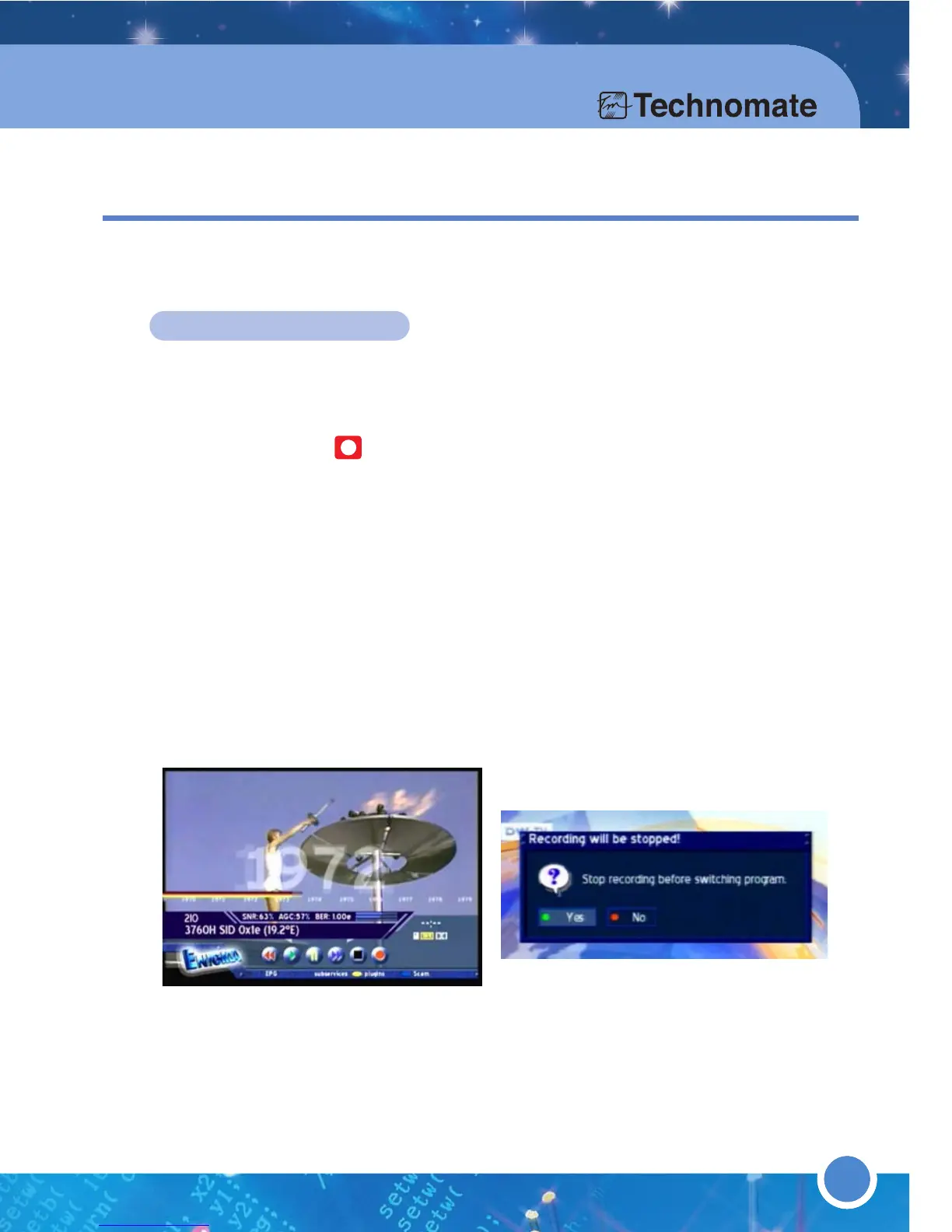
activate the PVR mode. The Info-Bar shows the PVR control symbols.
Press the [Record ] button to start a spontaneous recording.
During the recording, a red dot will flash/blink in the Info-Bar and the REC
sign will appear on the front panel, indicating that a recording is in progress.
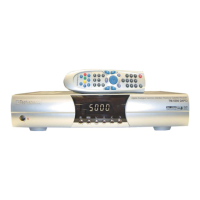
If another channel is selected during a recording, a confirmation window will
appear.
Select [No] to stop a recording and change channel ; or No to continue the
recording.
Press the [STOP] button to stop recording.
Refer to “3.3 Menus - (8)Timer” for Timer recording.
In future software versions, you can record, play, pause, etc without
pressing the [PVR] button.
3.4 PVR(HARD DISK INSTALLED)



 To Next Page