AS 680/682
Description, Operation and Maintenance Supervisor Operation
ADS−B
5−35Ed. 10.07
5.4.13.6 Download
NOTE: The ’Browse’ button within this ’Download’ section of the ’Software’ page can be used
to select a file within an appearing file selection dialog. The selected file is then entered
automatically into the corresponding edit field. The other possibility is to enter the file
name manually.
5.4.13.6.1 Download NVRAM Configuration
Downloading the NVRAM Configuration is done by entering a valid filename (via ’Browse’ button or
manually, see NOTE above) and pressing the ’Download’ button.
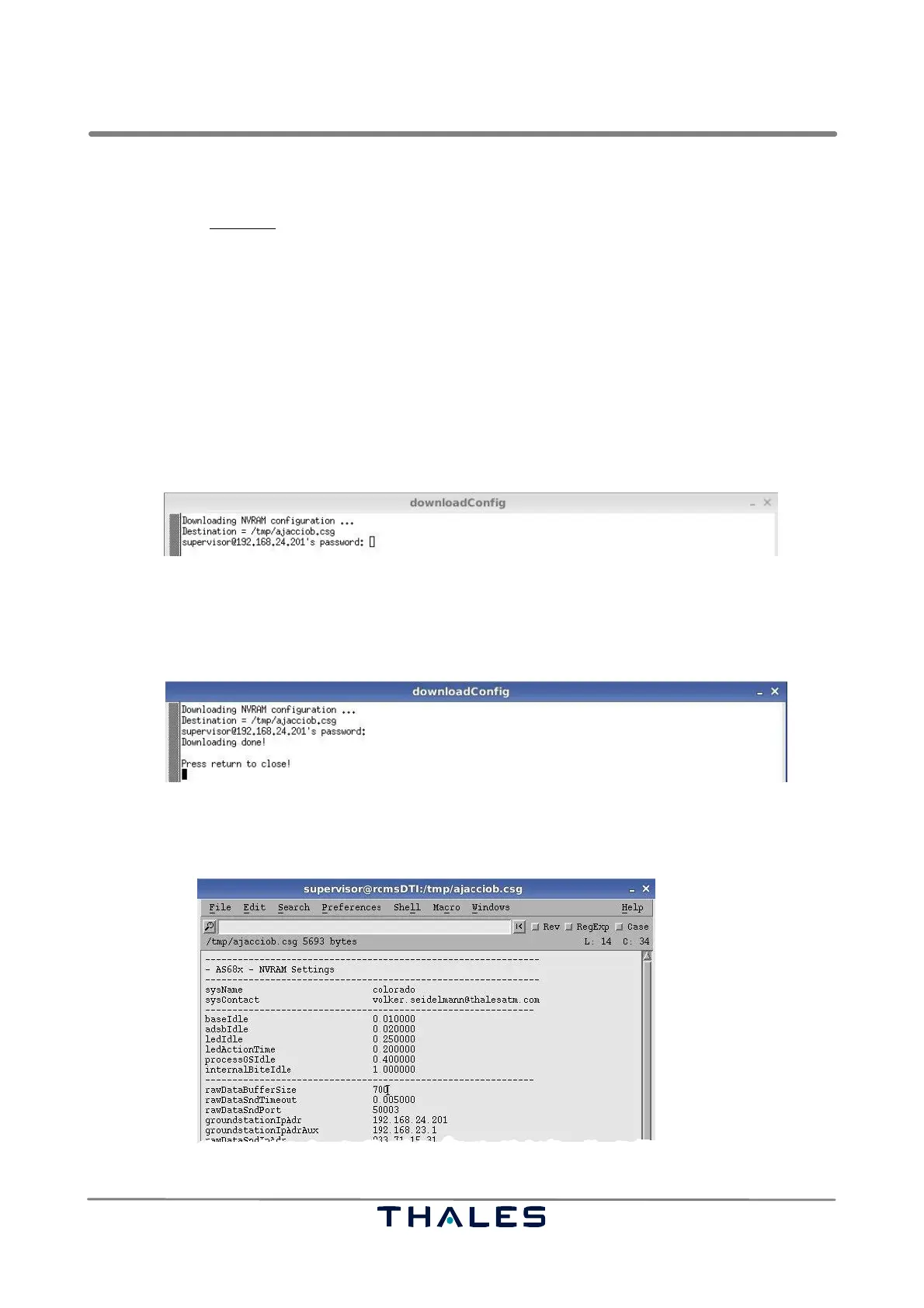
First, the user has to confirm the intention to download the NVRAM Configuration within a confirma-
tion window by clicking on the ’OK’ button. Then a terminal pops up (’downloadConfig’), where the
destination file is shown (in our example: /tmp/ajacciob.csg). The password of the supervisor is re-
quested (see Fig. 5−26).
Fig. 5−26 Download NVRAM, start of download (example)
After entering the correct password, the uploading process will continue with any further user interca-
tion. If the uploading of the kernel is successfully done the instruction string "Press return to close!"
appears in the window (see Fig. 5−27). So press the <RET> key to close the terminal window.
Fig. 5−27 Download NVRAM, download successfully done (example)
The contents of the table stored in the destination file can be edited (see Fig. 5−28). Call an editor
within a ’Terminal’ window and enter the command: nedit <destination file>.
Fig. 5−28 Extract of an NVRAM configuration file contents (example)



 To Next Page