6-3
User Manual PN 84469 Rev B
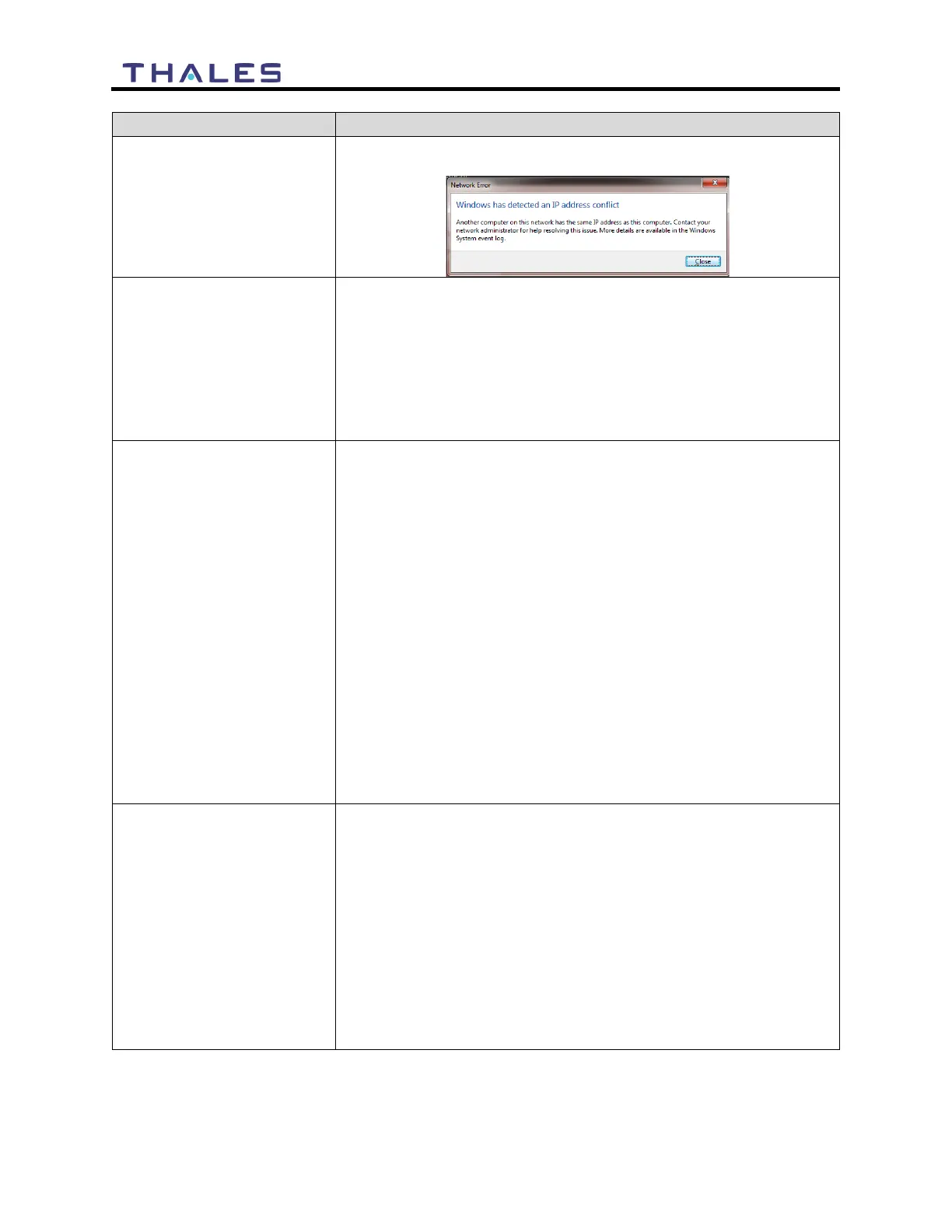
Network Error
If you receive a message similar to this, another user is attempting to
use the same IP Address as your computer.
No or Weak Wi-Fi Signal
• Connect Wi-Fi antenna and ensure it is secured tightly
• If walls or metal obstructions are between the TU and the Wi-Fi
device, move closer to the TU or move the TU to a better location
with less obstructions
• Check to make sure Wi-Fi device is connected to the TU’s Wi-Fi
and verify that you are connected to the ThalesLINK.
• Check the Management Portal to make sure the Wi-Fi device is
ThalesLINK is not obtaining
a satellite signal (Satellite
LED is red)
• Check signal bars at the top of the Management Portal. If no bars
are highlighted, the satellite is not being detected. Wait a few
minutes to see if the signal strength improves as another satellite
comes into view.
• Check antenna connection at the TU and antenna. Make sure no
corrosion has occurred on the cable connections to the antenna and
that the connectors are screwed in tightly.
• Check antenna for a clear view of the sky with no obstructions.
Relocate antenna if needed.
• Check for interferers in the area that could be affecting the signal
such as active radars, VSAT systems and other radio antennas.
Turn those off and retest.
• Move vehicle to a new location and retest if other interfering
vehicles are in the area
• Reboot TU and check the Alerts.
• Call Service Provider if the satellite connection is still not
working.
Terminal Unit does not
Power-ON
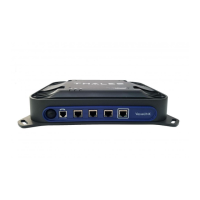
• Check TU for Green lights, If green light is on Unit has Power
• Push power button on front of TU.
• Check that the power source is providing 10-32V and is not
current limited.
• Check connection of the 10-32V DC cable has correct polarity.
• Check to ensure Ignition line is connected to switched line or
connected to Red (Positive line) for continuous operation.
• Check that ignition or remote switch is turned on if ignition line is
connected.
• If using AC/DC converter (optional), make sure the AC outlet has
power and that the plug is securely in the AC outlet and the other
end is securely connected to the TU.


 To Next Page