Powersystemcheckout
Toverifyifabatterypackoranacpoweradapterisfunctional,dothefollowing:
1.Turnoffthecomputer.
2.Removethebatterypack.
3.Connecttheacpoweradapter.
4.Checkthatpowerissuppliedwhenyouturnonthecomputer.
5.Turnoffthecomputer.
6.Disconnecttheacpoweradapterandinstallthechargedbatterypack.
7.Checkthatthebatterypacksuppliespowerwhenyouturnonthecomputer.
Ifyoususpectapowerproblem,seetheappropriateoneofthefollowingpowersupplycheckouts:
•“Checkingtheacpoweradapter”onpage33
•“Checkingoperationalcharging”onpage33
•“Checkingthebatterypack”onpage34
•“Checkingthecoin-cellbattery”onpage34
Checkingtheacpoweradapter
Ifyourcomputerfailsonlywhentheacpoweradapterisused,usethefollowinginstructions.
•Ifthepowerproblemoccursonlywhenthedockisused,replacethedock.
•Ifthesystem-statusindicatordoesnotblinkthreetimeswhenanacpowersourceisconnected,check
thepowercordoftheacpoweradapterforcorrectcontinuityandinstallation.
•Ifthecomputerdoesnotchargeduringoperation,goto“Checkingoperationalcharging”onpage33.
Tochecktheacpoweradapter,dothefollowing:
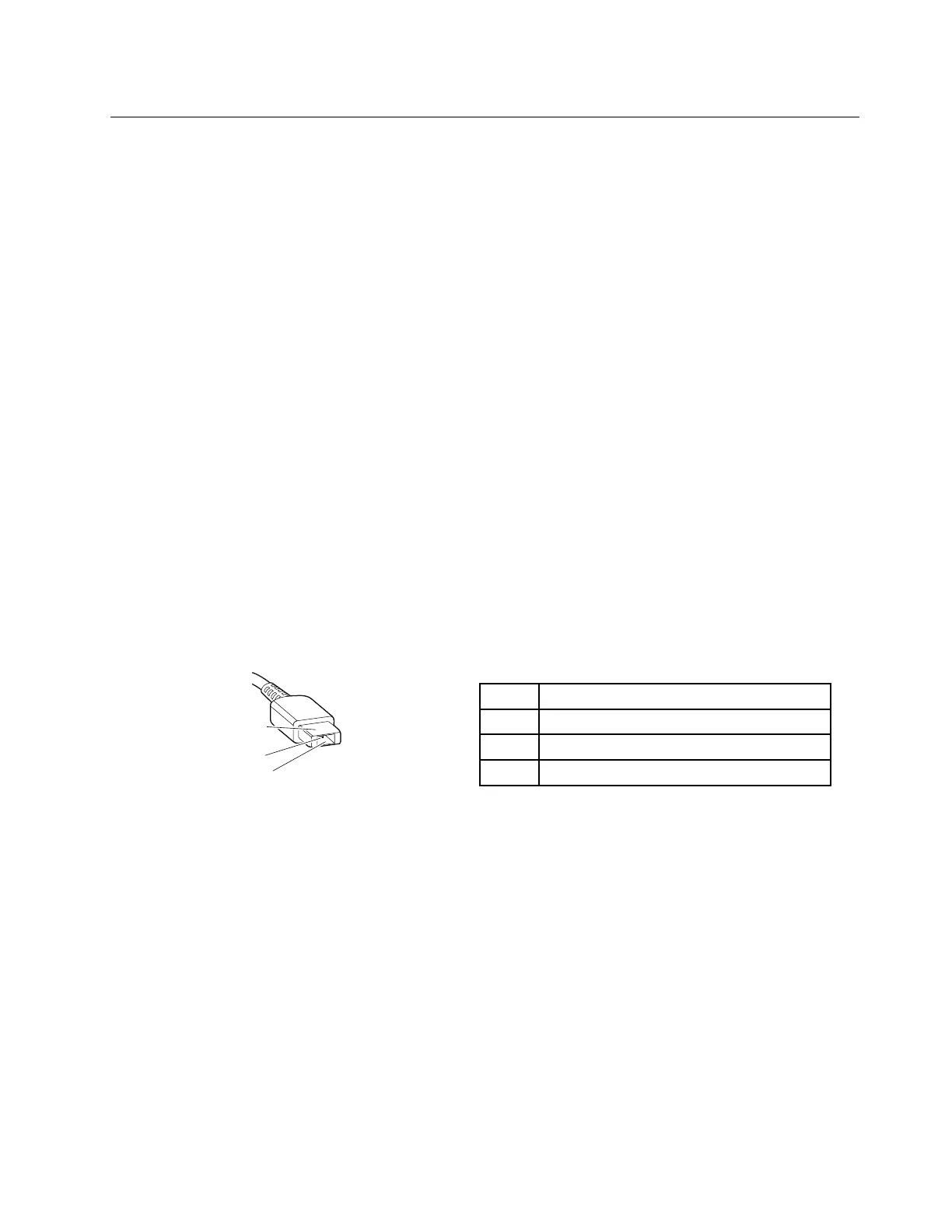
1.Unplugtheacpoweradaptercablefromthecomputer.
2.Measuretheoutputvoltageattheplugoftheacpoweradaptercable.
Pin
Voltage(Vdc)
1+20
20
3
Ground
Note:Outputvoltageacrosspin2oftheacpoweradaptermightdifferfromtheoneyouareservicing.
3.Ifthevoltageisnotcorrect,replacetheacpoweradapter.
4.Ifthevoltageisacceptable,replacethesystemboard.
Note:Noisefromtheacpoweradapterdoesnotalwaysindicateadefect.
Checkingoperationalcharging
Tocheckwhetherthebatterypackchargescorrectlyduringoperation,dothefollowing:
1.Dischargethebatterypackuntiltheremainingbatterypowerislessthan50%.
2.Connectthecomputertoacpowertochargethebatterypack.IfthebatterystatusiconintheWindows
notificationareaindicatesthatthebatteriesarenotcharging,removethebatterypackandletthem
returntoroomtemperature.
3.Reinstallthebatterypack.Ifthebatteriesarestillnotcharging,replacethebatterypack.
Chapter3.Generalcheckout33



 To Next Page