Basic Operation
24
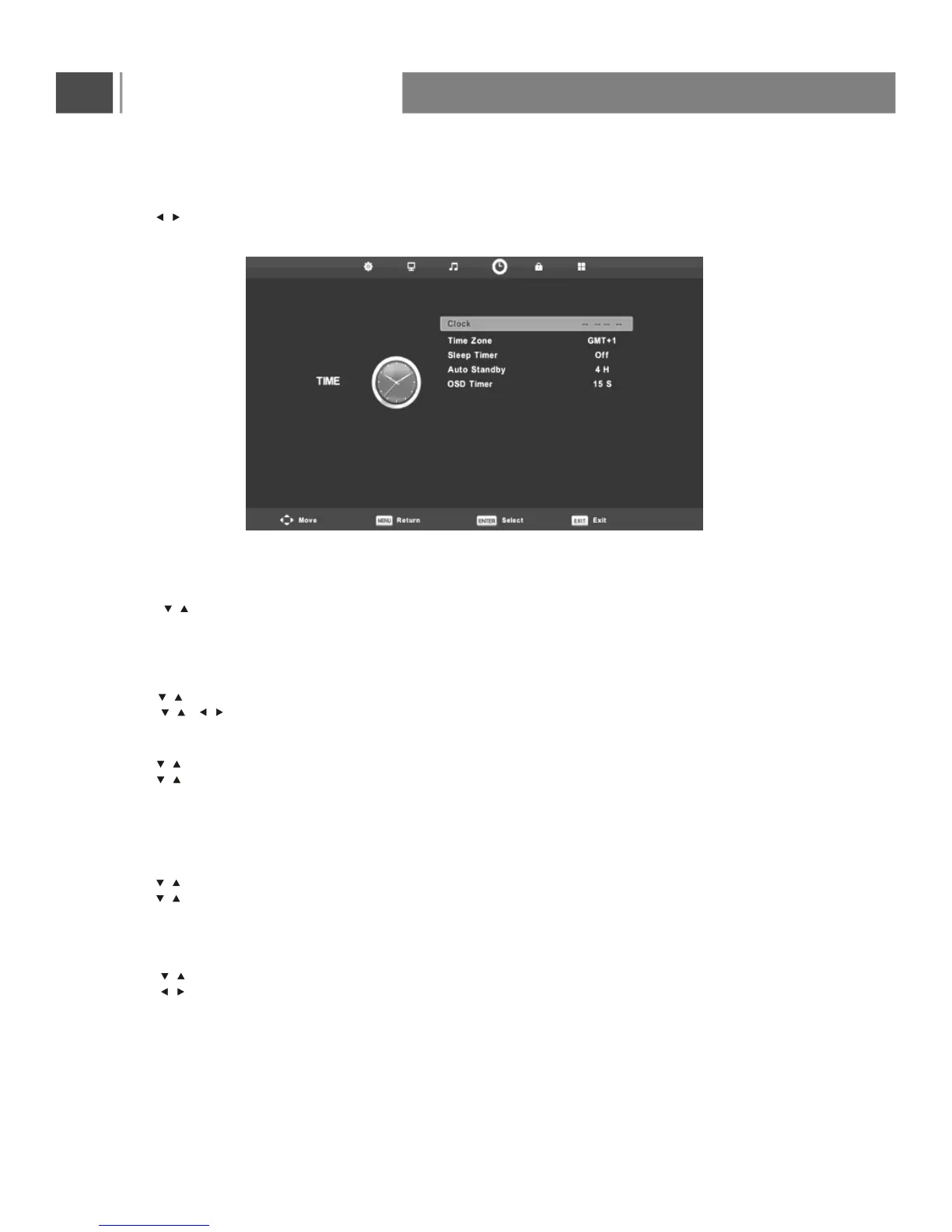
Time Menu
Press MENU button to display the main menu.on the remote control
Press button on the remote control to select TIME in the main menu.
1. Press button on the remote control to select the option that you want to adjust in the TIME menu.
2. Press Enter button on the remote control to adjust.
3. After finishing your adjustment, Press MENU button to save and return back to the previous menu.
OSD Timer
Press button to select OSD Timer, then press Enter button to enter sub-menu.
Press button to select.
(Available options are:Off,5S, 10S, 15S, 20S, 25S, 30S).
NOTE:
The Clock will change with the area which you have selected in the Time Zone.
Time Zone
Press button to select Time Zone, then press Enter button to enter sub-menu.
Press button to select time zone.
Sleep Timer
Press button to select Sleep Timer, then press Enter button to enter sub-menu.
Press button to select.
(Available options are: Off, 10min, 20min, 30min, 60min, 90min, 120min, 180min, 240min).
Tips: The remote control does not make any operation in the hypothesis time, it will close down automatically.
If you do any operation, it will reset the time.
Auto Standby
Press button to select Auto Standby, then press Enter button to enter sub-menu.
Press button to select.
(Available options are: Off,3H, 4H, 5H).
/
/
/
/
//
/
/
/
/
/
/



 To Next Page