19
Chapter 5
QoS
I want to:
Specify priority levels for some devices or applications.
For example, I have several devices that are connected to my wireless network. I would
like to set an intermediate speed on the internet for my phone.
How can I do that?
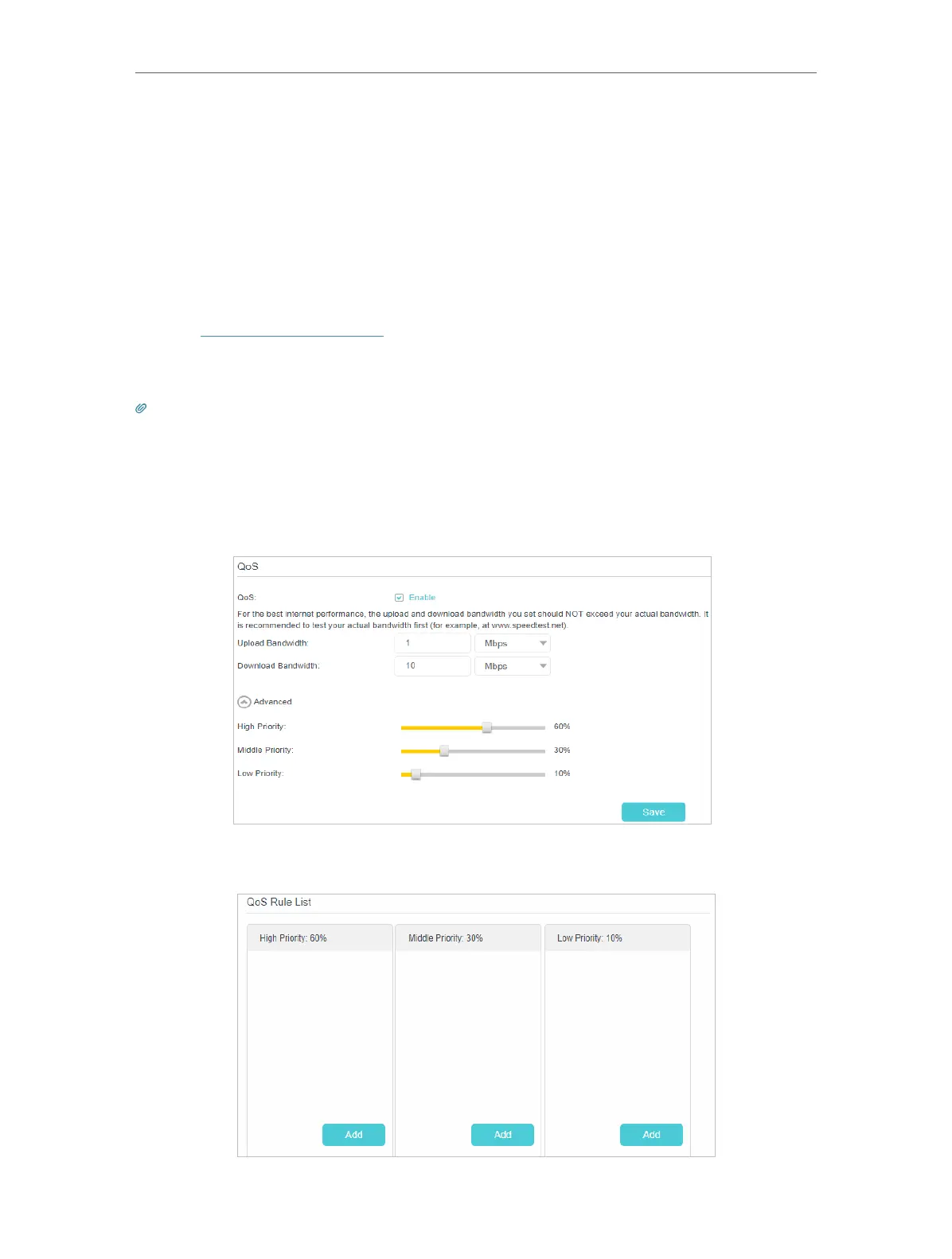
1. Enable QoS and set bandwidth allocation.
1 ) Visit http://tplinkmodem.net, and log in with the password or your TP-Link ID.
2 ) Go to Advanced > QoS > Settings.
3 ) Select Enable QoS.
Note:
Qos and NAT Boost cannot be enabled at the same time.
4 ) Input the maximum upload and download bandwidth provided by your Internet
service provider. 1Mbps equal s to 1000 Kbps.
5 ) Click Advanced and drag the scroll bar to set the bandwidth priority percentage.
6 ) Click Save.
2. Add a middle priority QoS rule for the phone.
1 ) Click Add in the Middle Priority: 30% column.












 To Next Page